Appearance
Academic sessions
School AdminAn academic session is your academic year, for example 2026-27. Subjects, teaching assignments, student groups, student placements and the timetable all belong to a session. Exactly one session is current, and almost every screen in SolAssists works with the current one.
Before you start
- When SolAssists is set up for your institution, one session is normally created and marked current already. Check that its name and dates are right before you build anything on it.
- To add or change sessions you need the office-level timetable permission. The School Admin role has it by default.
Where to find it
Institution Setup → Academic Sessions. The page heading is Academic Setup, with the Sessions tab selected.
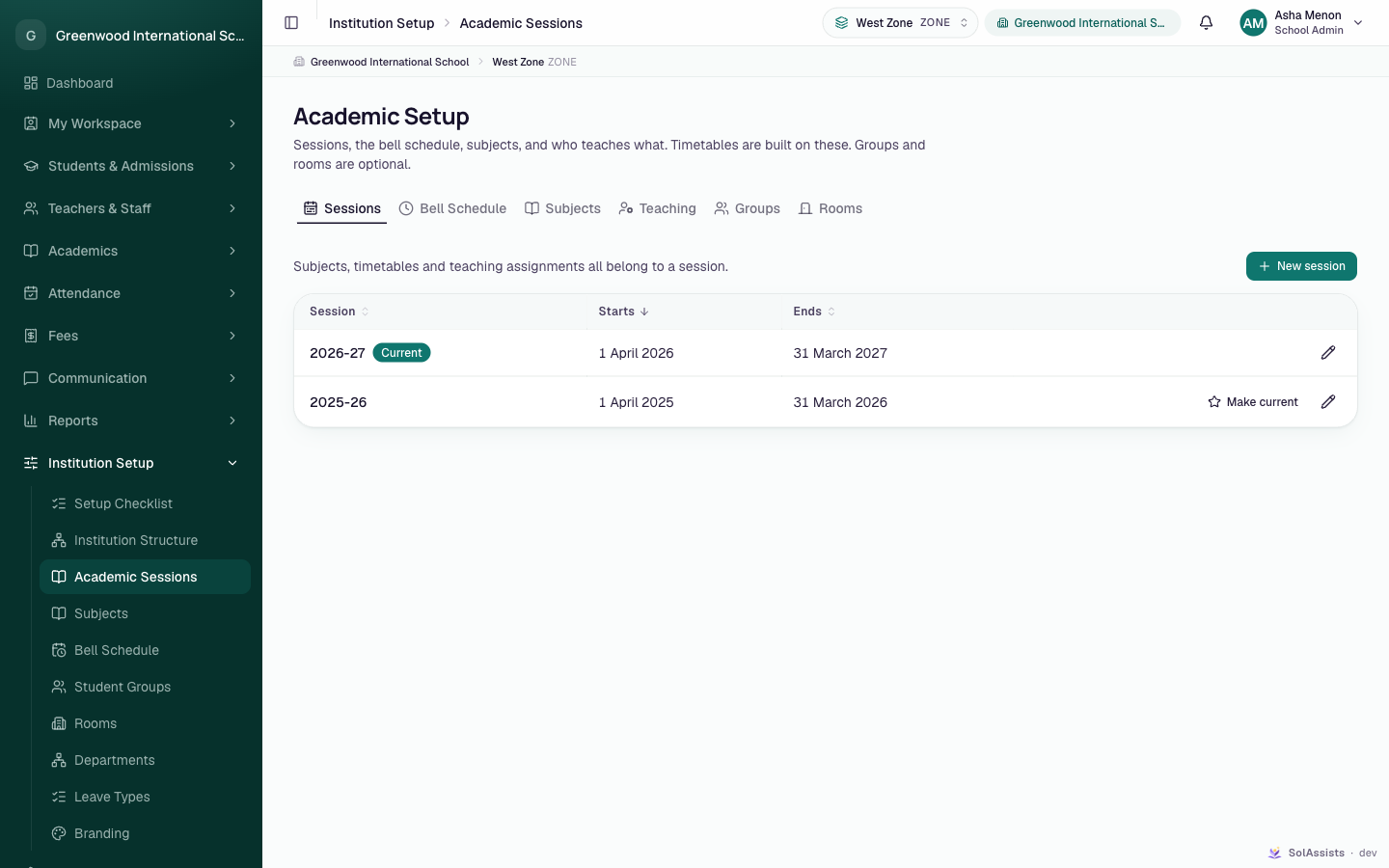
The table lists each Session with its Starts and Ends dates, newest first. The current one has a Current badge.
Step by step: add a session
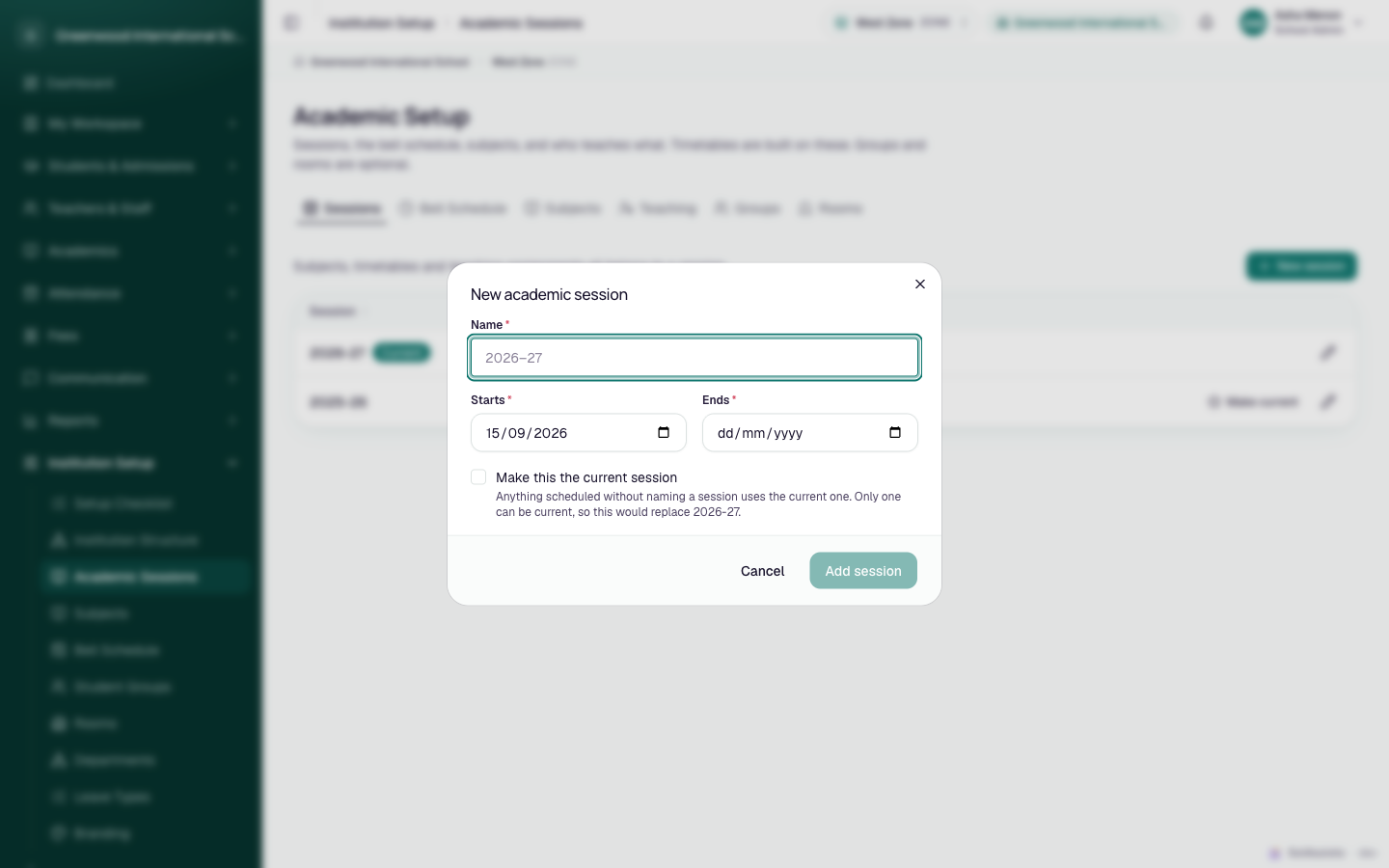
- Click New session. The dialog New academic session opens.
- Type the Name, for example
2027-28. - Pick the Starts and Ends dates.
- Decide on Make this the current session:
- If no session is current yet, the box is ticked for you. Leave it ticked.
- If you are preparing next year in advance, leave it unticked. You switch over later with Make current.
- Click Add session. You see "2027-28 added."
Fields
| Field | Required | What to enter |
|---|---|---|
| Name | Yes | Up to 40 characters, for example 2026-27. Each name can be used only once. |
| Starts | Yes | First day of the session. Defaults to today. |
| Ends | Yes | Last day of the session. It must be after Starts. |
| Make this the current session | No | Tick to make this the session everyone works in. Only one session can be current. |
If you tick Make this the current session while another session is current, a warning explains that the old session "stops being current the moment this is saved". Its timetable, subjects and teaching assignments disappear from every screen until you switch back.
SolAssists doesn't check whether two sessions' dates overlap. Make sure they don't.
Step by step: make a session current
- On the session's row, click Make current.
- Read the confirmation Switch the institution to 2027-28? It explains that the old session's timetable, subjects and teaching assignments "leave every screen — they aren't deleted, and switching back puts them straight back."
- Click Make current. You see "2027-28 is now the current session."
Rules:
- Only one session can be current. Making one current automatically removes the badge from the other.
- You can't leave the institution with no current session. When you edit the current session, the checkbox is replaced by: "This is the current session. To move that elsewhere, use Make current on another one."
- To edit a session's name or dates, click the pencil icon on its row, change the fields, then click Save session.
- Sessions can't be deleted.
What depends on the current session
| Needs a current session | Carries over between sessions |
|---|---|
| Subjects and teaching assignments | Institution structure (levels and units) |
| The class timetable, My Schedule and My Timetable | Bell schedule |
| Student groups | Rooms |
| Placing, transferring and withdrawing students | Leave types |
| New admission applications | People and their accounts |
| Fee setup and invoices, examinations, reports, study material | |
| Which classes a teacher can see |
If no session is current:
- Most of those screens show "This institution has no current academic session yet."
- The timetable and My Schedule show No academic session yet with a Go to Academic Setup button.
- Teachers see no classes and no students at all. A teacher's access follows their teaching assignments in the current session.
Starting a new academic year
When you create a new session and make it current, it starts empty. These things are not copied from the previous session: subjects, teaching assignments, student groups, student placements, timetable and fee setup. You need to set them up again.
Recommended order:
- Add the new session without ticking Make this the current session.
- While the old session is still current, promote students into the new session. The Promote dialog offers later sessions. See Placement and promotion.
- On the day the new year starts, click Make current on the new session.
- Add subjects, teaching assignments, groups and the timetable for the new session.
Partially implemented
The Class Timetable page has a Session picker, so you can open next year's grid before switching. But the Subjects and Teaching tabs only work on the current session. Next year's grid has no teaching assignments to schedule until that session is current, so in practice most of the work happens after step 3.
The full checklist is in Academic year setup.
Setup Checklist
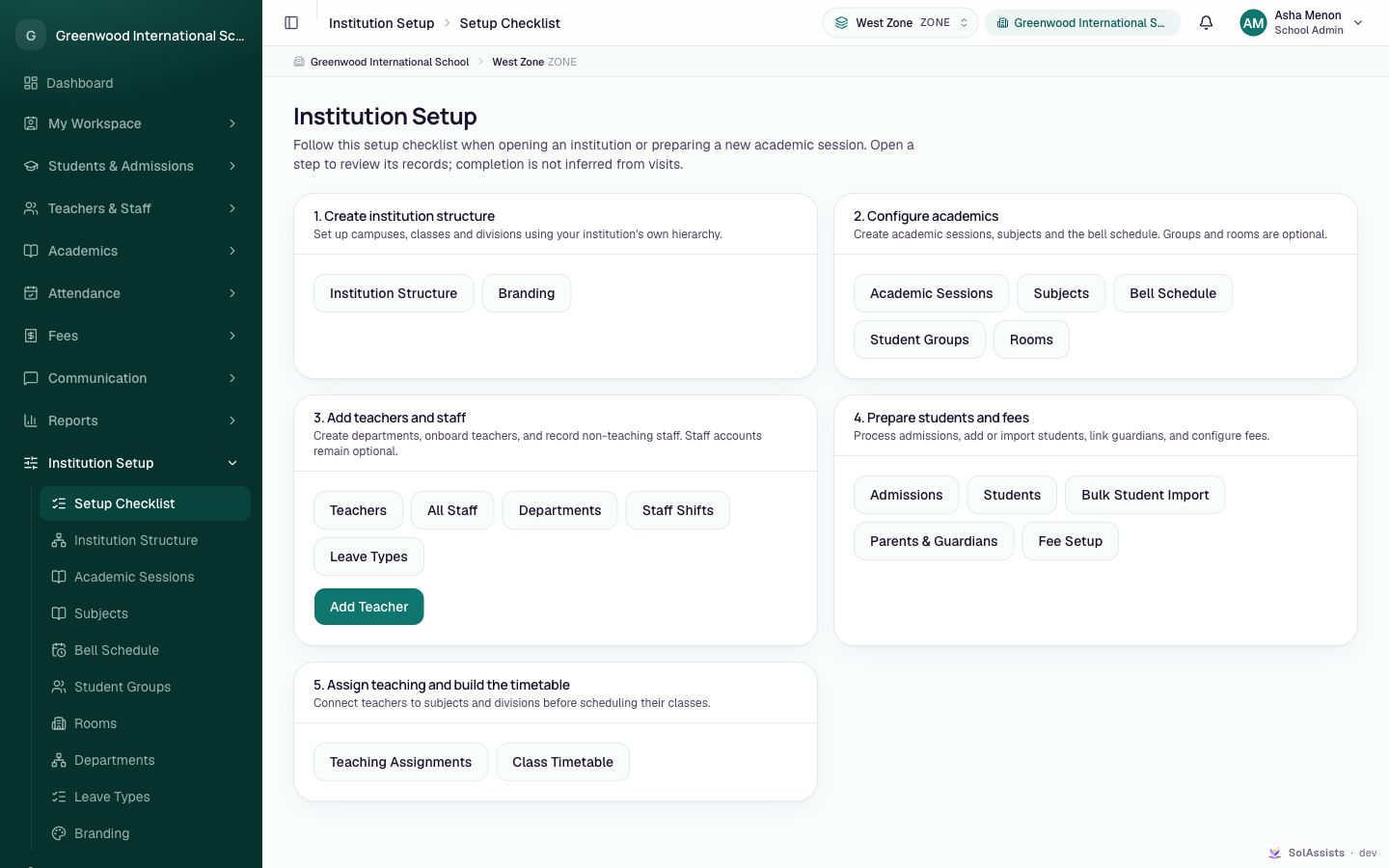
Institution Setup → Setup Checklist (page heading Institution Setup) collects the setup screens into five steps:
- Create institution structure: Institution Structure, Branding
- Configure academics: Academic Sessions, Subjects, Bell Schedule, Student Groups, Rooms
- Add teachers and staff: Teachers, All Staff, Departments, Staff Shifts, Leave Types, plus an Add Teacher button
- Prepare students and fees: Admissions, Students, Bulk Student Import, Parents & Guardians, Fee Setup
- Assign teaching and build the timetable: Teaching Assignments, Class Timetable
What it does and doesn't do:
- Each button opens that screen. You only see buttons for screens your role can open, and a step with no buttons for you is hidden.
- It doesn't track progress. There are no ticks or counts. Nothing on it tells you whether a session is current, whether periods exist, or whether teachers are assigned. The page itself says "completion is not inferred from visits". Use Academic year setup to check each step yourself.
Who can do this
- School Admin: can add, edit and switch sessions.
- Teachers, students and parents: may see the session list, but New session is greyed out. Hovering over it shows "You need permission to manage academic sessions."
Common problems
| Symptom | Why | Fix |
|---|---|---|
| "This institution has no current academic session yet." | No session is marked current. | Click Make current on the right session. |
| Teachers log in and see no classes | No current session, or no teaching assignments in the current session. | Make the session current, then add teaching assignments. |
| Subjects, timetable and assignments suddenly vanished | Someone made a different session current. | Click Make current on the previous session to bring them back. Nothing was deleted. |
| "An academic year must end after it starts" | Ends is on or before Starts. | Fix the dates. |
| "A record with this value already exists" | Another session has the same name. | Use a different name. |
| Promote dialog says "There is no later academic year to promote into" | The next session hasn't been created. | Add it here (without making it current). |