Appearance
Users and access
School AdminUser Accounts & Access is where you decide who can sign in to your institution, with which role, over which part of it. Use it for office staff and anyone who is not added through a more specific screen.
| To give access to… | Use |
|---|---|
| A teacher | Add a teacher — it also assigns their classes |
| A parent or guardian | Parent onboarding — it links the account to the guardian record |
| Office staff, coordinators, accountants | This page |
| A student | Not available yet — see Student portal |
Before you start
- The role you want to give exists and has permissions — see Roles and permissions.
- The unit you want to give access over exists — see Institution structure.
Where to find it
Access & Security → User Accounts & Access. Heading: User Accounts & Access — "Who has access to this institution, in what role, and over which part of it."
Each row is one access, not one person: someone with two roles appears twice.
| Column | Shows |
|---|---|
| Person | Name (or email) with email underneath |
| Role | The role |
| Scope | "unit and everything under it", or "Institution-wide" |
| Status | Active, Suspended or Revoked |
The search box ("Search by name, email or role…") only searches the page you are looking at; the counter says so ("X of Y on this page · Z in total").
If your own access is limited to a campus, you see only access given inside that campus.
Give someone access
Click Give access.
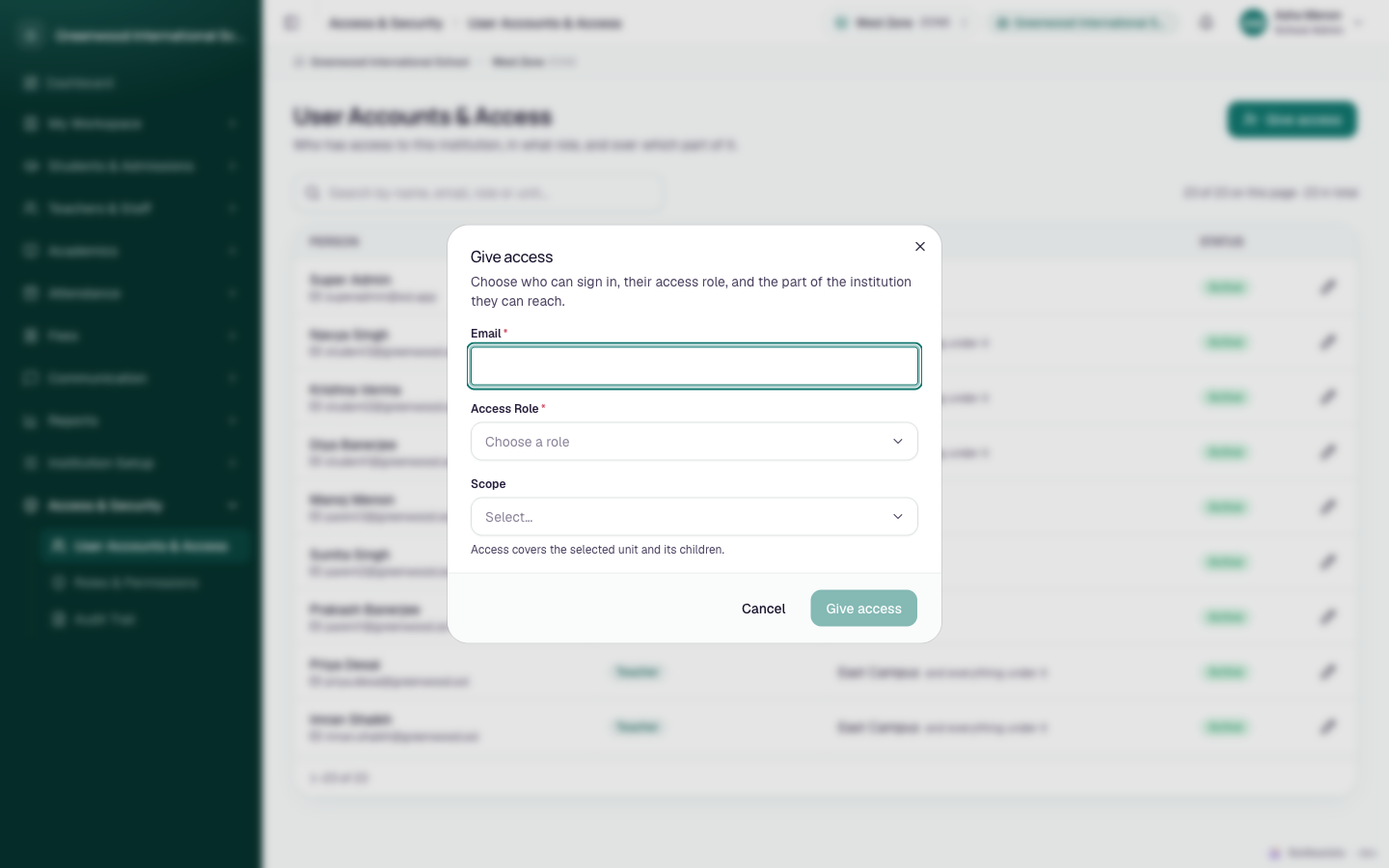
Fill in:
Field Required What to enter Email Yes The person's email. Access Role Yes Your institution's role. Avoid entries ending "· built-in" — they have no permissions. Scope No "Institution-wide", or a unit. "Access covers the selected unit and its children." Click Give access.
If the email is new to SolAssists, the Invitation issued dialog appears: "The account and access are saved. Copy the invitation before continuing; it is shown once." Copy the Invitation link and send it to the person, then click Continue. It is also emailed.
If the email already has a SolAssists account at another institution, your browser asks whether to give that same account access here. They keep their existing password and no invitation is sent. You are not told which other institution.
Only someone with institution-wide access can give Institution-wide access.
Change, suspend or revoke access
- Click the pencil on the row.
- In Edit access change Access Role, Scope or Status (Active, Suspended, Revoked).
- Click Save changes.
Suspended blocks that access until you set it back to Active. Revoked ends it. There is no delete.
Who can do this
Anyone whose role has the Access Management → Users permissions — by default only School Admin. You can never change your own access: "You can't change your own access. Ask another administrator."
What is not available yet
Partially implemented
- Resend an invitation — no button exists in the institution app. If a link is lost or has expired, see Login problems.
- Suspend a person everywhere at once — suspend each of their accesses separately.
- Search across all pages.
Common problems
| Symptom | Why | Fix |
|---|---|---|
| "Couldn't load roles or institution units. Close this dialog and try again." | Your role can't read roles or the structure | Use an account with School Admin |
| New person signs in to "Nothing available yet" | A built-in role was chosen, or the role has no permissions | Edit access and pick your institution's role |
| Person sees only part of what they should | Scope is a unit, not Institution-wide | Edit access → Scope |
| "That role can't be granted here." | A SOL platform role was chosen | Pick another role |