Appearance
Fees
School Admin Student ParentSet up what the institution charges and raise bills for each student. Record payments with receipt numbers and reverse mistakes. Concessions are requested by one person and approved by another.
Partially implemented
Fee setup, billing, collection, reversals and concessions work. Bills are raised one student at a time, a bill can't be cancelled, and late fees are never charged. There is no online payment or printable receipt.
Before you start
- SOL has switched on Fees for your institution. It is an add-on.
- An academic session is marked current. Structures and bills belong to it. See Academic sessions.
- Students are enrolled in a division for the current session. A bill uses the fee structure of the student's division. See Add a student.
- The order that works: charges (fee heads) → a fee structure with amounts → raise bills → collect.
Where to find it
| Sidebar | Page heading |
|---|---|
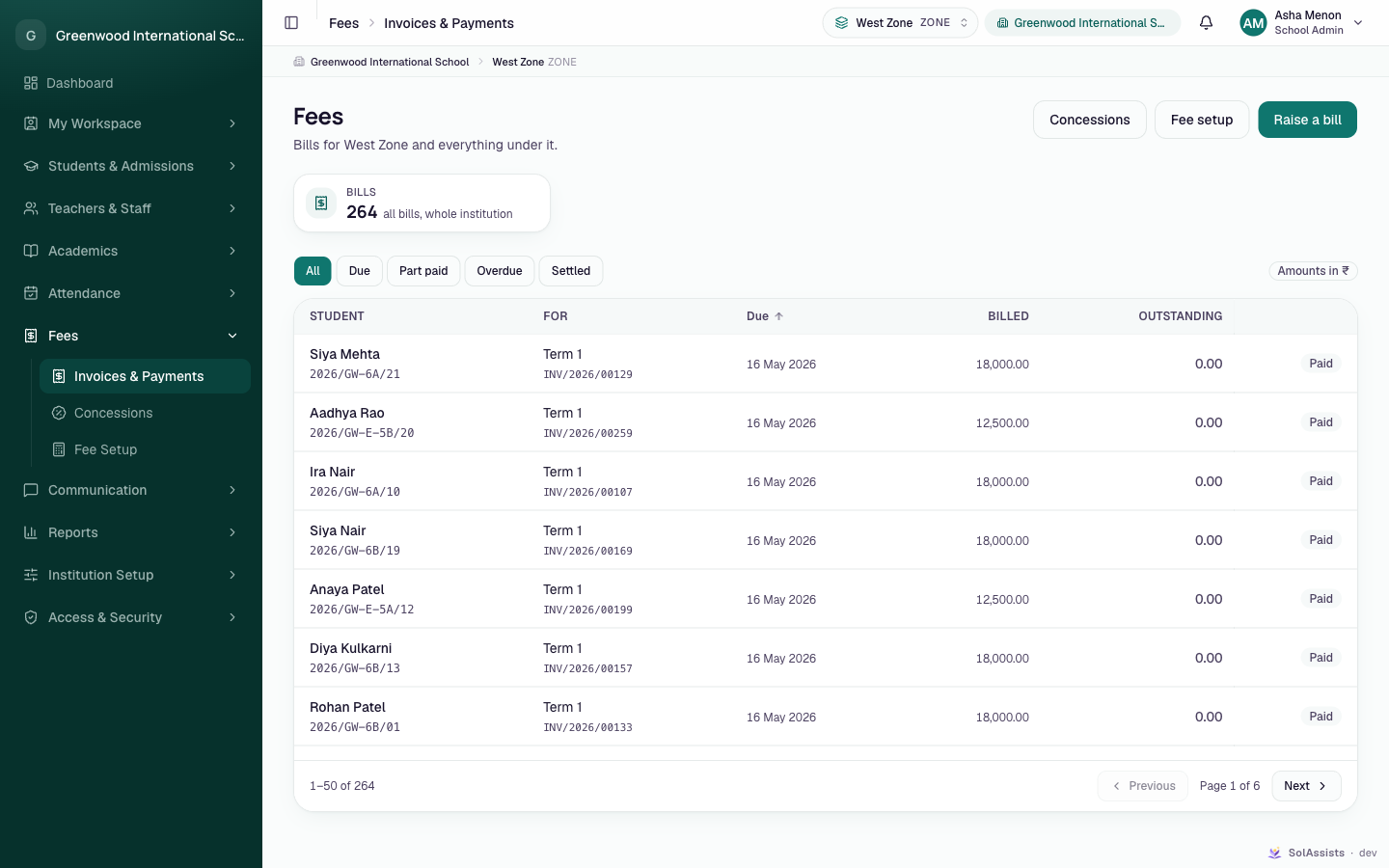
| Fees → Invoices & Payments | Fees |
| Fees → Concessions | Concessions |
| Fees → Fee Setup | Fee setup |
1. Fee setup
Add charges (fee heads)
- Choose Fees → Fee Setup and click Add a charge.
- Enter Name (e.g. "Tuition"). The Code fills in from the name.
- Leave Concessions may be applied to this charge on, unless the money belongs to someone else (for example an exam board's fee).
- Click Add.
Click a charge to edit it. Turn off In use to retire it: it stops appearing in new structures, and bills already raised are untouched. Show retired lists retired charges.
Add a fee structure
- Click Add a structure. The New fee structure dialog opens.
- Enter Name (e.g. "Grade 8 2026-27") and choose Applies to: Whole institution or a unit.
- Add a row for each charge: charge, amount (₹) and frequency (Per term, Once a year, Monthly, One-off). Use Add a charge for more rows.
- Click Create.
A structure always belongs to the current session. The most specific structure wins. For a student in Grade 8 / 8-A, a structure on 8-A is used before one on Grade 8, which is used before one on the Whole institution. Opening an existing structure lets you change its charges (Save charges). Its name and unit are fixed, and bills already raised don't change.
Fields
| Field | Required | What to enter |
|---|---|---|
| Charge: Name | Yes | Up to 80 characters |
| Charge: Code | Yes | Filled in from the name; letters, numbers, underscores; can't be changed later |
| Charge: Description | No | Up to 200 characters |
| Charge: Concessions may be applied | — | On by default |
| Structure: Name | Yes | Fixed after creation |
| Structure: Applies to | No | Whole institution or a unit; fixed after creation |
| Structure rows | At least one | Charge, amount in ₹, frequency; each charge once |
2. Raise a bill
- Choose Fees → Invoices & Payments and click Raise a bill.
- Student: search by name or admission number, e.g. "Rohan Mehta" or DPS-2026-001.
- Period: what the family sees on the bill, for example "Term 1", "April" or "Annual".
- Charges to bill: Term, Monthly, Annual or One-off. The bill picks up the structure rows with that frequency.
- Due on: optional.
- Click Raise the bill. The Bill raised dialog shows the invoice number (for example
INV/2026-27/00001) and total.
Due date when left blank
The hint says the institution's default terms apply. In practice a blank Due on is set to 30 days after the bill is raised.
Raising a bill for the same student, session and period again doesn't create a second bill. You get the existing one back.
| Field | Required | What to enter |
|---|---|---|
| Student | Yes | An enrolled student |
| Period | Yes | Default "Term 1" |
| Charges to bill | Yes | Term (default), Monthly, Annual, One-off |
| Due on | No | Blank = 30 days from today |
3. Collect a payment
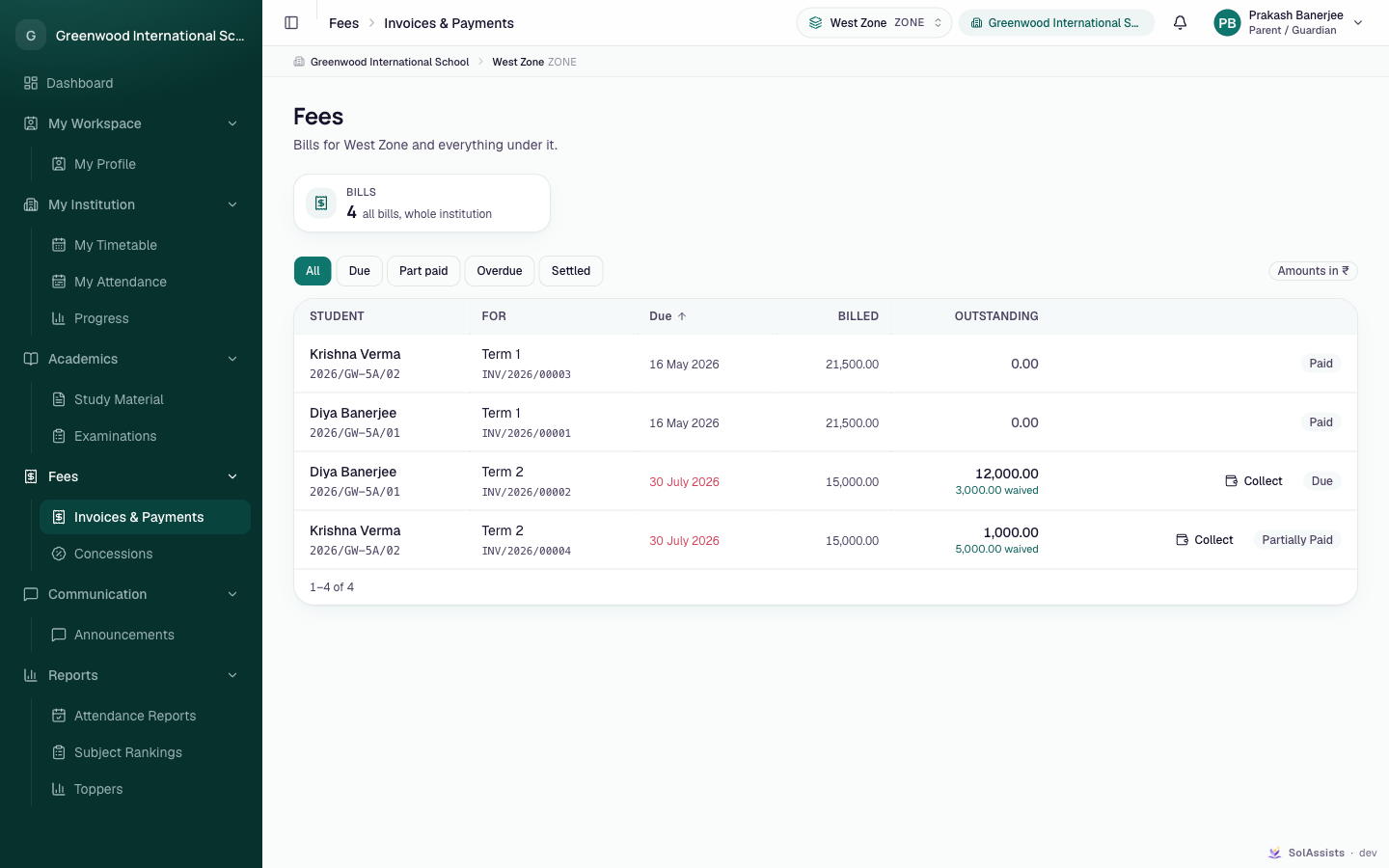
- On a bill with money outstanding, click Collect.
- Amount (₹) defaults to the full outstanding amount. Part payments are fine; more than the outstanding amount is blocked.
- How: Cash, UPI, Bank transfer, Cheque or Card. For UPI and Bank transfer enter a Reference; for a cheque enter the Cheque number.
- Click Record payment. Payment recorded shows the receipt number (for example
2026-27/00001). Give it to the family.
Click any bill to open Bill. It shows what was billed, paid and outstanding, each line with any amount waived, and every payment with its receipt number.
Reverse a payment
- Open the bill and click the reverse icon on the payment.
- Enter Why in Reverse this payment? and click Reverse it.
A reversal is a new entry with its own receipt number, and the outstanding amount goes back up. A payment can be reversed only once.
4. Concessions
A concession is a discount. One person asks for it, and a different person with approval rights decides.
Request
- Choose Fees → Concessions and click Request a concession.
- Choose the Student. Applies to is one charge, or Every discountable head.
- Kind of discount: A percentage or A fixed amount. Enter Percentage or Amount (₹).
- Enter Why, for example "Sibling discount", and click Send the request.
Approve or refuse
- Choose Fees → Concessions. The Waiting filter shows open requests, and You can approve these appears if you can decide them.
- Read the reason. Optionally write a Note back to them; it is required when refusing.
- Click Approve or Refuse.
On approval the discount comes off the student's bills that are still unpaid in the current session ("Approved — ₹x came off n bills."). Bills already paid are not changed. The person who asked is notified. You can't decide a request you made yourself ("You asked for this one, so somebody else has to decide it.").
Bill statuses
| Status (filter) | Meaning |
|---|---|
| Due | Raised, nothing paid, due date not passed |
| Part paid (badge "Partially Paid") | Some money received |
| Overdue | Due date passed with money outstanding. Updated each night at about 00:15, so the red due date shows before the status changes |
| Settled (badge "Paid") | Fully paid |
What happens next
- Payments, reversals and concession decisions are recorded in the Audit trail.
- Parents and students see their bills under Fees → Invoices & Payments.
- Nothing is charged automatically: no late fees and no monthly billing runs.
What students and parents see
- Invoices & Payments: their own or their children's bills, and the bill details. There is no online payment.
- Payments are recorded only by the office.
Who can do this
| Task | School Admin | Teacher | Student / Parent |
|---|---|---|---|
| See bills | All | No access | Own / linked children |
| Fee setup, raise a bill, request a concession | Yes | No | No |
| Collect a payment, reverse a payment | Yes | No | No (button shown to parents, refused) |
| Approve or refuse concessions | Yes, not their own request | No | No |
Custom roles can separate these. For example, an accounts role can collect payments without approving concessions. See Roles and permissions.
Common problems
| Symptom | Why | Fix |
|---|---|---|
| "No fee structure applies to this student" | No structure on the student's division, standard or institution for this session, or the student isn't enrolled | Add a structure, or enrol the student |
| "The fee structure charges nothing for this period" | No structure rows have the Charges to bill frequency chosen | Pick the right frequency, or add rows |
| "This institution has no current academic session yet." | No current session | See Academic sessions |
| "That is more than is outstanding on this invoice" | Amount too high | Enter the outstanding amount or less |
| "Another payment was recorded against this invoice a moment ago. Check the balance and try again." | Two people collected at once | Refresh the bill, then retry if still owed |
| Record payment disabled | Reference or cheque number missing | Enter it |
| "You can't decide your own leave." when approving a concession | This message is shown when you try to approve your own concession request | Ask another approver |
| Need to cancel a wrong bill | Bill cancellation isn't in the app | Ask SOL support; meanwhile don't collect against it |