Appearance
Teaching assignments
School AdminA teaching assignment says who teaches which subject in which division, for example "Anita Rao teaches Mathematics in 8-A". Assignments decide what a teacher can see and do. A lecture can only be put on the timetable where an assignment exists.
Before you start
- The institution structure reaches the last level (divisions such as 8-A). See Institution structure.
- An academic session is marked current. Assignments always go into the current session. See Academic sessions.
- Subjects exist in that session. Without them, Assign a teacher is disabled. See Subjects.
- The teacher has an active account with access. See Add a teacher.
Where to find it
Academics → Teaching Assignments. This opens the Teaching tab of the Academic Setup page (tabs: Sessions · Bell Schedule · Subjects · Teaching · Groups · Rooms).
The same assignment dialog also appears in step 3 of Teachers → Add Teacher.
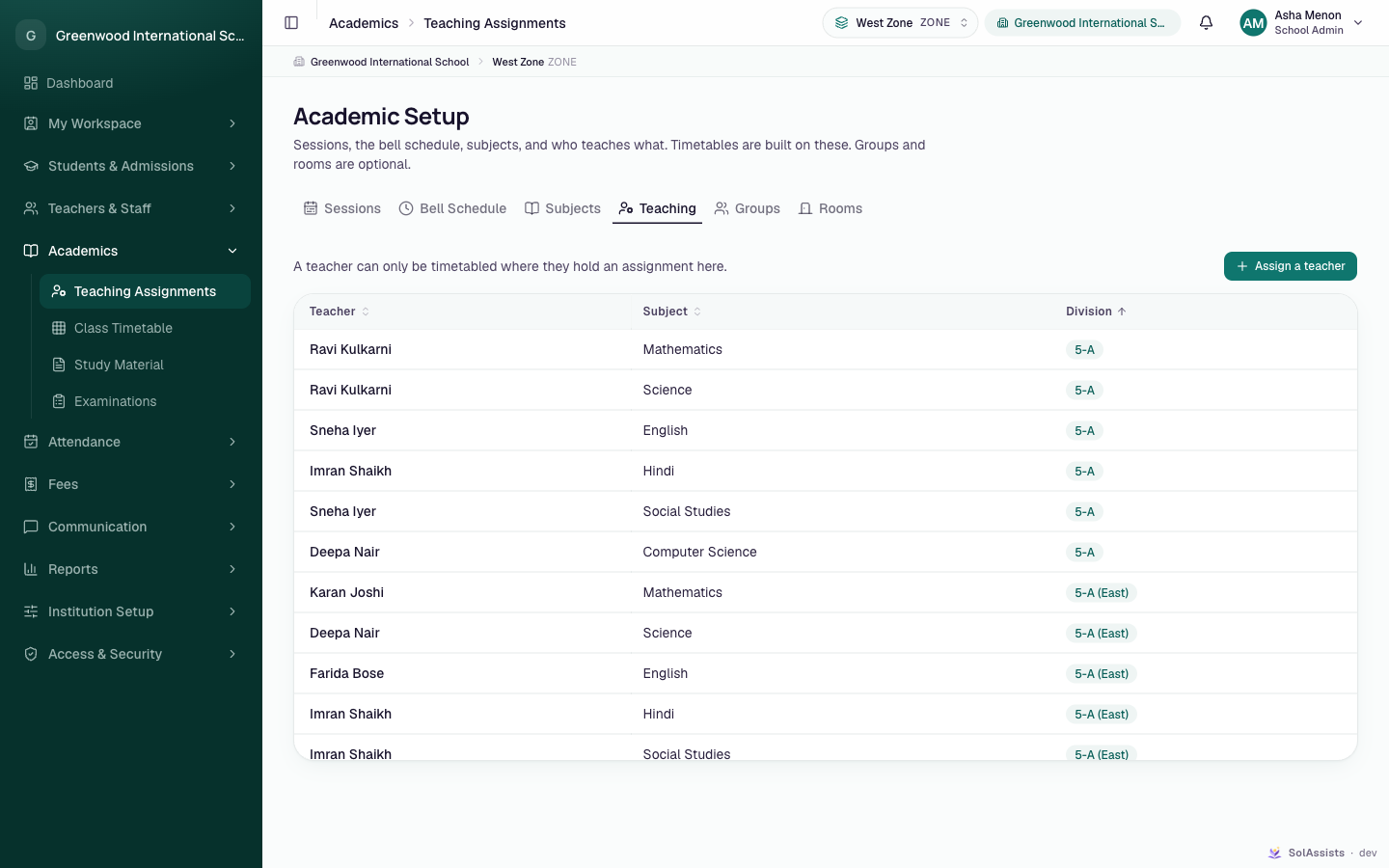
The table lists assignments for the unit picked in the top bar and everything under it, for the current session. Columns: Teacher, Subject, Division. The line above it reads "A teacher can only be timetabled where they hold an assignment here."
If no unit is picked, the tab shows No division selected: "Pick one from the unit selector in the top bar to see and manage its teaching assignments."
Step by step
- In the top bar, choose the part of the institution you're working on (for example Grade 8, or 8-A).
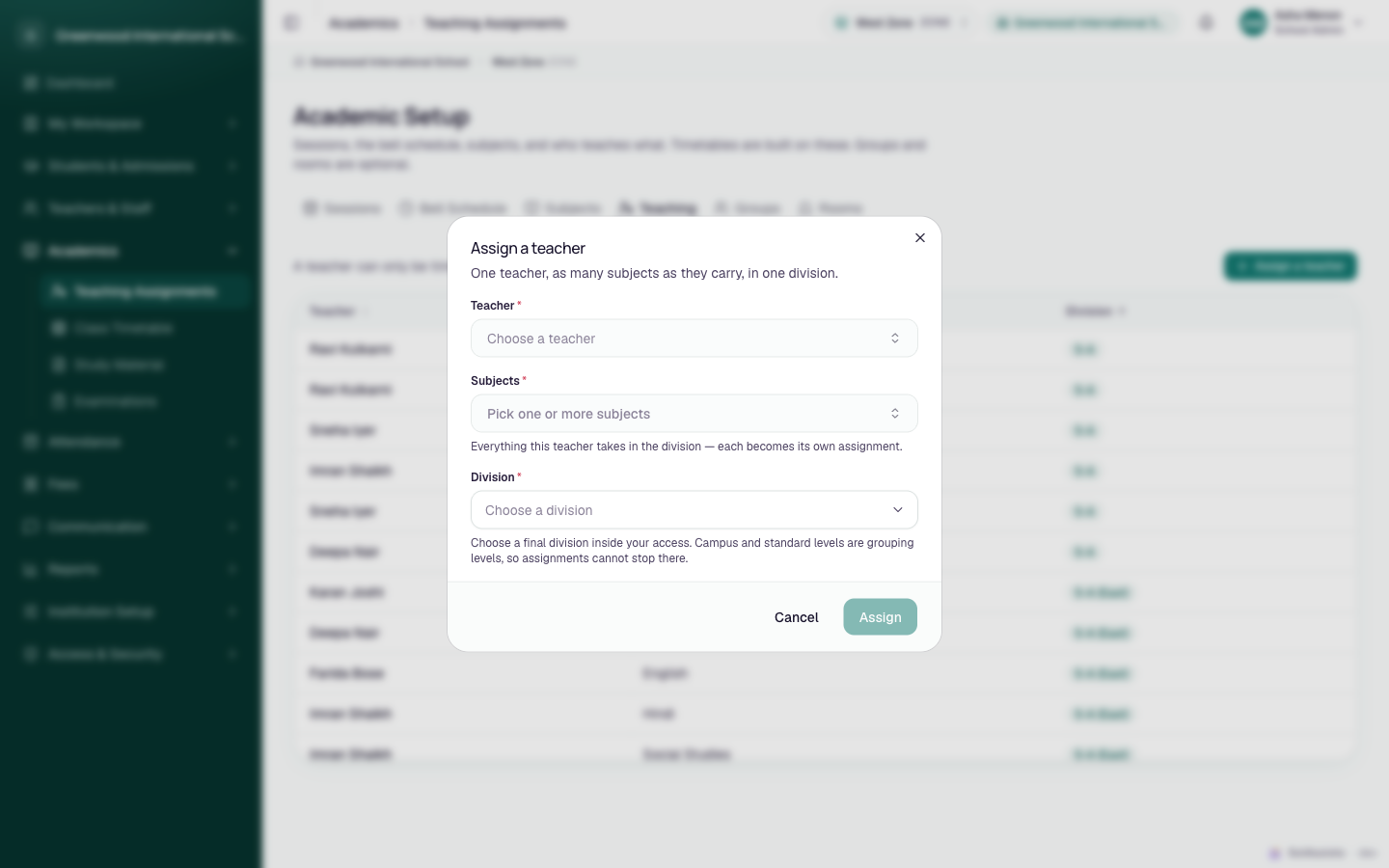
- Click Assign a teacher. The dialog Assign a teacher opens: "One teacher, as many subjects as they carry, in one division."
- Teacher: type in Search teachers… and choose Anita Rao.
- Subjects: pick one or more (for example Mathematics). Each subject becomes its own assignment.
- Division: choose 8-A.
- Click Assign (or Assign 2 subjects when you picked two).
A message confirms the result, for example "1 assignment added." or "2 assignments added, 1 already existed.". If they were all there already: "Every one of those was already assigned." Assigning the same thing twice does no harm.
Assigning several at once
- Several subjects in one division: pick all of them in Subjects in one go.
- Several divisions: open the dialog once per division. The app has no screen for assigning one teacher to many divisions at once.
Fields
| Field | Required | What to enter |
|---|---|---|
| Teacher | Yes | The person who teaches. Locked when opened from Add Teacher. |
| Subjects | Yes | One or more subjects from the current session. "Everything this teacher takes in the division — each becomes its own assignment." |
| Division | Yes | A final division. "Choose a final division inside your access. Campus and standard levels are grouping levels, so assignments cannot stop there." Defaults to the top-bar unit when that is a final division. |
Rules
Final divisions only
Only the last level of your structure is offered (a division such as 8-A, not the standard Grade 8 or a campus). This is deliberate: an assignment on Grade 8 would stop the teacher's reach at a grouping level and they would never reach the classroom registers. If the list is empty, your structure has no final-level units inside your access yet. On a coaching institute the levels may be called Course and Batch instead.
Assign only inside the teacher's access scope
The app does not check this for you
The Division list shows every final division you can reach, not the ones the teacher's access covers. If Anita Rao's access is scoped to East Campus and you assign her a division at Main Campus:
- the class still appears in her top-bar picker, but
- every action on it (register, study material, exams) fails with "That part of the institution is outside your access."
Before assigning, check the teacher's Scope in Access & Security → User Accounts & Access (or the Where column on Teachers). Either assign only divisions inside that scope, or widen the access (for example to Institution-wide).
Always the current session
Assignments are saved into the session marked current. The tab has no session picker. To prepare next year's assignments, that session must be made current first. See Academic sessions.
The teacher list isn't filtered to teachers
Check the role shown under each name
Teacher lists everyone with active access (up to 200 people), including students, parents and admins. The role and email under each name help you pick the right person. A person without a teaching role can be assigned, but they won't appear on Teachers and won't gain teacher permissions.
Removing or changing an assignment
Partially implemented
Assignments can be added in the app but not removed or edited. There is no delete button on the Teaching tab or anywhere else. A wrong assignment stays, and keeps giving that teacher access to the division, until SolAssists support removes it.
To reassign a class to a new teacher, add an assignment for the new teacher. The old teacher's assignment and their existing timetable lectures stay. Change the lectures on the Timetable, and ask support to remove the old assignment.
What happens next
For a teacher with the built-in Teacher role, current-session assignments decide:
| Area | Effect |
|---|---|
| Top-bar picker | Lists their assigned divisions (and the levels above, for context only) |
| Students and parents | Only those enrolled in their divisions |
| Mark Attendance | Registers for their divisions |
| Study Material, Examinations, Announcements | The Class list offers only their classes |
| Class Timetable / My Schedule | They can schedule their own lectures only for subjects and divisions they're assigned (if the school allows teacher self-scheduling) |
| Teachers page | Teaches and Assignments columns update |
Each new assignment is recorded in the Audit trail.
Who can do this
Only people who can publish the timetable (School Admin by default). A campus-level admin can only choose divisions inside their own campus. Teachers can see assignments but can't create them.
Common problems
| Symptom | Why | Fix |
|---|---|---|
| Assign a teacher is greyed out with no explanation | The current session has no subjects | Add subjects (Subjects). The empty table says "Add subjects first…" with Go to Subjects. |
| Assign a teacher greyed out with "You need permission to assign teachers." | Your role can't publish the timetable | Ask a School Admin |
| Division list empty | No final-level units in your reach, or the top-bar unit is outside them | Build divisions (Institution structure) |
| "Choose a final division under "{name}" for the teaching assignment" | The chosen unit has units under it | Pick a division below it |
| "This institution has no current academic session yet." | No session is marked current | Academic sessions |
| Teacher sees the class but actions fail with "That part of the institution is outside your access." | Division is outside the teacher's access scope | Widen the teacher's scope in User Accounts & Access, and ask support to remove the wrong assignment |
| Teacher can't pick a subject/division when scheduling: "That teacher isn't assigned to this subject for this division." | No matching assignment | Add the assignment |
| Teacher sees nothing after the new year starts | Assignments belong to last year's session | Create assignments in the new current session |