Appearance
Examinations
School Admin Teacher Student ParentSet up an exam and add a paper for each subject and class. Enter marks, lock them, then publish the results. Once published, families see results on their Progress page.
Partially implemented
The office can take an exam from planning to published. The app has no controls to reopen, unlock or cancel an exam, set grade bands or view mark revisions. Teachers can't move an exam to the next stage themselves (see Who can do this).
Before you start
- SOL has switched on Examinations for your institution. It is an add-on, and it also needs Students and Academics.
- An academic session is marked current. Otherwise you see "This institution has no current academic session yet." See Academic sessions.
- Subjects exist for the current session. Otherwise the Subject list on a paper is empty. See Subjects.
- Students are enrolled in the division the paper is for. The mark sheet lists enrolled students only.
- Teachers need teaching assignments, so that their classes show in the Applies to and Class lists. See Teaching assignments.
Where to find it
Academics → Examinations (heading Examinations). Click a row to open the exam's own page.
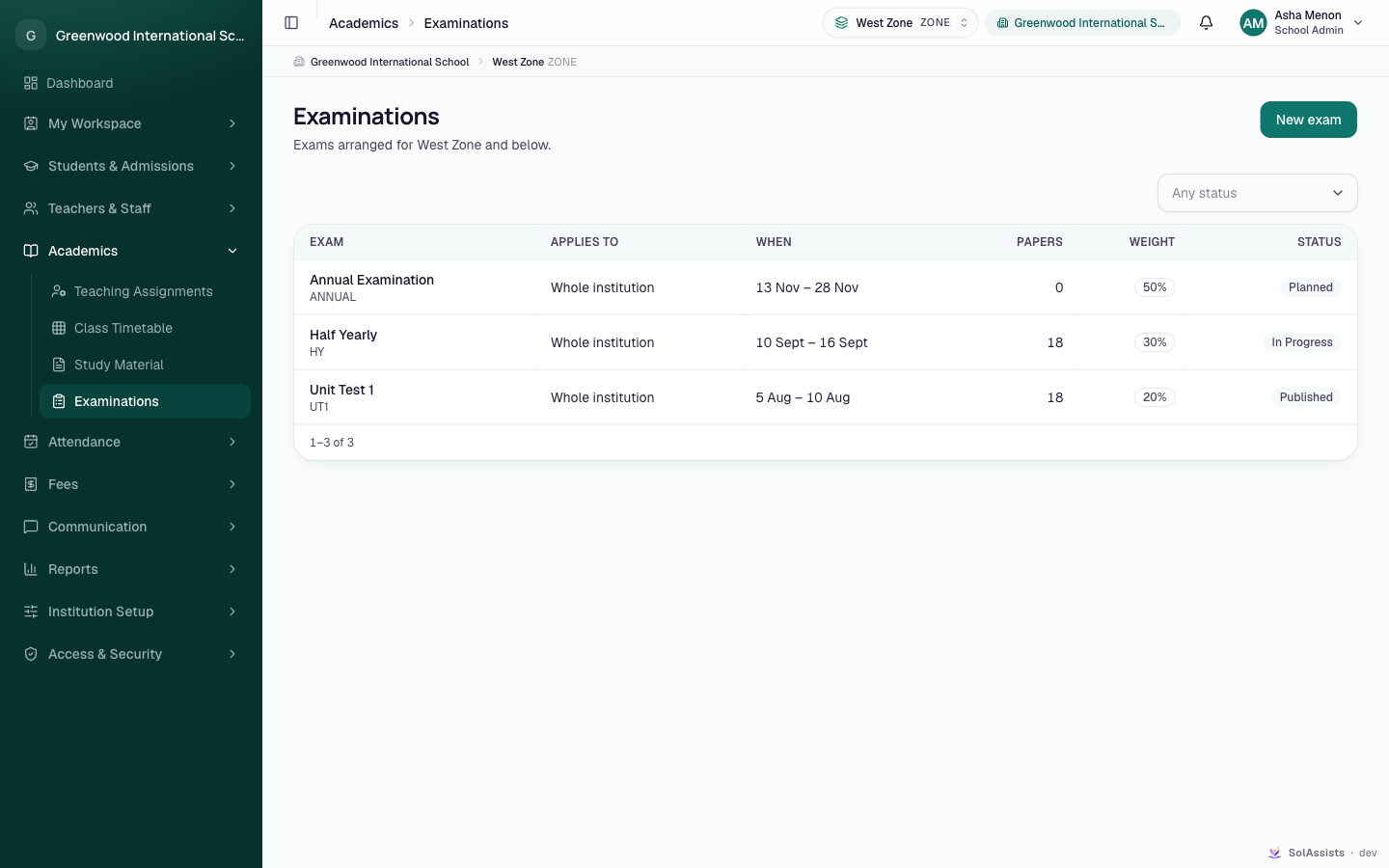
How an exam moves through its stages
| Status (list filter label) | What it means | Button that moves it on |
|---|---|---|
| Planned | Created; papers can be added. Marks can't be entered yet | Start marks entry |
| Marks being entered (badge "In Progress") | Marks can be entered and corrected | Lock marks |
| Locked | Every enrolled student has a mark on every paper. Corrections still possible | Publish results |
| Published | Students and parents can see the results | — |
| Cancelled | Not used from the app | — |
Step by step
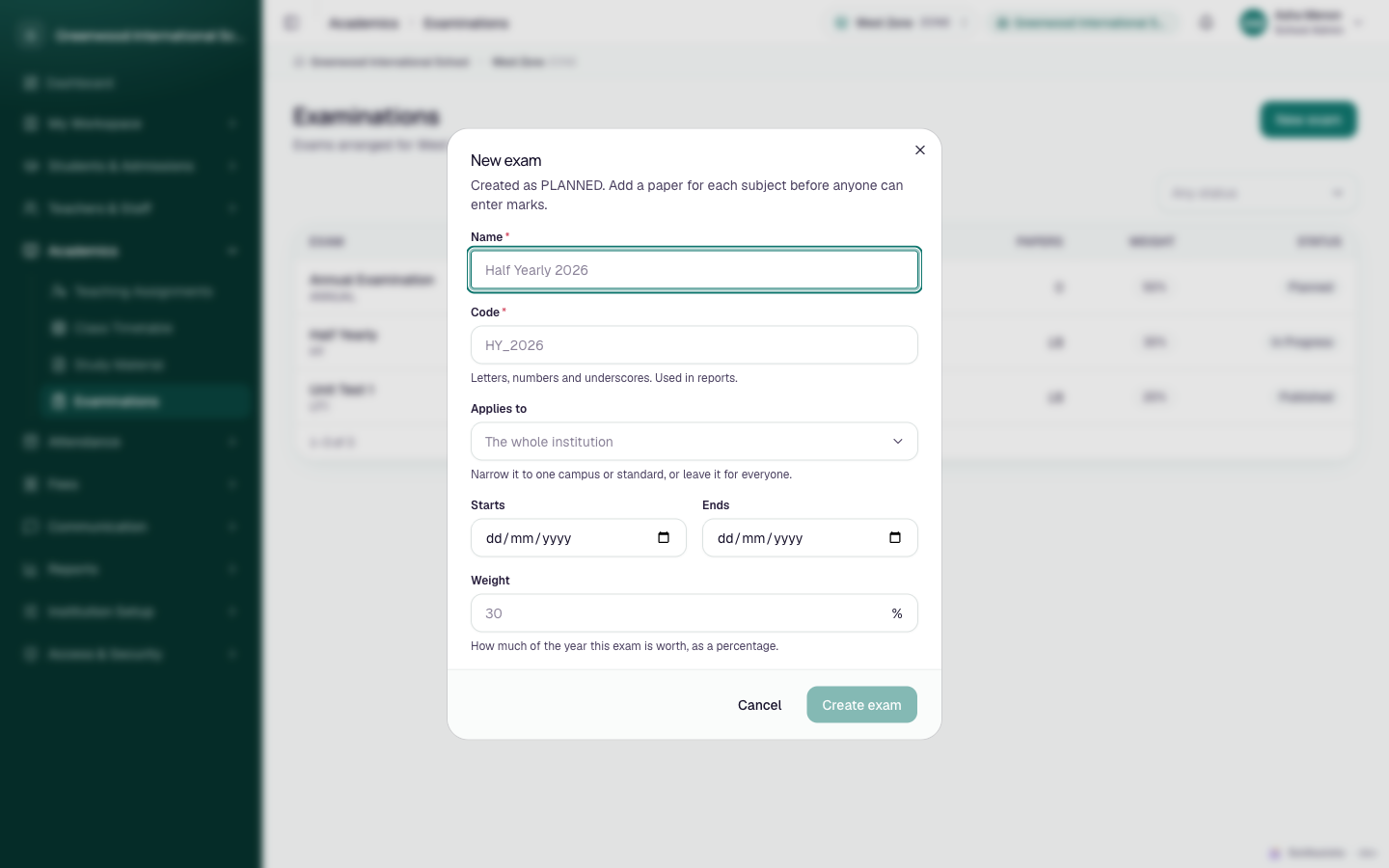
1. Create the exam
- Click New exam.
- Fill in the fields (below) and click Create exam. The exam starts as Planned.
2. Add papers
- Open the exam and click Add paper.
- Choose the Subject and the Class (whose roster the marks go against). Enter Out of, and optionally Pass mark and Sat on.
- Click Add paper. Repeat for each subject and division.
A paper row reads "Subject · class · out of N, pass at P". Remove a paper with the bin icon ("Remove this paper?"). A paper that already has marks can't be removed.
3. Start marks entry
Click Start marks entry and confirm. The exam becomes Marks being entered.
4. Enter marks
- On a paper row click Marks. A side sheet opens with every enrolled student.
- For each student choose a status: Scored, Absent, Exempt or Malpractice. For Scored, type the mark. The mark box is disabled for the other statuses.
- Click Save marks. Rows you leave blank stay "not marked", so you can stop partway and come back.
| Mark status | Effect on the result |
|---|---|
| Scored | The number entered (it can't exceed Out of) |
| Absent | Counts as zero |
| Exempt | Left out of the student's total |
| Malpractice | Recorded as malpractice |
5. Lock marks
Click Lock marks. This is refused with "Some papers are not fully marked" until every enrolled student has a status on every paper. An exam with no papers gives "This exam has no papers to mark".
6. Publish results
Click Publish results and confirm. The dialog warns: "Results become visible to students and their guardians."
Check before publishing
Published results can't be corrected from the app. Check every paper carefully first, and ask SOL support if a published result must be corrected.
Fields
New exam
| Field | Required | What to enter |
|---|---|---|
| Name | Yes | Up to 80 characters, e.g. "Half Yearly 2026" |
| Code | Yes | Letters, numbers and underscores (typed letters become capitals), e.g. HY_2026. Used in reports; must be unique in the session |
| Applies to | Staff: No. Teachers: Yes | Leave empty for The whole institution, or narrow to a campus, standard or division. Teachers must choose "one of your classes" |
| Starts / Ends | No | Ends can't be before Starts ("It cannot end before it starts.") |
| Weight | No | % of the year this exam is worth (0–100). Blank means 100%. Used for yearly progress and toppers |
Add a paper
| Field | Required | What to enter |
|---|---|---|
| Subject | Yes | A subject of the current session |
| Class | Yes | The division whose students sit the paper |
| Out of | Yes | 1–1000 (default 100) |
| Pass mark | No | Can't be more than Out of ("It cannot exceed the total.") |
| Sat on | No | Date of the paper |
What happens next
- Published: parents with an account and a child enrolled that session are notified "<exam> results are out". This depends on the notification service. The results appear on Progress for students and parents.
- Every change to an existing mark is kept as a revision, but there is no screen to view revisions.
- Exam creation, marks and publishing are recorded in the Audit trail.
- Rankings appear in Reports.
What students and parents see
- Academics → Examinations lists the exams in the institution: names, dates, papers and status, including exams not yet published. New exam is shown but disabled.
- Results (marks and grades) appear only on My Institution → Progress, and only for published exams. See Reports.
- Grade letters appear only if grade bands exist for the session. The app has no screen to set them up.
Who can do this
| Task | School Admin | Teacher | Student / Parent |
|---|---|---|---|
| View exams | Yes | Yes | Yes (list only) |
| New exam | Any unit or the whole institution | Must pick one of their classes; whole-institution exams are set by the office | No |
| Add paper | Yes | Yes | No |
| Remove paper | Yes | No | No |
| Enter marks | Yes | Yes | No |
| Start marks entry / Lock marks | Yes | No | No |
| Publish results | Yes | No (button disabled) | No |
Who moves an exam on
An exam a teacher creates stays Planned until someone in the office starts marks entry. After that the teacher can enter marks. Plan for the office to start and lock each exam.
Common problems
| Symptom | Why | Fix |
|---|---|---|
| "This institution has no current academic session yet." | No current session | See Academic sessions |
| Subject list empty in Add a paper | No subjects in the current session | See Subjects |
| Create exam stays disabled for a teacher | Teachers must pick a class in Applies to | Choose one of your classes |
| A teacher gets "You don't have permission for that." on Start marks entry / Lock marks / removing a paper | Only the office can change an exam's stage or remove papers | Ask the office |
| "Marks cannot be entered while the exam is planned" | The exam is still Planned | Click Start marks entry first |
| "Some papers are not fully marked" | A student has no status on some paper | Open Marks and give every student a status (Absent/Exempt count) |
| "Nobody is enrolled in <class> yet, so there is nobody to mark." | No enrolments in that division | Enrol students, or check the paper's Class |
| "n is more than the paper's maximum of max" | A mark exceeds Out of | Fix the mark; the whole sheet is refused until you do |
| "This paper has marks against it" | Papers with marks can't be removed | Leave the paper, or ask SOL support |
| "This result is published — reopen the exam to correct a mark" | No reopen button in the app | Ask SOL support |
Related
- Reports — Subject Rankings, Toppers and Progress
- Subjects
- Teacher daily work
- Parent portal