Appearance
Attendance
School Admin Teacher Student ParentAttendance records one daily status for every enrolled student. Teachers and the office mark it by hand. Gate devices that recognise faces can also mark it. Each night the system marks anyone still unrecorded as absent and tells their parents. Families see the result under My Attendance.
Attendance has four screens: Mark Attendance, Attendance History, Devices and Attendance Policy.
Partially implemented
The register, history, devices and policies all work. There is no screen for holidays or weekly offs, and marking by period is not built yet. Read Holidays and weekly offs before your first working week.
Before you start
- SOL has switched on Attendance for your institution. It is included by default.
- An academic session is marked current. See Academic sessions.
- Students are enrolled in a division for the current session. The register lists enrolled students, not everyone on file. See Add a student.
- Teachers have teaching assignments for their divisions. Without one, a teacher's register is empty. See Teaching assignments.
- For gate devices only: SOL has registered the device and allotted it to your institution.
Where to find it
| Sidebar | Page heading | Who sees it |
|---|---|---|
| Attendance → Mark Attendance | Attendance | Anyone who can mark attendance (School Admin, Teacher) |
| Attendance → Attendance History | Attendance | Anyone who can mark attendance |
| Attendance → Devices | Attendance devices | School Admin, Teacher |
| Attendance → Attendance Policy | Attendance policy | School Admin, Teacher |
| My Institution → My Attendance | Attendance | Students and parents |
Most staff pages follow the working-scope picker in the top bar. The page description then reads "<unit> and everything under it."
Mark the daily register
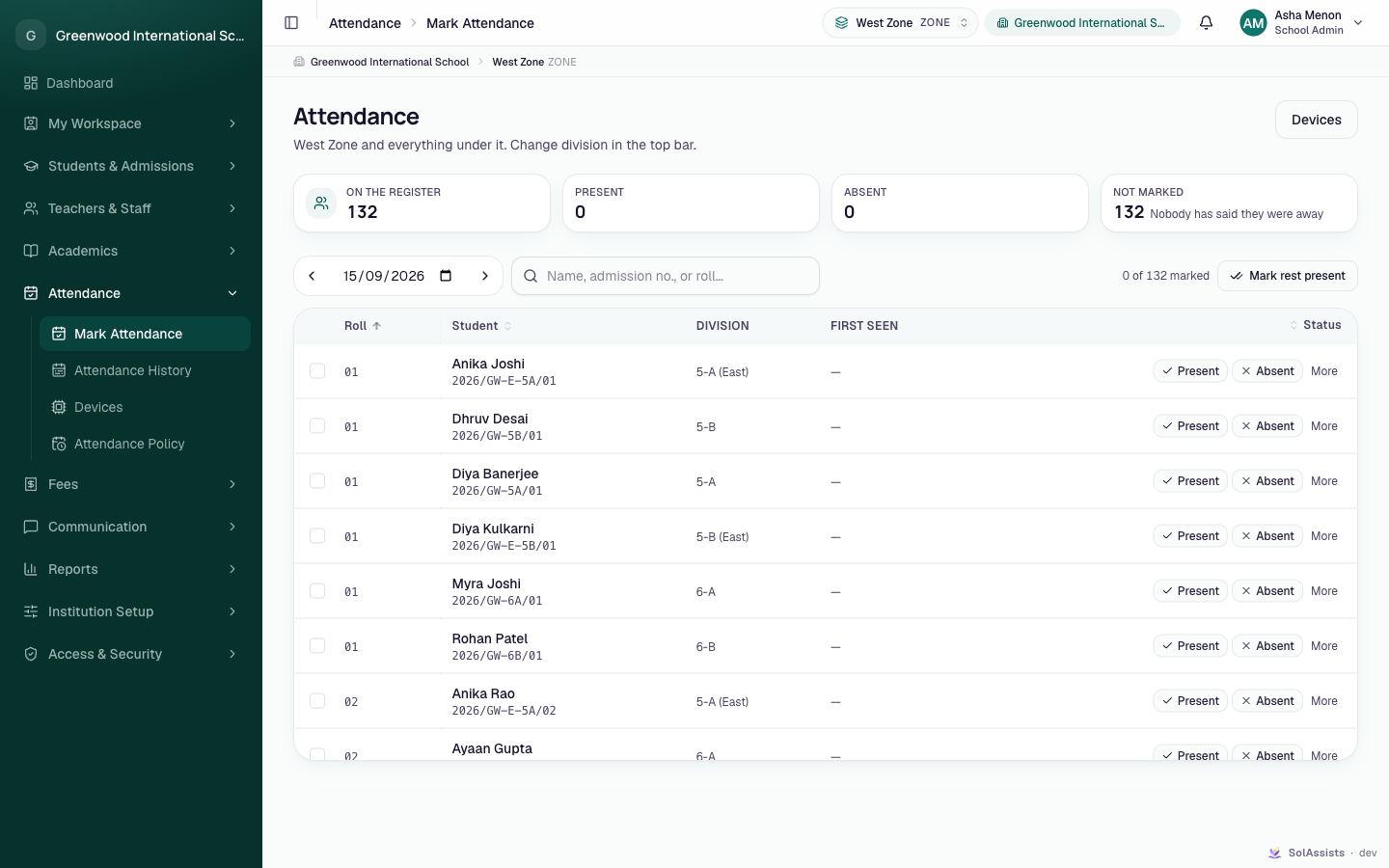
Step by step
- From the sidebar choose Attendance → Mark Attendance.
- Use the top-bar picker to choose the division you are marking. A teacher's picker lists only the divisions they teach.
- The date starts at your institution's today. To mark another day, use Previous day / Next day or type a date.
- For most classes, click Mark rest present. Confirm with Mark present in the Mark everyone else present? dialog. Only rows that are still unmarked change.
- Correct the exceptions one row at a time:
- Present: click Present. It saves straight away.
- Absent, late or excused: click More, choose Absent, Late or Excused, then answer "Why is <name> marked …?". Pick a suggested reason or type one in Or type a reason…. Click Save.
- Check the counter ("X of Y marked") and the Not marked card. When both show everyone accounted for, you are done.
Marking a student absent, late or excused
Use More on the student's row, choose the status and give a reason — every status other than Present needs one. Mark absences one row at a time.
Reasons parents understand
The suggested reasons are: late — "Bus was late", "Medical appointment", "Overslept"; absent — "Off sick", "Family emergency", "No reason given"; excused — "Approved leave", "Official activity", "Religious observance". The reason is saved with your name and the time.
The teacher's register looks the same, limited to their own divisions:
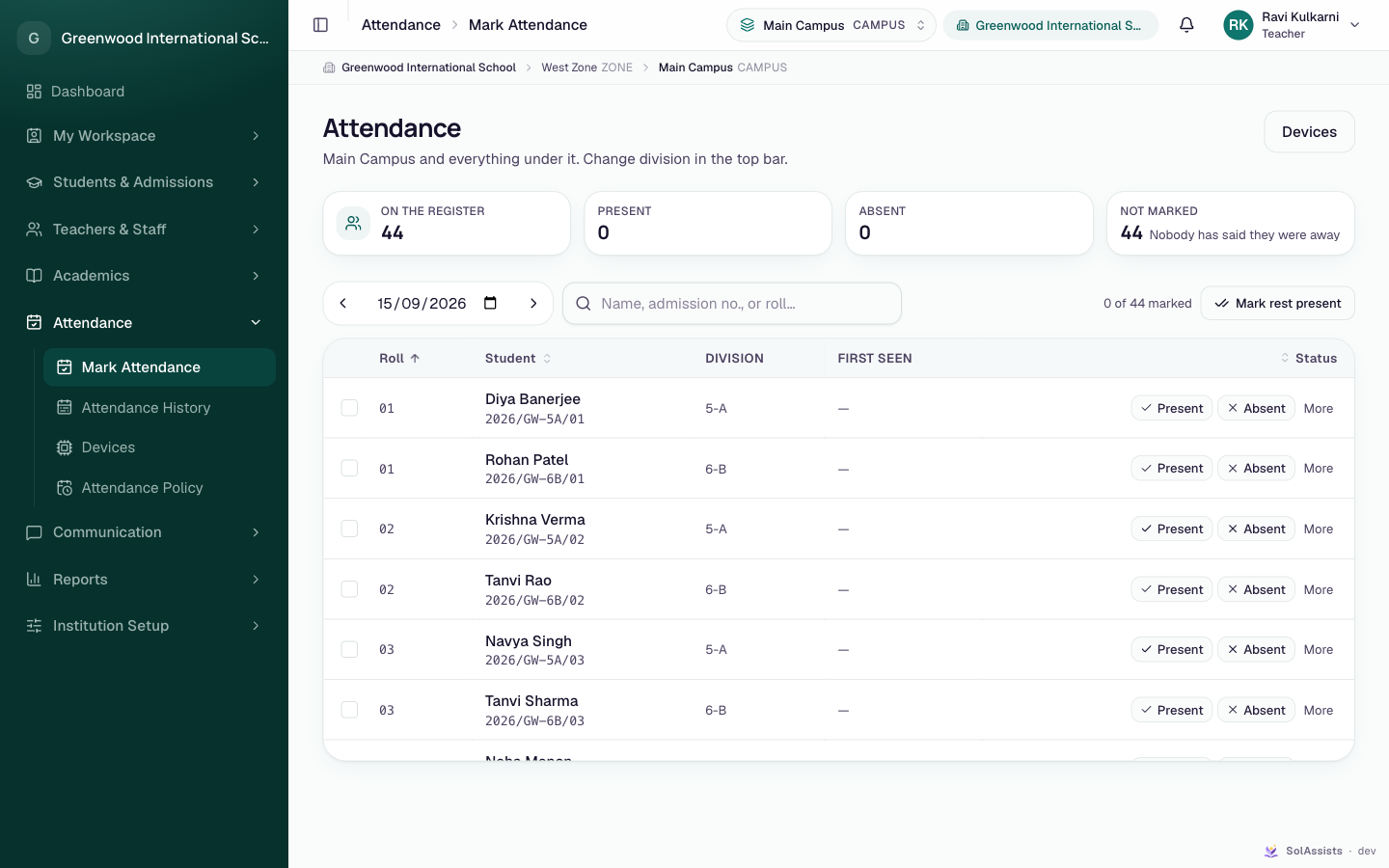
What the register shows
| Item | Meaning |
|---|---|
| On the register | Students enrolled in the chosen division(s) this session |
| Present | Present, late and half-day students together; the hint says how many "arrived late" |
| Absent | Students marked absent |
| Not marked | Nobody has recorded anything yet ("Nobody has said they were away") |
| Roll, Student, Division | From the student's enrolment. The name opens the student record |
| First seen | The first device punch of the day. "+Nm" means N minutes late |
| Status | The marking buttons. People without permission to mark see no buttons here |
Statuses you can set by hand are Present, Late, Absent and Excused. Half day is set only by devices, based on the policy's sessions.
Attendance history
- Staff (Attendance → Attendance History): choose a Range (Last 30 days, Last term (90 days), Last 180 days) and an Up to date. Then pick a unit in the top bar. The page shows Students, Average attendance and Below 75%, plus an Attendance by student table (Present, Absent, Late, Attendance %). "Not recorded" means no register was taken for that student in the range. It is not the same as 0%. The 75% line is fixed in the app and cannot be changed.
- Excused days don't count against a student's percentage.
What students and parents see (My Attendance)
Parents open My Institution → My Attendance. They see "Every day recorded for your child." If they have more than one child, a Child picker appears. There is also a monthly calendar (The month) and a Day by day list with in and out times.
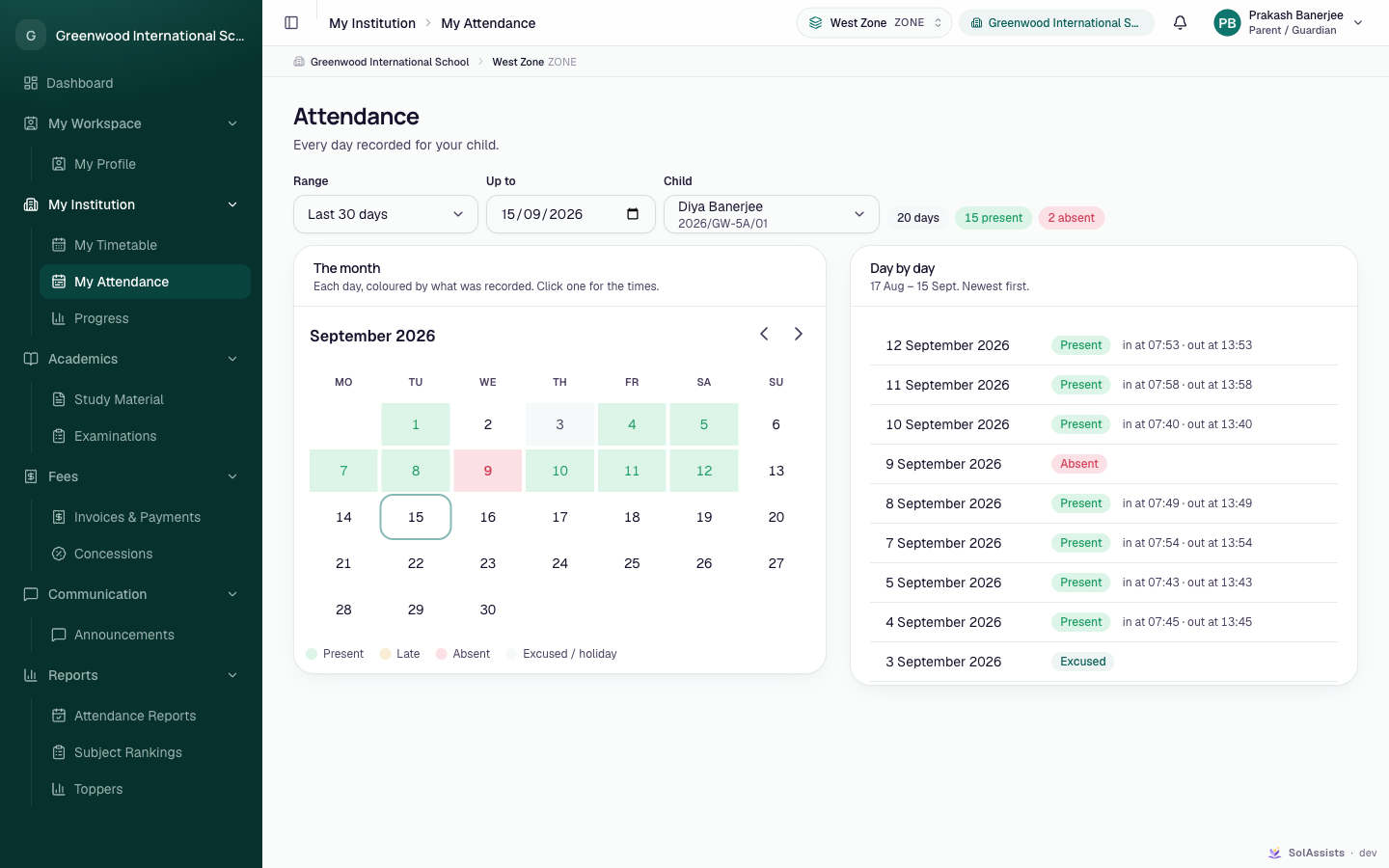
Students
Students can see their attendance for the last 30 days on My Profile, under The institution's record.
Devices (face-recognition gates)
SOL registers each physical unit and allots it to your institution. Your institution then names it, maps people to it, and checks that punches arrive.
Step by step
- From the sidebar choose Attendance → Devices (heading Attendance devices).
- Click Add device. In Set up a device:
- Serial: choose one of the units SOL allotted to you. If a unit is missing, ask SOL support.
- Name: for example "Main gate".
- Where it is: a unit, or leave Whole institution. This only describes the device. Attendance counts for the person, not the door.
- Latitude / Longitude: optional. Fill in both or neither.
- Click Save device. You see "<name> added. It will appear here once it calls in."
- Enrol faces on the terminal itself. The terminal gives each enrolled person a number. That number appears in Recent device activity as Device user.
- Click Map somebody. Choose Student or Staff, find the person, enter the Device user id, then click Map. You see "Mapped. Their next punch will land on the register."
- To check the whole chain, click Test on the device row. Enter a Device user id and click Send a test punch. "Punch accepted. It becomes attendance within a minute." means it worked.
More than one device
Map somebody always maps to the first device in the list, and you can't pick a different device there. If your institution has several gates, check the Device column in Who the devices know after mapping. Ask SOL support before relying on the other gates.
Ignore the "new token" warning in the Test dialog
The Test dialog says it "issues the device a new token". Devices use a credential managed by SOL, so you don't need to do anything to the unit after a test.
Fields
| Field | Required | What to enter |
|---|---|---|
| Serial | Yes | A unit SOL allotted to you (chosen from the list) |
| Name | Yes | A name staff recognise, e.g. "Main gate" |
| Where it is | No | The unit the device belongs to; default Whole institution |
| Latitude / Longitude | No | Both or neither |
| Device user id (mapping) | Yes | The number the terminal gave the person at face enrolment, not their admission number |
Reading the device page
- Last heard from: "Never" means the unit has not called in yet.
- On the hardware (mapping sync): Pending, Synced or Failed. Faces sync to the hardware in the background about every 15 minutes.
- Recent device activity (last 50 punches): the Outcome column says why a punch did not become attendance, for example an unknown device or an unmapped device user.
Attendance policy
The policy sets when the day starts, how much grace late arrivals get, and what a device punch means. Onboarding creates a default policy: once a day, a "Day" session from 08:00 to 14:30, 10 minutes grace.
Step by step
- From the sidebar choose Attendance → Attendance Policy. In effect today shows the rule now in force for each part of the institution.
- Click New policy and fill in New attendance policy (fields below).
- Click Save policy. New punches are judged against it straight away.
A change never rewrites the past. Each policy starts from a date, and older days keep their old rule. A policy that has not started yet shows a Scheduled badge. You can remove it with the bin icon ("Remove this scheduled change?"). A policy already in effect cannot be removed. Create a new one from a later date instead.
Fields
| Field | Required | What to enter |
|---|---|---|
| Applies to | Yes | Whole institution (default) or one unit. A unit's own policy overrides the institution default for that unit |
| How attendance is taken | Yes | Once a day, Morning & afternoon, Every period or Device punches only |
| Starts applying on | No | Leave blank: the first policy for a scope applies from the beginning; later ones start today |
| Grace minutes | Yes | 0–240 (default 10). Arriving within this many minutes of a session opening is on time |
| A device punch marks somebody present | — | On by default. Turn it off if a person must confirm the register |
| Sessions | Yes | 1–8 rows of Name, Opens, Closes (default "Morning 08:00–13:00"). Names must be different and each session must close after it opens |
"Every period" is not active yet
You can choose Every period, but lesson-by-lesson registers are not built. Attendance is still recorded once per day.
A policy for the whole institution needs a school-wide role. A teacher can only set one for their own classes.
Holidays and weekly offs
No screen for holidays or weekly offs yet — this affects every parent
Your institution can't enter holidays or change its weekly off days in the app. When onboarding, SOL sets Sunday as the only weekly off.
Every night the system goes through the previous day. If that day was not a holiday or weekly off, it marks every enrolled student with no record Absent and sends each parent a message: "Our records show <child> did not attend on <day>. If that is wrong, please contact the office."
So on a public holiday, or on a Saturday at a five-day school, every student is marked absent and every parent is messaged, unless SOL has entered the holiday or weekly off for you. Before term starts, send SOL support your holiday list and weekly off days.
What happens next
- Each mark is saved with your name, the time and the reason, and is recorded in the Audit trail.
- A later device punch does not overwrite a status marked by hand.
- Nightly (about 01:30): unrecorded students on a working day are marked Absent and their parents are notified. This only happens if a policy and a current academic session exist. Messages depend on the notification service. See Announcements.
- Parents see the day on My Attendance. The office sees it in Attendance History and Reports.
Who can do this
| Task | School Admin | Teacher | Student | Parent |
|---|---|---|---|---|
| Mark the register | Yes | Their own divisions | No | No |
| Attendance History (staff view) | Yes | Their own divisions | No | No |
| My Attendance | — | — | See warning above | Linked children |
| Add devices, map people, policies | Yes | Sees the pages; limited to their own classes | No | No |
| Unmap a person, remove a scheduled policy | Yes | No | No | No |
Anyone who can mark attendance can change any past date. There is no lock on older registers.
Common problems
| Symptom | Why | Fix |
|---|---|---|
| "Say why — this is recorded against the student" | You clicked the quick Absent button, or chose a status without a reason | Use More → Absent and give a reason |
| Ticked students were marked present when you clicked Absent | The selection-toolbar Absent button confirms "Mark everyone else present?" | Correct each student through More |
| "Nobody on this register — No students are enrolled in this division for the current year." | No enrolments in that division for the current session | Enrol the students. See Add a student |
| A teacher's register is empty | No teaching assignment, or no current session | See Teaching assignments |
| Every student marked absent on a holiday; parents messaged | Holidays and weekly offs have no screen | Ask SOL support to enter them; correct the day with More → Present |
| Serial list says "No devices allotted to this institution" | SOL has not allotted a unit to you | Contact SOL support |
| "That class is outside the ones you work with." | A teacher tried to act on a division they don't teach | Choose one of your own divisions |
| A device punch doesn't appear on the register | Person not mapped, or mapped on another device | Check Recent device activity → Outcome and Who the devices know |
| Nobody is ever late or absent from device punches | No policy in effect ("No policy yet…") | Create a policy |
Related
- Reports — attendance reports and CSV export
- Teacher daily work
- Parent portal
- Academic sessions