Appearance
Student portal
StudentWhat a signed-in student sees in SolAssists, page by page.
Student sign-ins can't be created yet
SolAssists has no screen that gives a student a sign-in linked to their record. The pages below describe what a linked student account shows, as seen with pre-loaded demo accounts. An account created with the Student role under User Accounts & Access is not linked to a student record, so it shows none of the student's own information. See Add a student.
Sidebar
- Dashboard
- My Workspace: My Profile
- My Institution: My Timetable, My Attendance, Progress
- Academics: Study Material, Examinations
- Fees: Invoices & Payments, Concessions
- Communication: Announcements
- Institution Setup: Academic Sessions, Subjects
A menu item only appears if the institution has that module switched on. Examinations, Study Material, Fees and Academics are optional modules. The top bar shows the student's own division (for example 8-A · DIVISION), the notifications bell and the account menu.
Dashboard
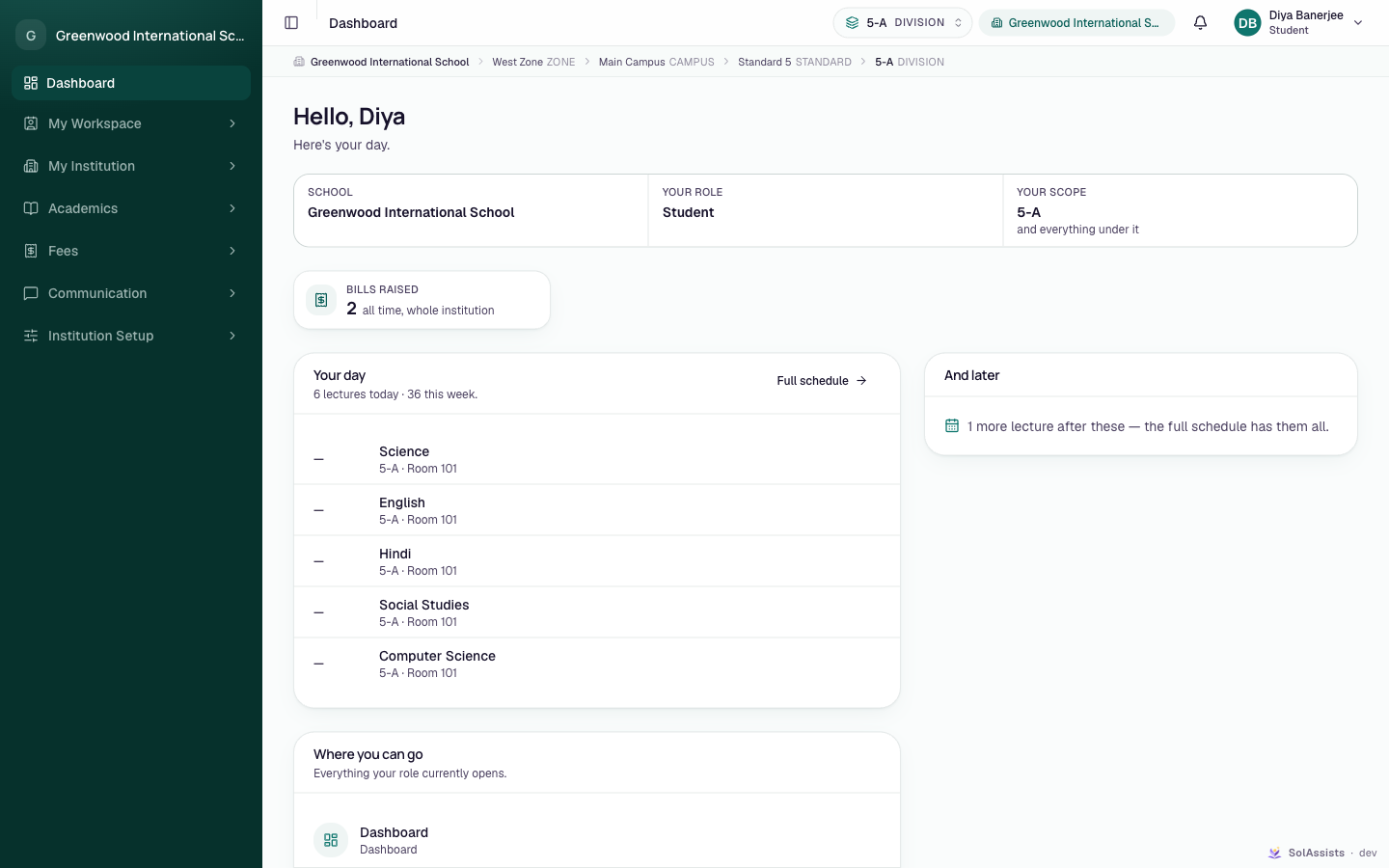
- Hello, {first name}, with "Here's your day."
- A strip showing the institution name, Your role (Student) and Your scope (their division).
- Bills raised card. The hint reads "all time, whole institution".
- Your day: today's lectures, with Full schedule. And later appears when there are more than five.
- Where you can go: links to every page the role opens.
My Profile
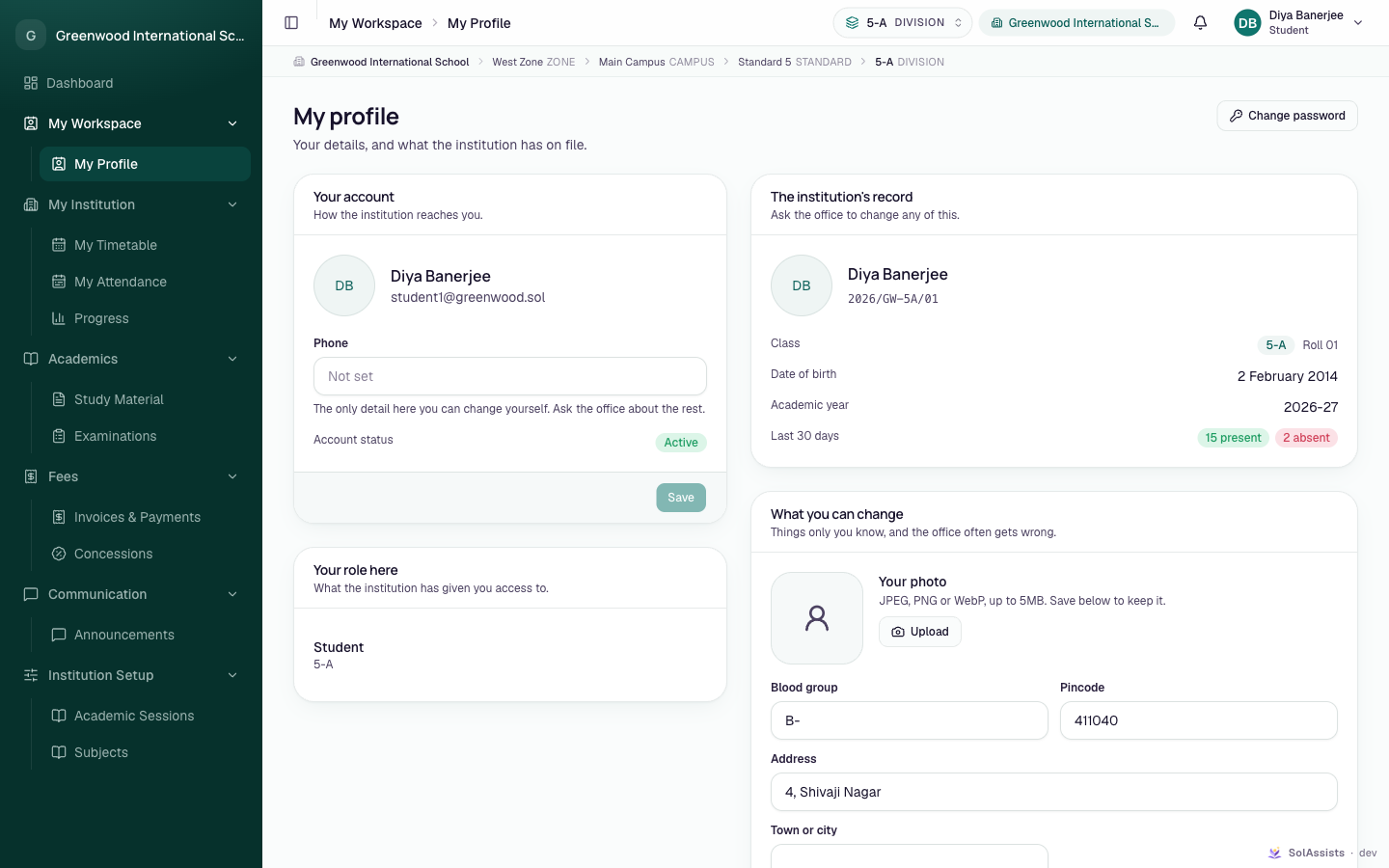
The page is headed My profile ("Your details, and what the institution has on file."). The Change password button is at the top right.
| Card | Contents | Can the student change it? |
|---|---|---|
| Your account | Name, email, Phone, Account status | Only Phone ("The only detail here you can change yourself. Ask the office about the rest."). Click Save; the message is "Your contact details are saved." |
| Your role here | Student and their division | No |
| The institution's record | Name, admission number, Class and roll number, Date of birth, Academic year, Last 30 days (present / late / absent), Aadhaar last four digits | No. "Ask the office to change any of this." |
| What you can change | Your photo (Upload; JPEG, PNG or WebP up to 5MB), Blood group, Pincode, Address, Town or city | Yes. Save; the message is "Your details are saved." |
| Use it as an app | Install SolAssists as an app on the device | — |
My Timetable
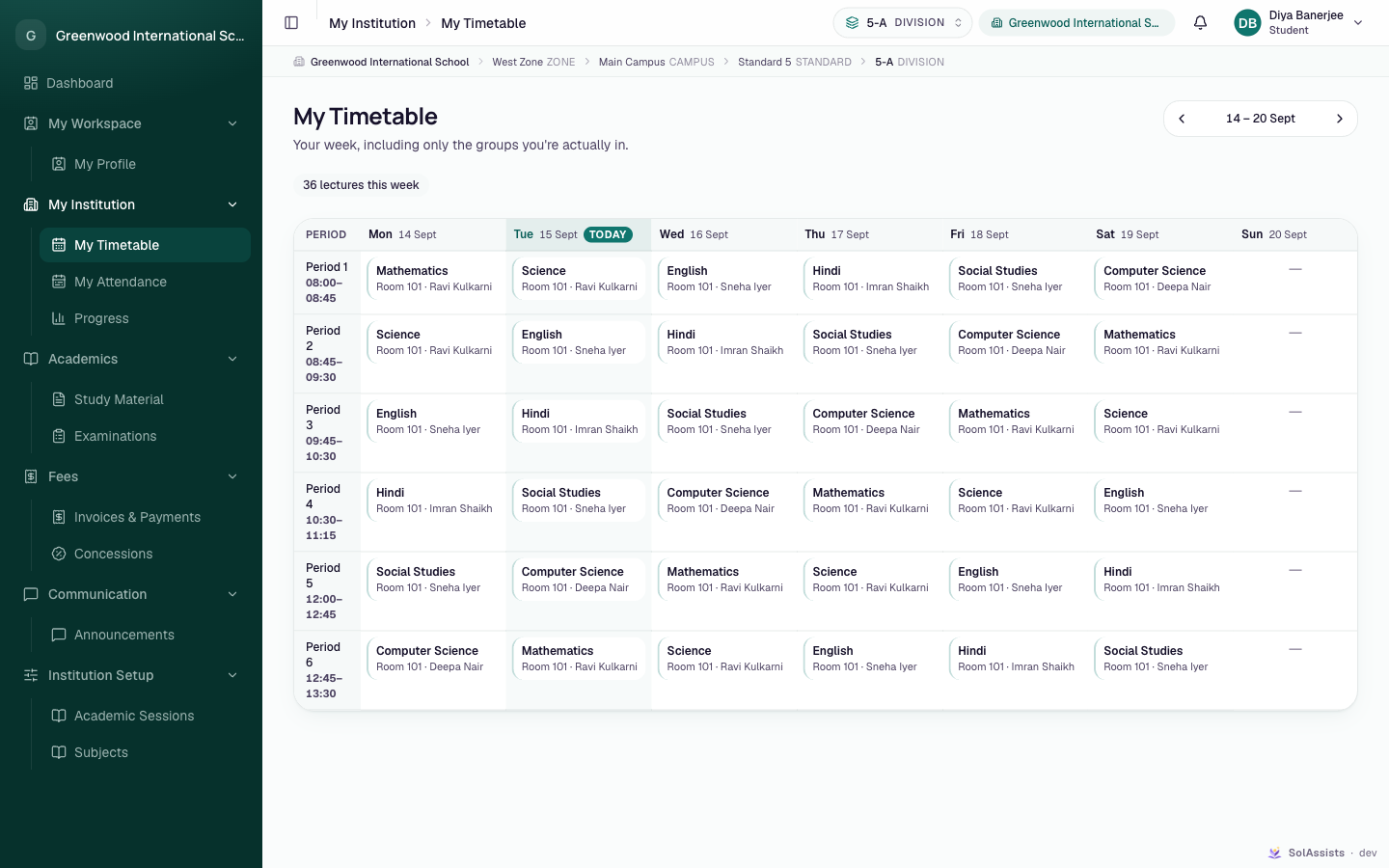
My Timetable ("Your week, including only the groups you're actually in.") shows the week grid with period times, subject, room and teacher. Use the arrows to change the week. With no current session it shows No academic session yet; with nothing published, Nothing scheduled this week.
My Attendance
TIP
A student's attendance for the last 30 days is on My Profile, under The institution's record.
Progress
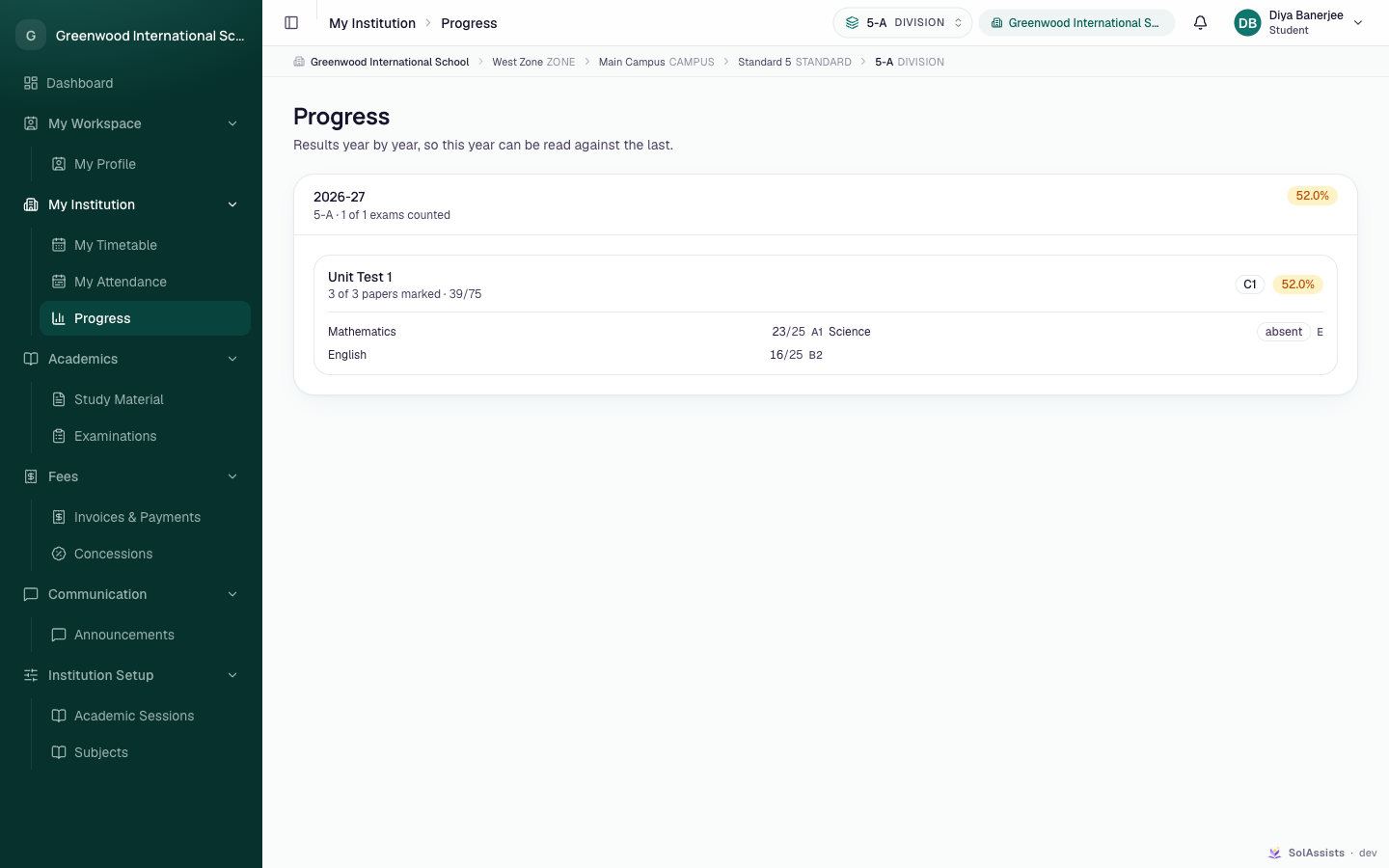
Progress ("Results year by year, so this year can be read against the last.") shows one card per academic session with the division, "N of N exams counted" and the overall percentage. Each exam lists papers marked, marks per subject, grade, and absent where it applies. Only published results appear. Before any are published it shows Nothing to compare yet.
Study Material
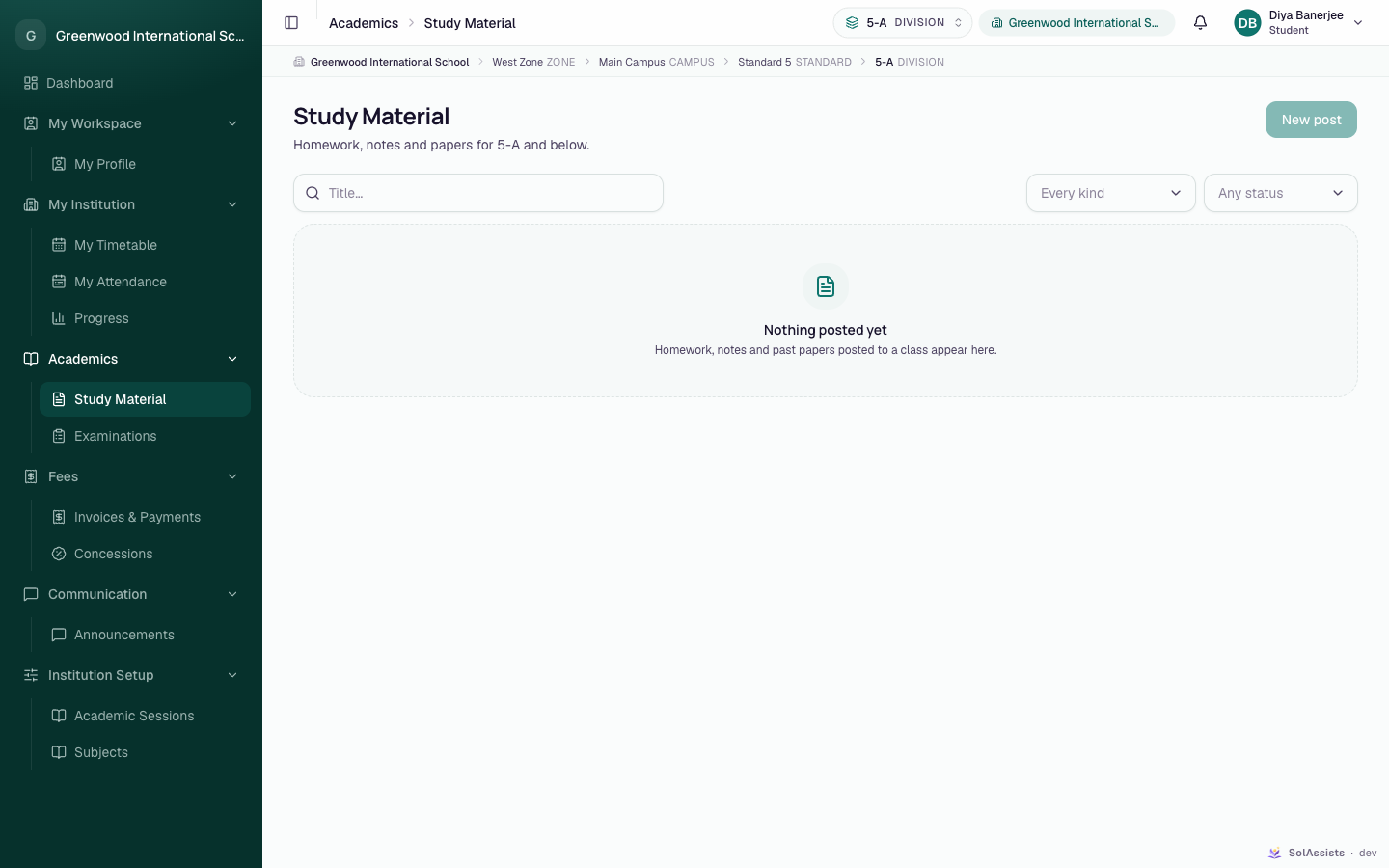
Students see the staff Study Material screen ("Homework, notes and papers for {division} and below."). The New post button is greyed out, and filters show Every kind and Any status. When nothing is posted: Nothing posted yet.
Partially implemented
SolAssists does not have a dedicated feed of homework and notes for students yet. Whether posts published to the student's class appear on this staff screen could not be confirmed.
Examinations
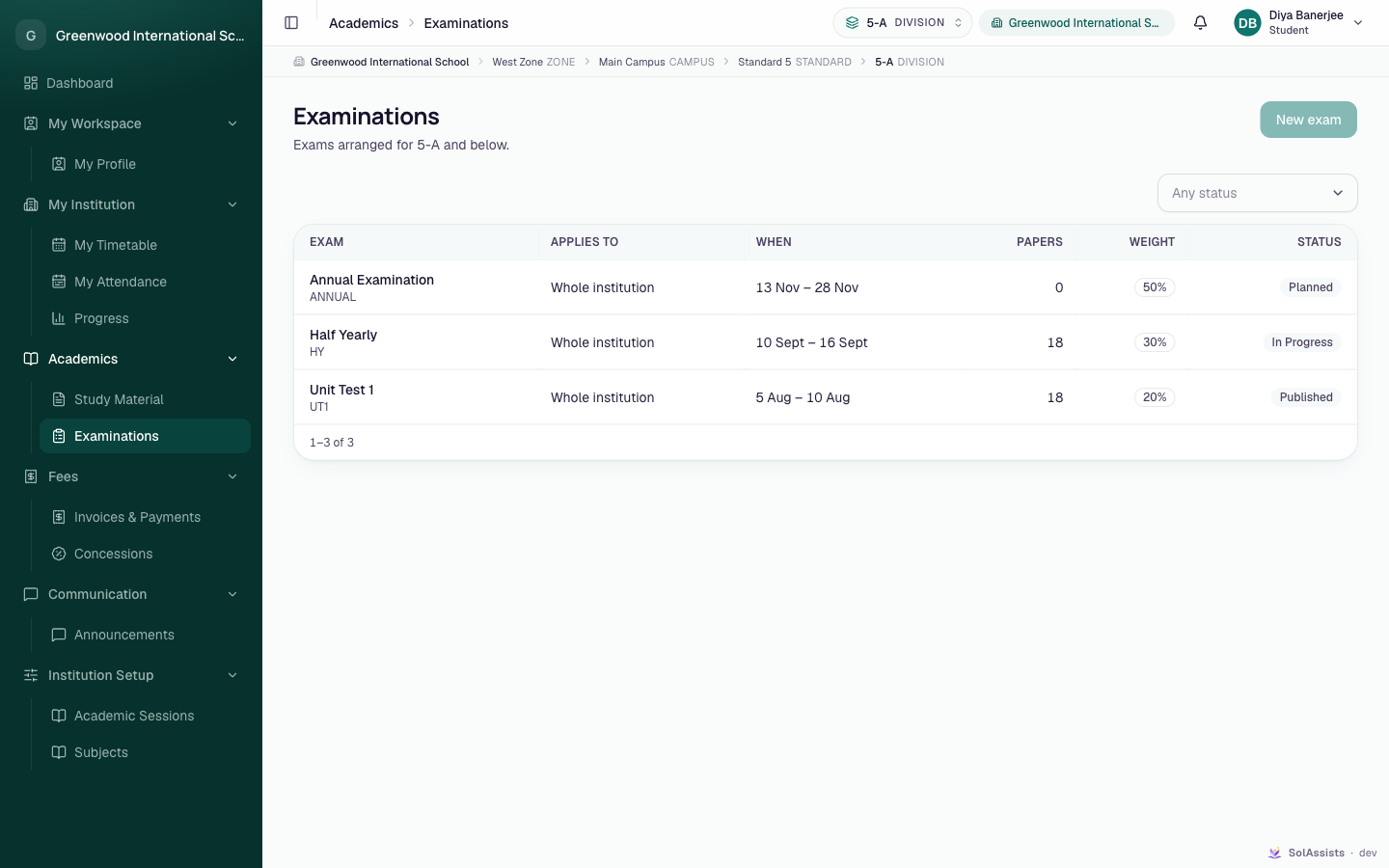
The exam list ("Exams arranged for {division} and below.") shows Exam, Applies to, When, Papers, Weight and Status (Planned, In Progress, Published). New exam is greyed out. Marks are not shown here; published results appear on Progress.
Invoices & Payments
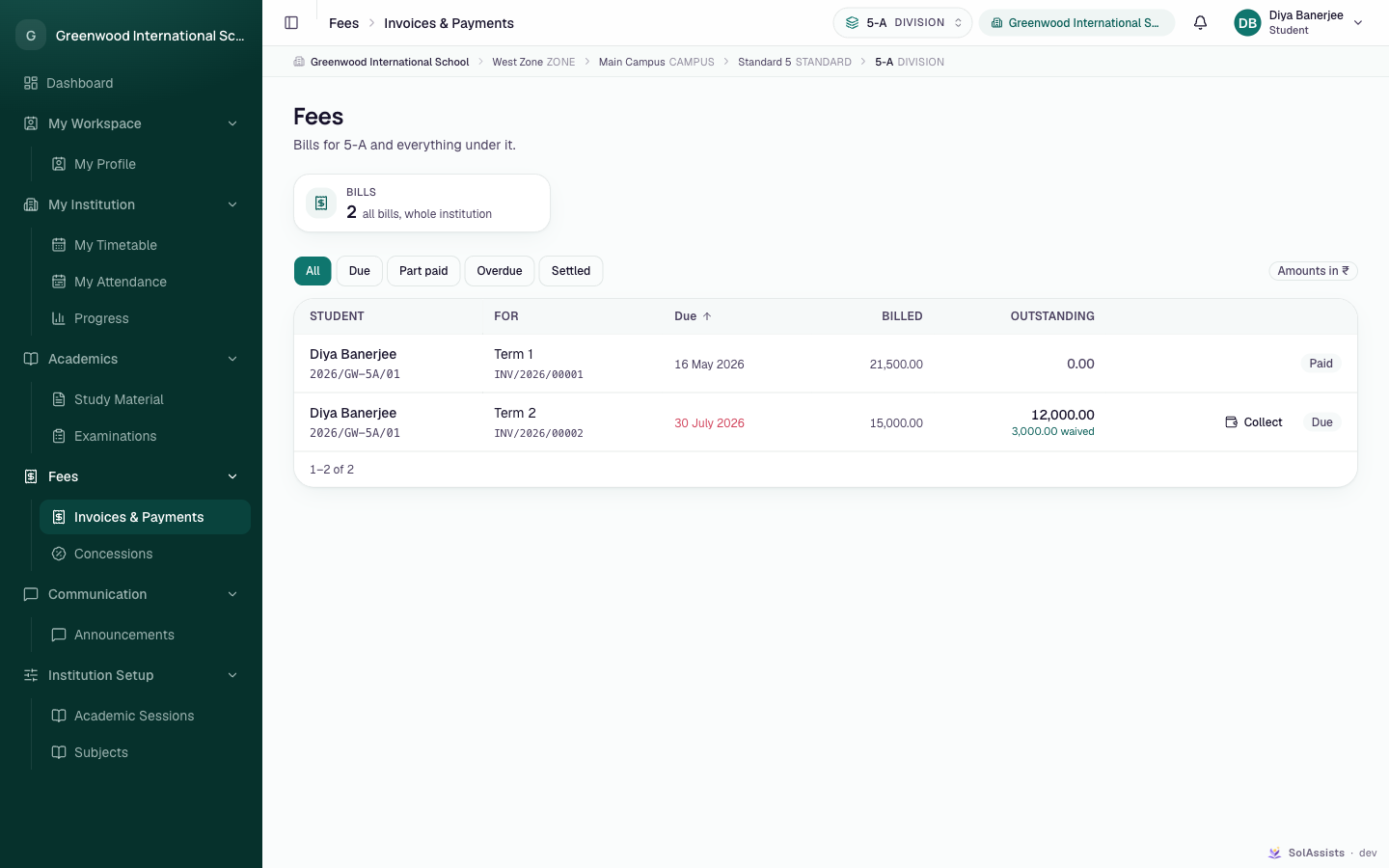
The Fees page lists the student's own bills: Student, For (period and invoice number), Due, Billed, Outstanding (with any amount waived) and status. Filters are All, Due, Part paid, Overdue and Settled. There is no online payment.
Concessions
Fees → Concessions lists fee discount requests and their decisions.
Announcements
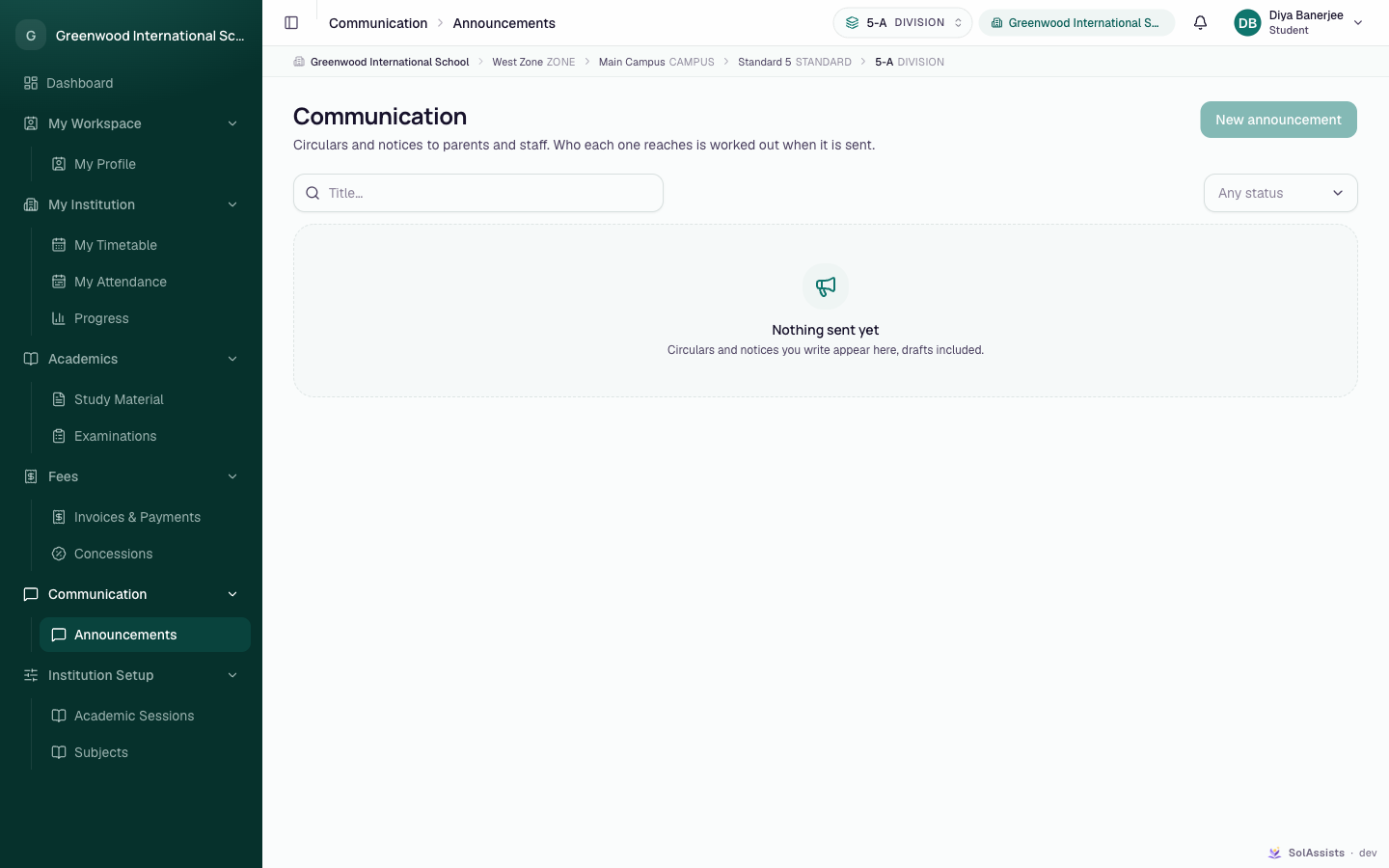
The page is headed Communication ("Circulars and notices to parents and staff. Who each one reaches is worked out when it is sent."). New announcement is greyed out for students. When empty: Nothing sent yet. Announcements meant for the student also arrive in the notifications bell.
Academic Sessions and Subjects
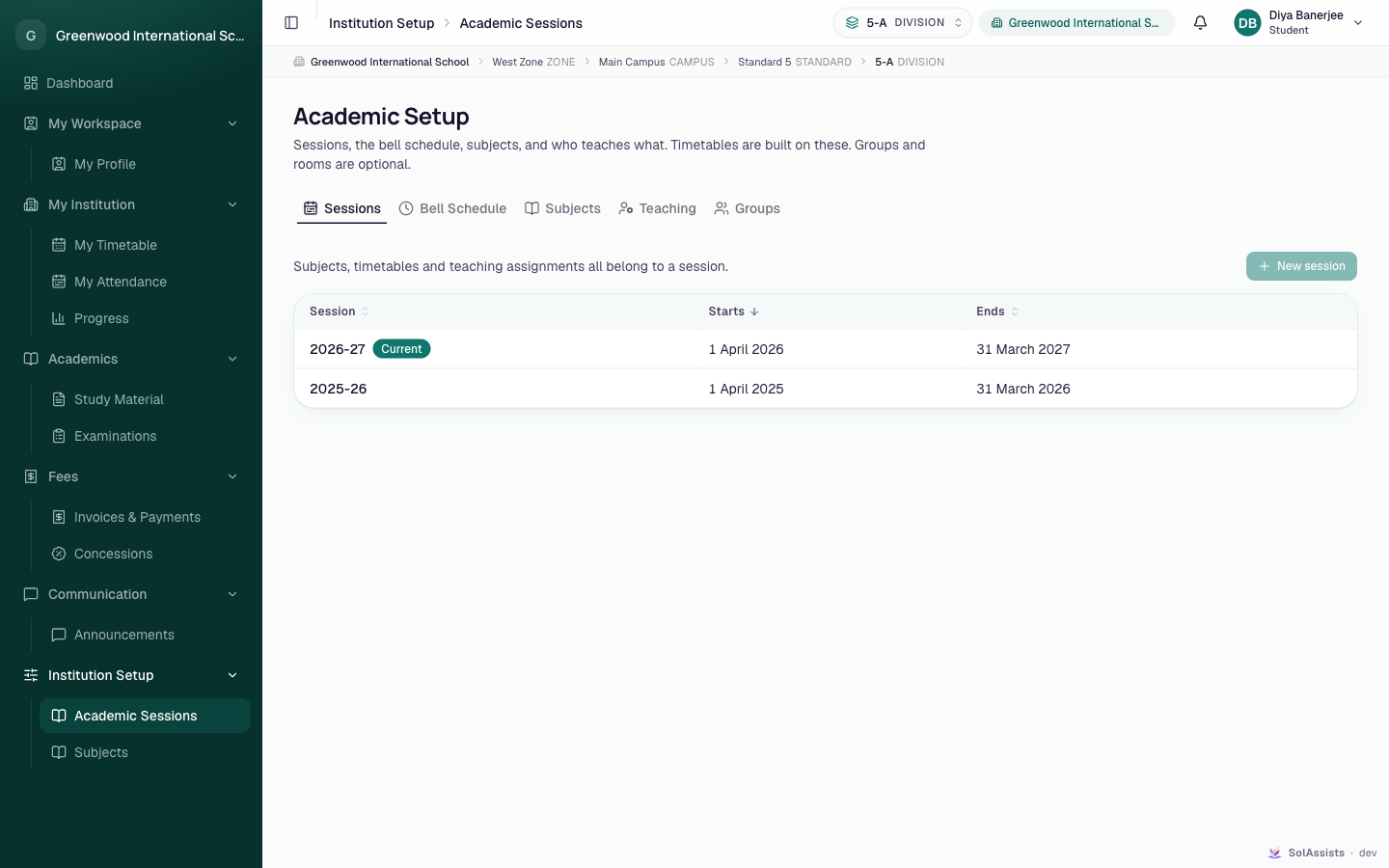
These open Academic Setup read-only: the Sessions tab lists sessions with Current marked, and Subjects lists subjects. New session and other edit buttons are greyed out.
What students cannot do
- Change their name, class, date of birth or identifiers (ask the office).
- See other students' records, attendance or marks.
- Pay fees online.
- Submit assignments, message teachers or apply for leave in the app.