Appearance
Student profile
School Admin TeacherThe student profile shows everything held about one student and is where staff edit, place, move and withdraw them, attach documents and link guardians.
Where to find it
Students & Admissions → Students, then click a student's row. The breadcrumb reads Students › {student name}. The title is the full name, followed by the admission number and the current division, for example DPS-2026-001 · 8-A.
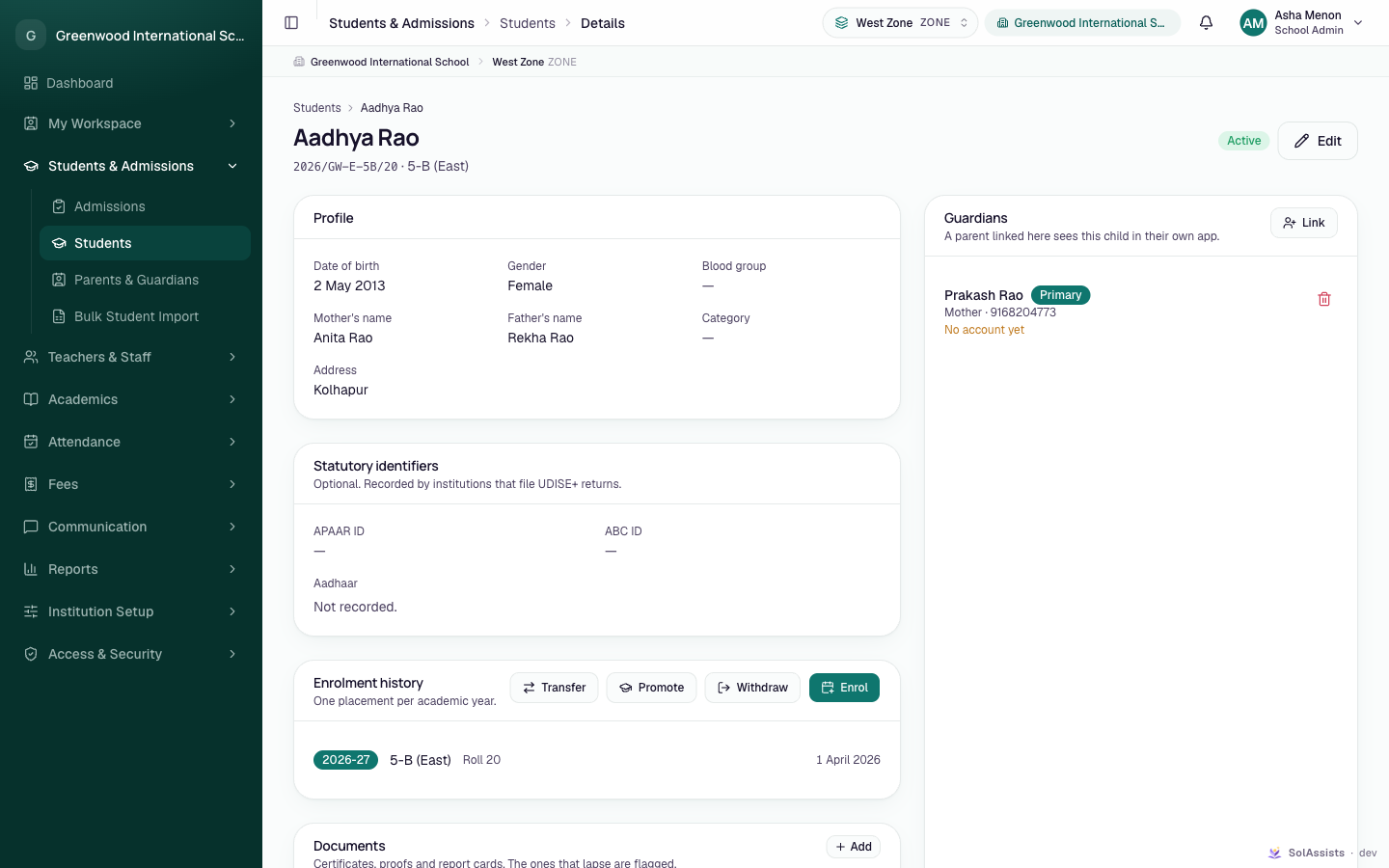
Layout
The profile is one long page of sections. It has no tabs.
Header: the status badge (Active, Inactive or Alumni) and the Edit button.
Left column
- Profile: Date of birth, Gender, Blood group, Mother's name, Father's name, Category, Address (address, town and pincode joined together). Empty values show "—".
- Statutory identifiers ("Optional. Recorded by institutions that file UDISE+ returns."): APAAR ID, ABC ID, Aadhaar.
- Enrolment history ("One placement per academic year."): one row per session with the session badge (the current one is highlighted), division, roll number and the date the student joined.
- Documents: certificates and proofs on file.
- Record history: "Every recorded change to this student — who made it, and what it was before."
Right column
- Guardians ("A parent linked here sees this child in their own app."): each linked guardian with name, a Primary badge where it applies, relationship · phone, and No account yet if the guardian has no sign-in.
Actions
| Button | Where | What it does | Who sees it |
|---|---|---|---|
| Edit | Header | Opens Edit {first name}. It has the same fields as Add a student. Save with Save changes; the message is "Student updated." | Permission to update students. Otherwise greyed out with "You don't have permission to edit students." |
| Enrol | Enrolment history | Places the student in a division for the current session. If a current-session placement already exists, it is replaced. | Permission to update students |
| Transfer | Enrolment history (only when a placement exists) | Moves this session's placement to another division | Permission to transfer students |
| Promote | Enrolment history (only when a placement exists) | Adds a placement in a later session | Permission to promote students |
| Withdraw | Enrolment history (only when a placement exists) | Closes this session's placement from a date, with an optional reason | Permission to update students |
| Add | Documents | Attaches a document | Permission to update students |
| Link | Guardians | Links an existing or new guardian | Permission to link guardians |
| Remove (bin icon) | Next to each guardian | Unlinks the guardian after confirmation | Permission to link guardians |
| Reveal full number | Statutory identifiers → Aadhaar | Shows the full Aadhaar once | Permission to export student data |
Details of Enrol, Transfer, Promote and Withdraw: Placement and promotion.
Editing Aadhaar
When you edit a student who already has an Aadhaar on file, the Aadhaar field is empty. Its placeholder shows the last four digits (for example "•••• 1234") and the hint reads "Already on record. Type a new number only to replace it." Leave it blank to keep the stored number.
Revealing Aadhaar
The Aadhaar row shows only the last four digits, for example •••• •••• 1234.
- Click Reveal full number. The note under the button reads "Recorded against your account in the audit log."
- The full number appears in a copyable field. Every reveal is recorded in the audit trail.
If you lack the permission, you see "You don't have permission to see the full number." If no Aadhaar is on file, the row says "Not recorded."
Documents
- Click Add to open Add a document. Fill in Kind, Label and Expires on, choose the file and click Attach.
- Documents that expire are flagged: Expired, Expires today or "N days left".
- Click Open to view a file, or the remove icon to delete it (Remove this document?, then Remove).
- When no documents exist, the section shows Nothing on file.
Unlinking a guardian
- Click the bin icon next to the guardian.
- The confirmation Unlink this guardian? reads "They lose access to this child in their own app. The guardian record itself is kept."
- Click Unlink. A message confirms "Guardian unlinked."
To link someone, see Link parents to children.
Photo
The profile has no photo and no photo upload for staff. See Add a student.
What is not on this page
- A status change. Nothing here sets a student to Inactive or Alumni.
- Delete. Students cannot be deleted.
- A sign-in for the student. See Add a student.
- Withdrawal date and reason. They are stored in the audit trail but not shown in Enrolment history.
Who can do this
- School Admin: can view and use every action.
- Teacher: can open profiles of students in the divisions they teach. Action buttons are greyed out or hidden.
Common problems
| Symptom | Why | Fix |
|---|---|---|
| Transfer, Promote and Withdraw are missing | The student has no placement | Click Enrol first. |
| "Not enrolled yet" / "Until this student is placed in a division they appear on no register and no timetable." | No placement exists in any session | Click Enrol. |
| A withdrawn student still shows Active | Withdraw does not change the status | See Placement and promotion. |