Appearance
A teacher's day
TeacherWhat a teacher with the built-in Teacher role sees and does in SolAssists. Everything here is limited to the classes you're assigned to teach in the current session.
Screenshots
The screenshots on this page come from a sample school (Greenwood International School, teacher Ravi Kulkarni), not Demo Public School.
Before you start
- You have accepted your invitation and can sign in. See First login.
- Your administrator has assigned you subjects and divisions for the current session. Without them most pages are empty. See Teaching assignments.
- Study Material, Examinations and Reports only appear if your institution subscribes to them.
Your sidebar
| Group | Items |
|---|---|
| Dashboard | Dashboard |
| My Workspace | My Schedule, My Leave, My Profile |
| Students & Admissions | Students, Parents & Guardians (your classes only) |
| Teachers & Staff | Teachers |
| Academics | Class Timetable, Study Material, Examinations |
| Attendance | Mark Attendance, Attendance History, Devices, Attendance Policy |
| Communication | Announcements |
| Reports | Attendance Reports, Subject Rankings, Toppers |
| Institution Setup | Academic Sessions, Subjects (view only) |
Use the working-scope picker in the top bar to switch between your divisions.
Dashboard
"Hello, {first name}" — "Here's what you're teaching."
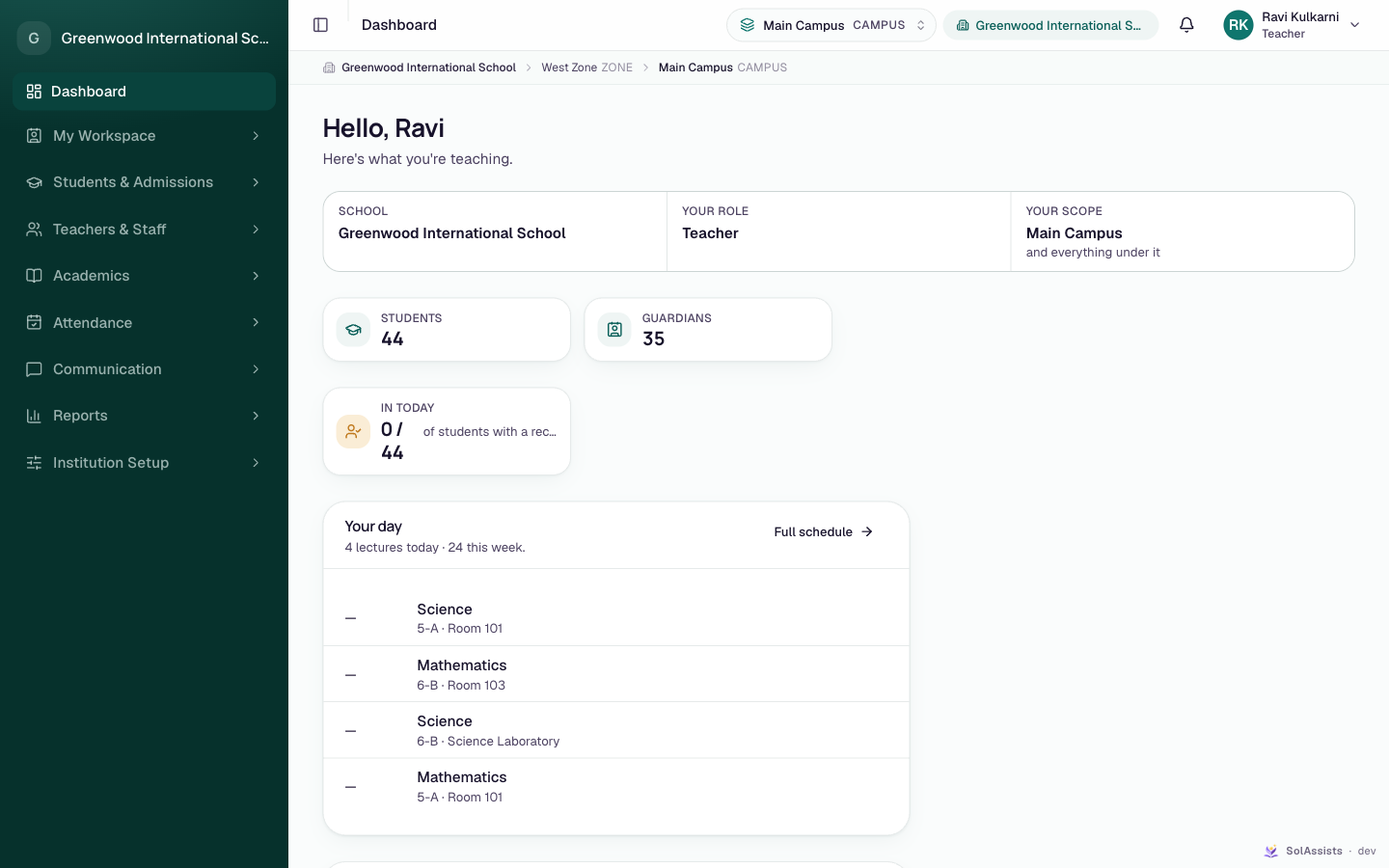
- Cards show your institution, Your role and Your scope, plus student and guardian counts and today's attendance.
- Your day lists today's lectures ("{n} lectures today · {m} this week"). With nothing today it reads "Nothing scheduled today — A quiet one. The full schedule has the rest of the week." Full schedule opens My Schedule.
My Schedule
My Workspace → My Schedule. Heading "My Schedule": "Teacher week at {institution}."
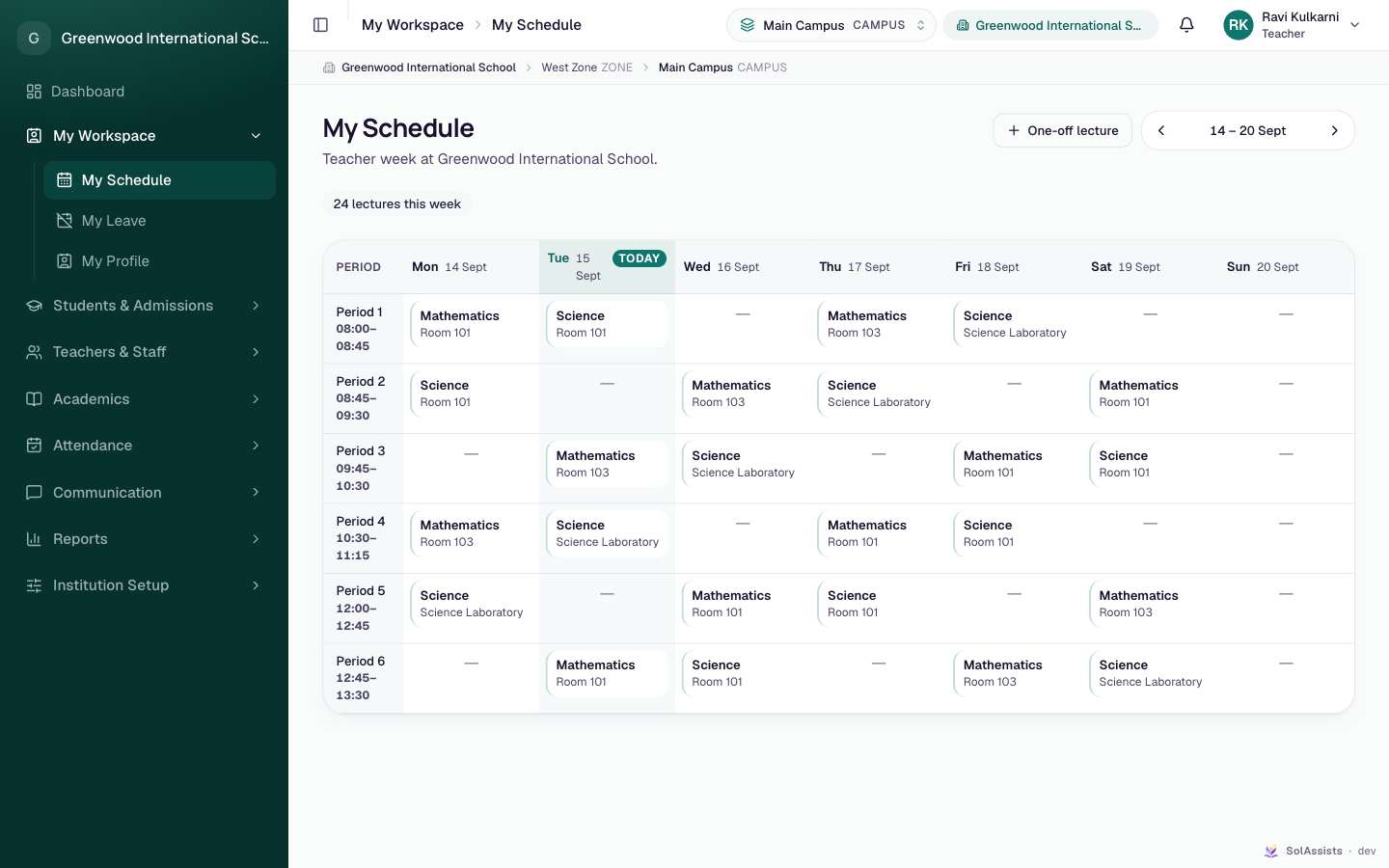
- Move between weeks with the previous/next arrows; This week jumps back.
- Chips show "{n} lectures this week", and how many are cancelled or covered.
- Click a lecture to change that one date. Choose Cancel this lecture ("The class is told it isn't happening."), Get it covered (pick Who's covering; people are marked Free or Busy) or Put it back. Add an optional Note for the class, then click Apply. Your weekly timetable doesn't change.
- One-off lecture adds a lecture on a single date (Division, Date, Period, Subject and teacher, Note for the class, then Add lecture).
If you see Nothing scheduled this week ("Lectures you're assigned to teach will appear here once they're on the timetable."), you have no lectures on the timetable yet. No academic session yet means the school hasn't set a current session.
Class Timetable
Academics → Class Timetable shows one division's weekly grid. You can add, move and remove your own lectures, for subjects and divisions you're assigned, if your school allows teachers to schedule themselves. Otherwise you'll see "Timetables here are set centrally". Scheduling another teacher gives "You can only schedule your own lectures." See Timetable.
Mark Attendance
Attendance → Mark Attendance. Heading "Attendance": "{unit} and everything under it. Change division in the top bar."
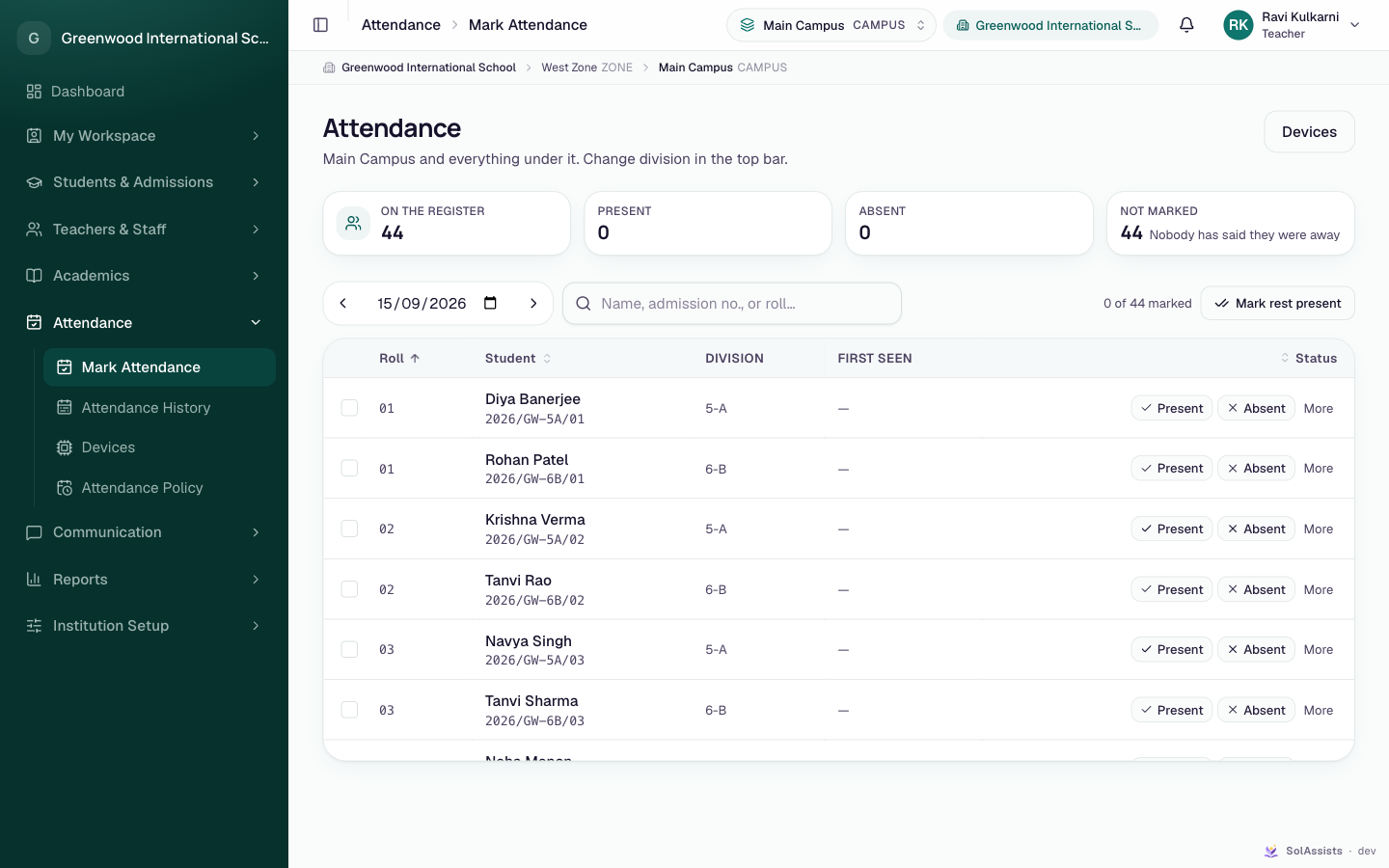
- Pick the division in the top bar and check the date.
- Click Present or Absent for each student, or use More for Late or Excused (you'll be asked for a reason).
- To finish quickly, click Mark rest present, then confirm Mark everyone else present?.
"Nobody on this register" means no students are enrolled in that division for the current year. Full details: Attendance.
Devices and Attendance Policy
These menu items are visible to teachers, but setting up devices and policies is normally the office's job.
Study Material
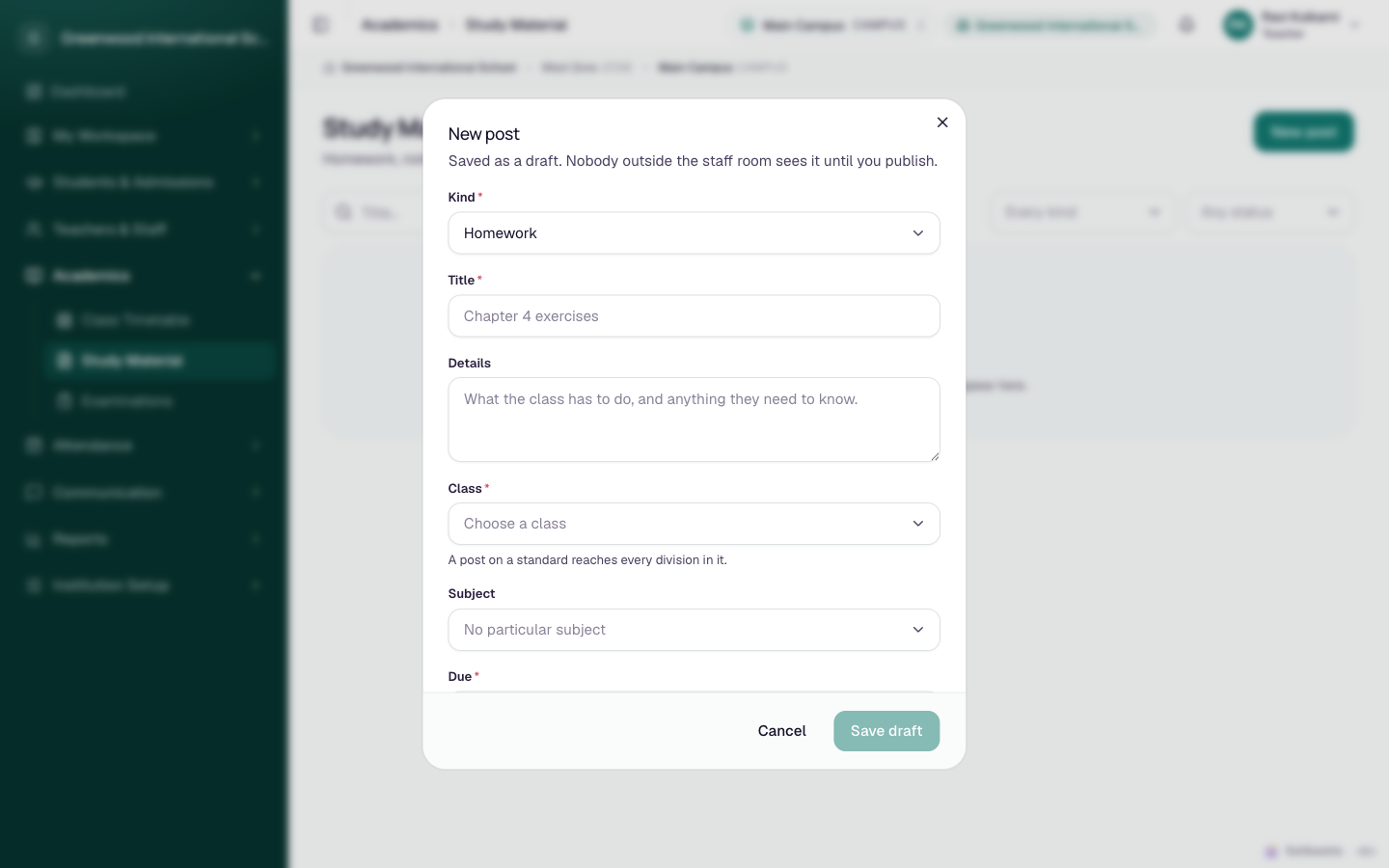
Academics → Study Material. Heading "Study Material": "Homework, notes and papers for {unit} and below."
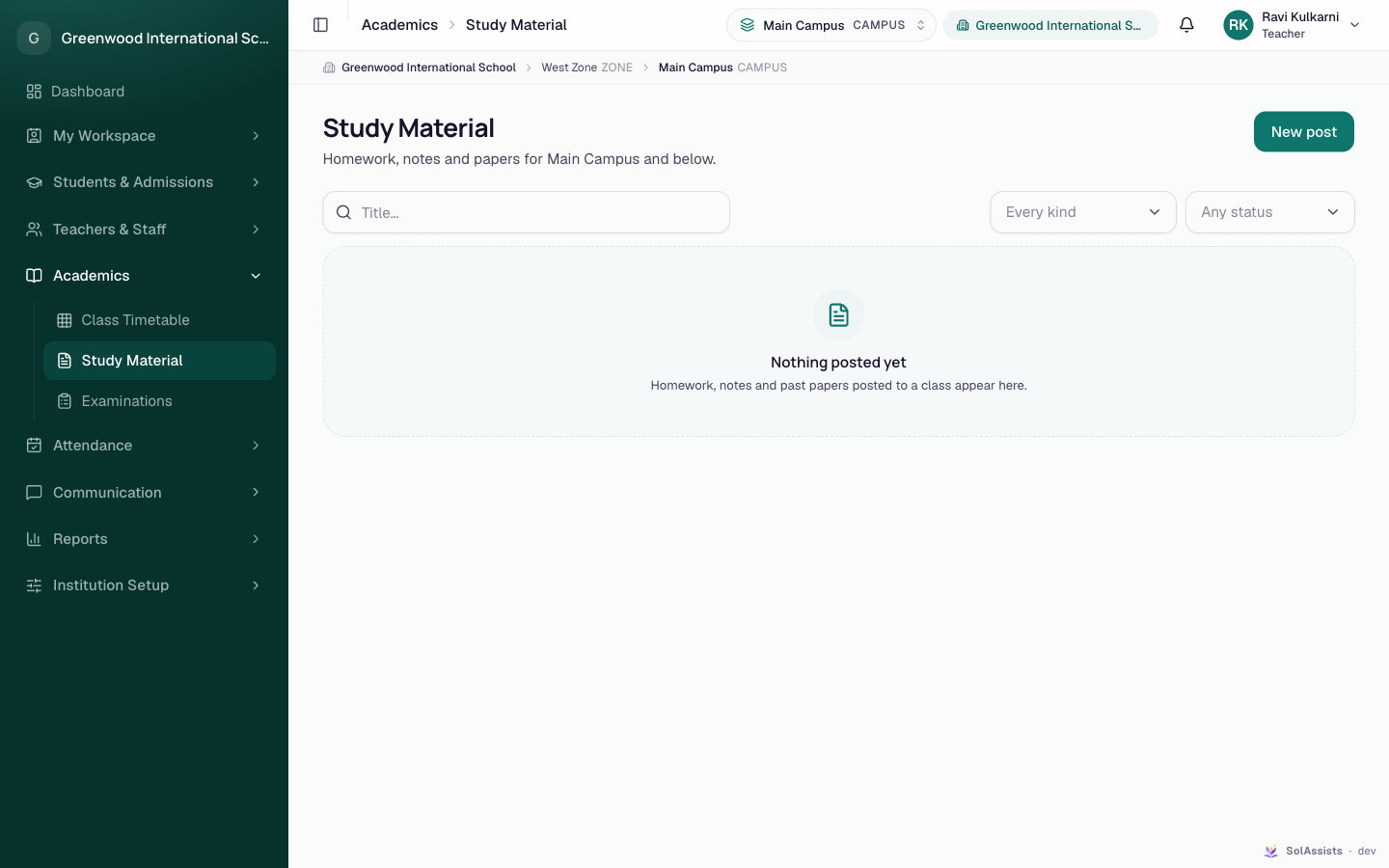
- Click New post.
- Choose Kind (Homework, Classwork, Notes, Question paper, Announcement), enter Title and Details.
- Choose Class. Only your classes are listed. "A post on a standard reaches every division in it."
- Optionally choose Subject. Due is required for Homework; Paper year for a Question paper.
- Click Save draft. Nobody outside the staff room sees it yet.
- In the list, click Publish, then Publish and notify to send it to the class. Published posts can be archived but not un-published.
Files can't be attached to posts in the app yet. See Study material.
Examinations
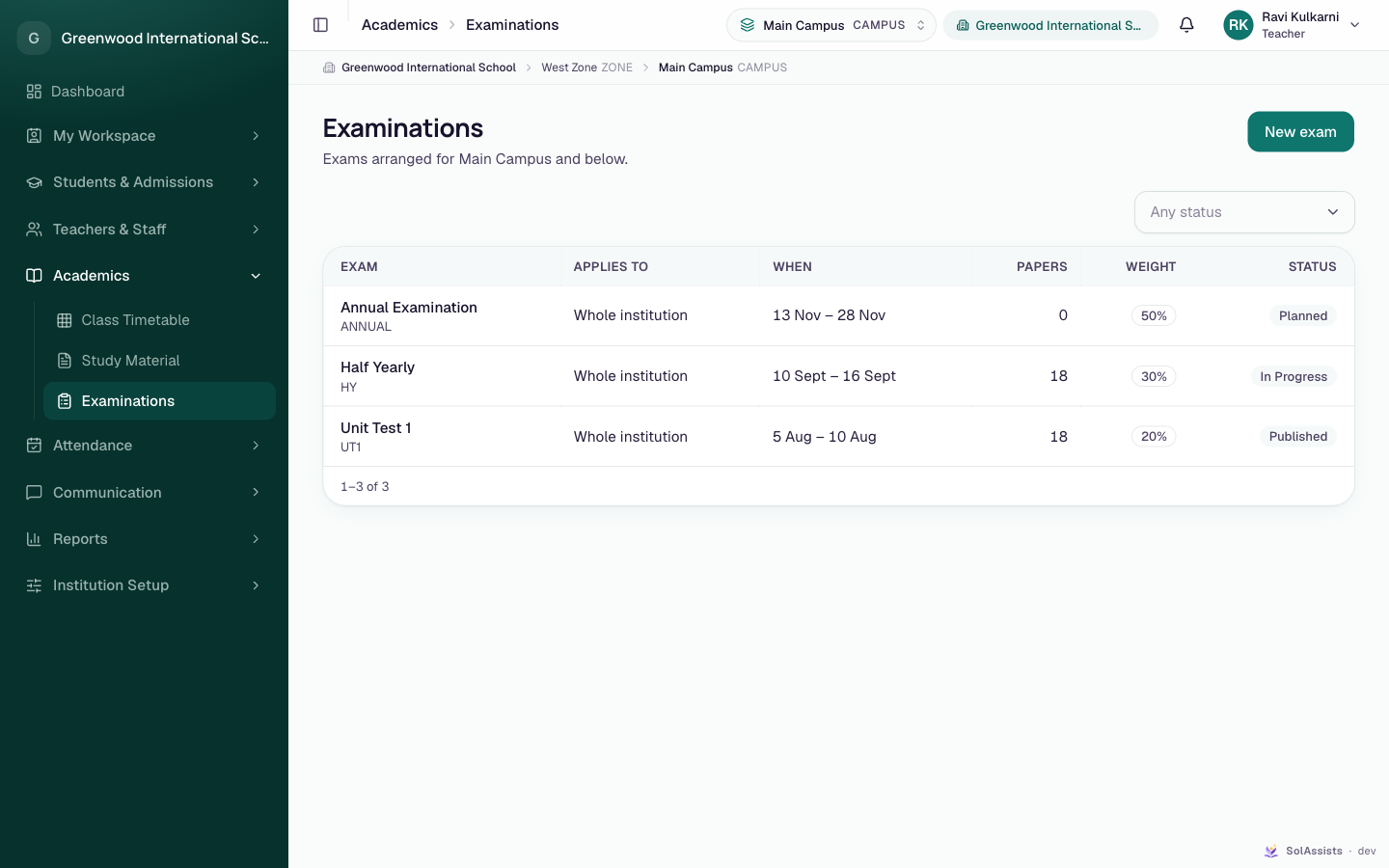
Academics → Examinations.
What teachers can do:
- Create an exam for one of your classes. In New exam, Applies to is required: "Choose one of your classes" ("An exam for the whole institution is set by the office.").
- Add papers to an exam for your classes.
- Enter marks once the exam is In Progress: open the exam, click Marks on a paper, set each student's status and marks, then click Save marks.
What teachers can't do:
INFO
An administrator starts marks entry, locks marks and publishes results — including for exams a teacher created. Teachers can't remove papers or publish results.
See Examinations.
Announcements
Communication → Announcements (heading "Communication").
- Click New announcement.
- Enter Title and Message.
- Who it is for offers only a class: "Announcements you write go to the classes you teach." Choose one in Which part ("Choose one of your classes").
- Click Save.
Teachers write drafts only
The Teacher role can't send, schedule, edit or cancel announcements. There is no Send at field and no Send button for you. The draft stays in the list until an administrator sends it.
The app has no "ask the office to send this" step, so agree with your administrator how teachers hand over drafts.
See Announcements.
My Leave
My Workspace → My Leave: apply for leave, see where each request stands, and withdraw one. Before you submit, the dialog lists the lectures your leave affects. See Staff leave.
My Profile
My Workspace → My Profile shows your account, your roles and, if the office has linked your staff record, Your employment ("The office's record. Ask them to change any of it."). You can change only your phone number and password.
What teachers can't do
- Assign subjects or classes (to yourself or anyone else), or edit subjects, sessions and the bell schedule.
- Schedule other teachers' lectures.
- Add or edit students and parents, or see students outside your classes.
- Send or schedule announcements.
- Start, lock or publish exam results.
- Approve leave or set up leave types.
- See All Staff, departments or shifts.
- Give access, or change roles and permissions.
Common problems
| Symptom | Why | Fix |
|---|---|---|
| Top-bar picker empty; no students; empty Class lists | No teaching assignments in the current session | Ask your administrator to assign your classes (Teaching assignments) |
| A class shows, but everything says "That part of the institution is outside your access." | Your access scope doesn't include that class | Ask your administrator to fix your access scope |
| "That class is outside the ones you work with." | You picked a class you aren't assigned to | Choose one of your classes |
| "Nothing scheduled this week" | No lectures on the timetable for you | Ask the office, or add your own if allowed |
| Can't enter marks; exam is Planned | Marks entry hasn't been started | Ask an administrator to click Start marks entry |
| Apply for leave greyed out | No leave types set up | Ask your administrator (Staff leave) |