Appearance
First login
School Admin Teacher Student ParentHow people get into SolAssists for the first time. Everyone at an institution — administrators, office staff, teachers, students and parents — signs in to the same SolAssists app.
INFO
The SolAssists Console is a separate app used only by SOL staff. School accounts can't sign in there; see Login problems.
Every school account starts with an invitation link, not a password. Links come in two ways:
- SOL sends them for the first accounts when your institution is set up;
- the school admin issues them later under Access & Security → User Accounts & Access.
Step 1 — Accept your invitation
- Open the email titled "Confirm your SOL Assist account" and click Set up your sign-in. If someone read or sent you a link, paste the whole address into your browser.
- The page greets you with Hello first name and a line such as "Demo Public School invited you to SOL Assist."
- Enter a Password of at least 12 characters. A live counter shows e.g. "3 more characters needed." A short phrase works well.
- Enter it again in Type it again. If the two differ you'll see "These do not match."
- Click Set up my account. The button stays disabled until both boxes match and are long enough.
- You see Your account is ready — "Sign in with your email and the password you just chose." Click Sign in.
INFO
Accepting the invitation does not sign you in. That is deliberate, so a forwarded link can't sign the wrong person in.
Invitation links expire after 72 hours and work only once. If yours has expired you'll see This invitation has expired; ask your school to send a new one.
If you already have a SolAssists account from another school, you won't get an invitation. Sign in with your existing password and the new school appears in your institution switcher.
Step 2 — Sign in
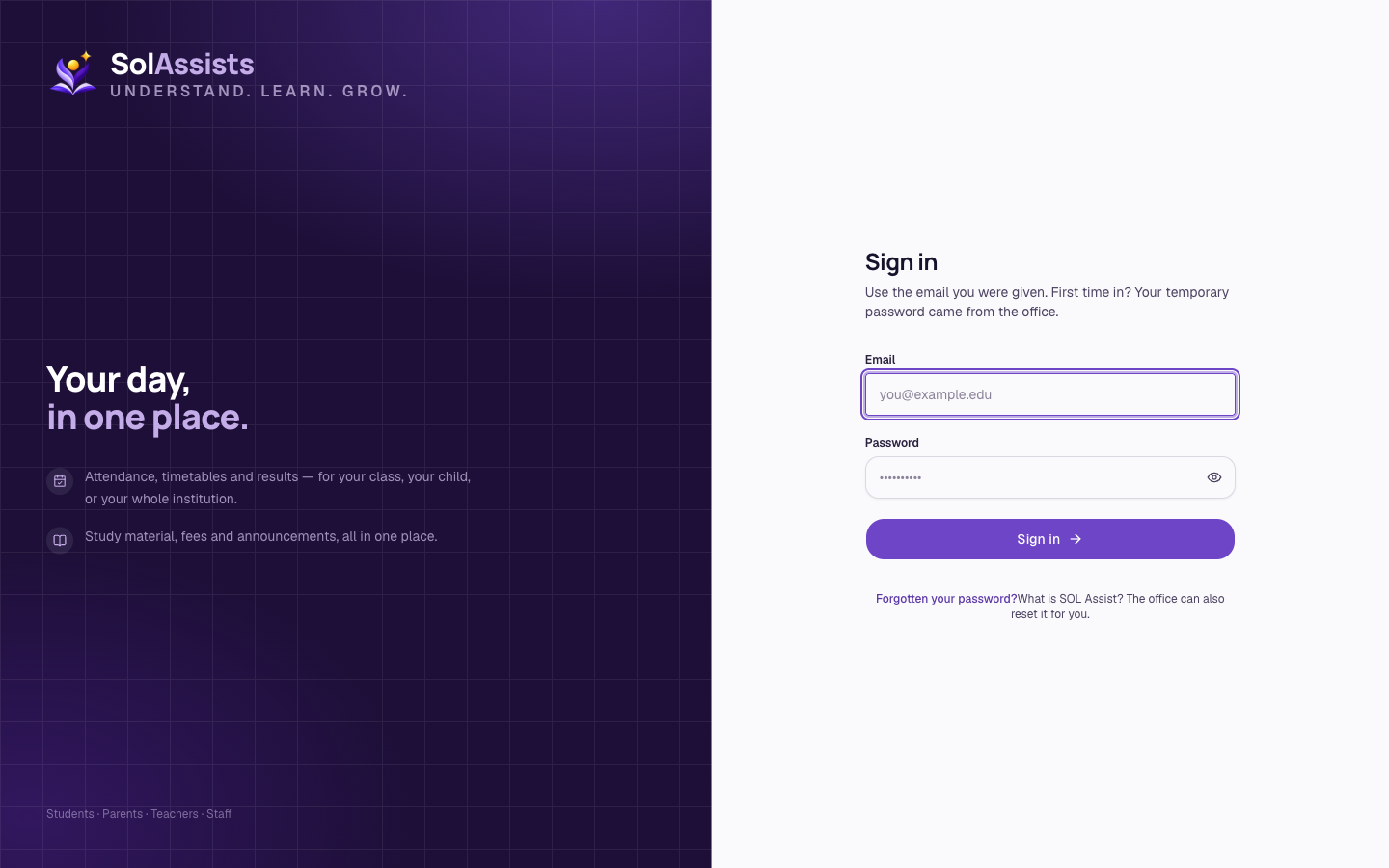
- Go to the SolAssists sign-in page, headed Sign in.
- Enter your Email and Password, then click Sign in.
INFO
The sign-in page says "First time in? Your temporary password came from the office." That is out of date. New accounts use the invitation link from Step 1, not a temporary password.
Step 3 — Choose where you're working (only if you have several accesses)
If your account has access at more than one school, or more than one role, you'll see Where are you today? — "Signed in as email. You can switch at any time from your profile menu." Each card shows the institution, your role and your unit (or "Institution-wide"). Click one.
Step 4 — Your first screen
You land on the Dashboard, headed Hello, first name. What's below depends on your role:
| Role | Subheading | What you'll see |
|---|---|---|
| School Admin | "Here's your institution at a glance." | Counts (students, staff, bills), queues (in today, admissions, leave), Your day, Where you can go |
| Teacher | "Here's what you're teaching." | Students, In today for your classes, Your day |
| Student | "Here's your day." | Your day, Where you can go |
| Parent | "Here's how your children are doing." | Your children, Where you can go |
The strip under the heading shows your school, Your role and Your scope.
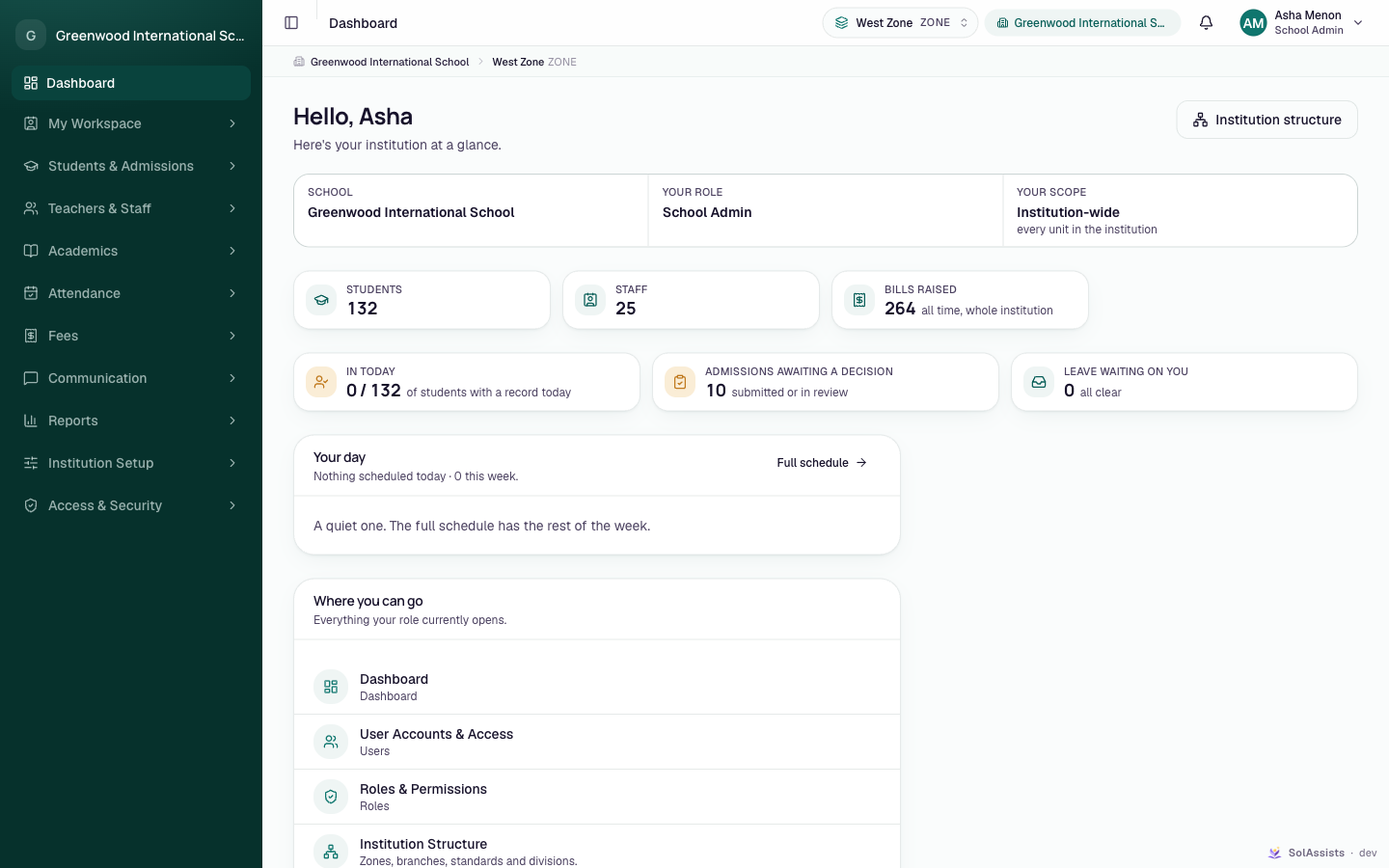
If Where you can go says "Nothing available yet" — "Your administrator hasn't given this role access to anything yet." — your account works but your role has no permissions. Ask your school admin.
A brand-new school starts almost empty: no classes, subjects or students. School admins should go straight to Initial setup.
The top bar
- Working-scope picker: shows a unit name and its level (e.g. 8-A DIVISION). Click it to choose which part of the institution you're working in; "Covers this unit and everything under it." It appears only if you can reach more than one unit. It filters what you see; it doesn't change your permissions.
- Institution switcher: shows the institution name. If you belong to several institutions, use it to switch; "Switching reloads your role, permissions and modules there." On narrow screens use Switch context in the account menu instead.
- Notifications bell.
- Account menu (your name and role): My profile, Switch context (if you have several accesses) and Sign out.
Forgot your password
- On the sign-in page click Forgotten your password?
- Enter the Email you sign in with and click Send the link.
- You'll see Check your email. The page says the same thing whether or not the address has an account.
- Open the email "Reset your SOL Assist password" and click Choose a new password.
- On Choose a new password, enter New password and Type it again (at least 12 characters), then click Save the new password.
- Your password is changed — you are signed out on every device. Sign in again.
WARNING
- The reset link is valid for 1 hour and works once. Asking again cancels the previous link.
- No reset email is sent to an account that never accepted its invitation, or to a suspended account. If you never set a password, you need a new invitation, not a reset.
- The page suggests the office "can send one from your account". There is currently no such button for school staff.
Change your password while signed in
Go to the change-password page (Change your password). Enter Current password, New password and Confirm new password, then click Set password. Other devices are signed out; this one stays signed in.
Signing out
Open the account menu (top right) and click Sign out. Your chosen working unit is forgotten. If you close the browser without signing out, you stay signed in on that device for up to 30 days.