Appearance
Subjects
School Admin TeacherSubjects are what gets taught in an academic session, such as Mathematics or English. You need them before you can give a teacher a teaching assignment or put a lecture on the timetable.
Before you start
- A current academic session must exist. Subjects always go into the current session. See Academic sessions.
- To add subjects you need the office-level timetable permission. The School Admin role has it by default.
Where to find it
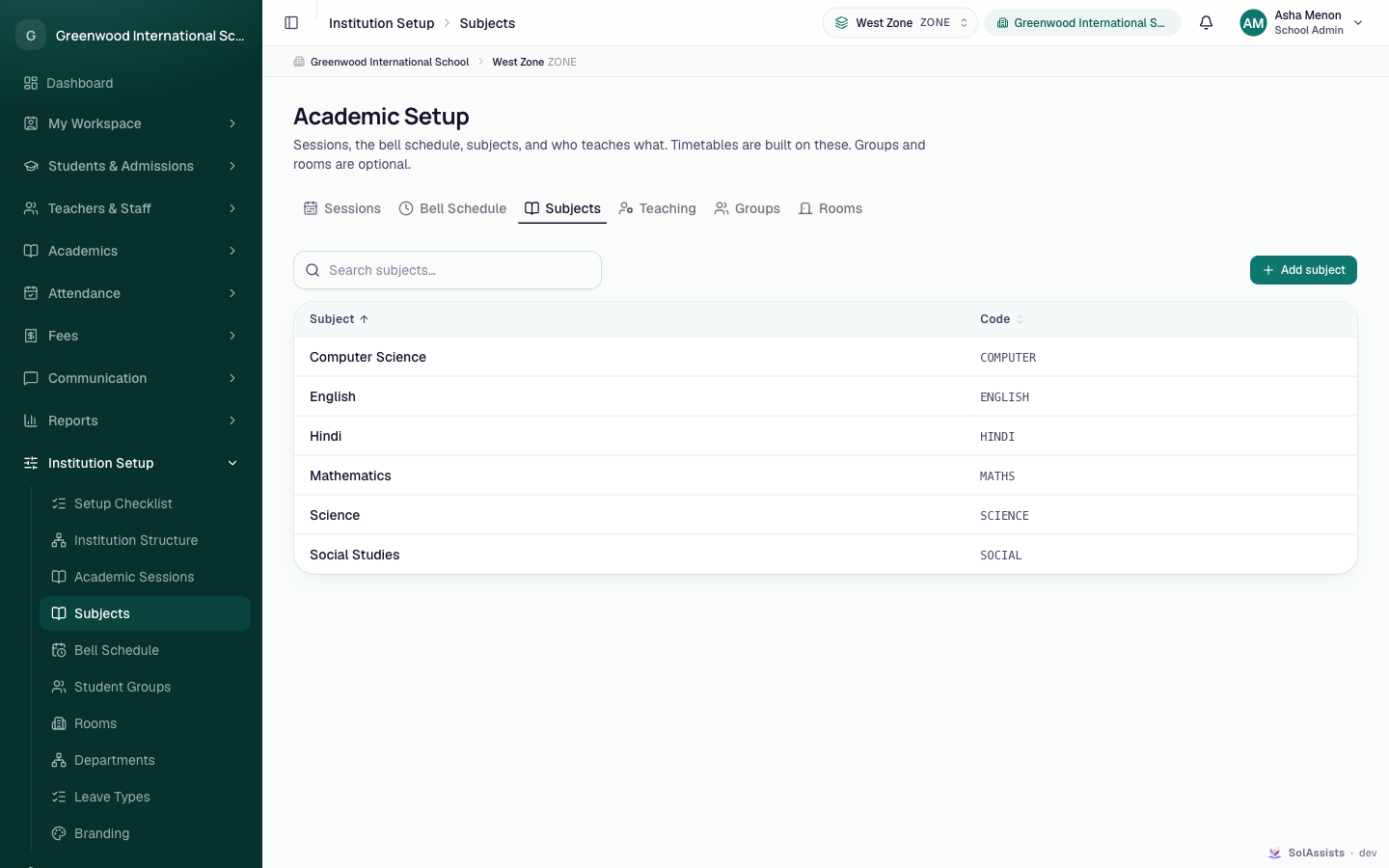
Institution Setup → Subjects. The page heading is Academic Setup, with the Subjects tab selected.
Step by step
- Open Institution Setup → Subjects.
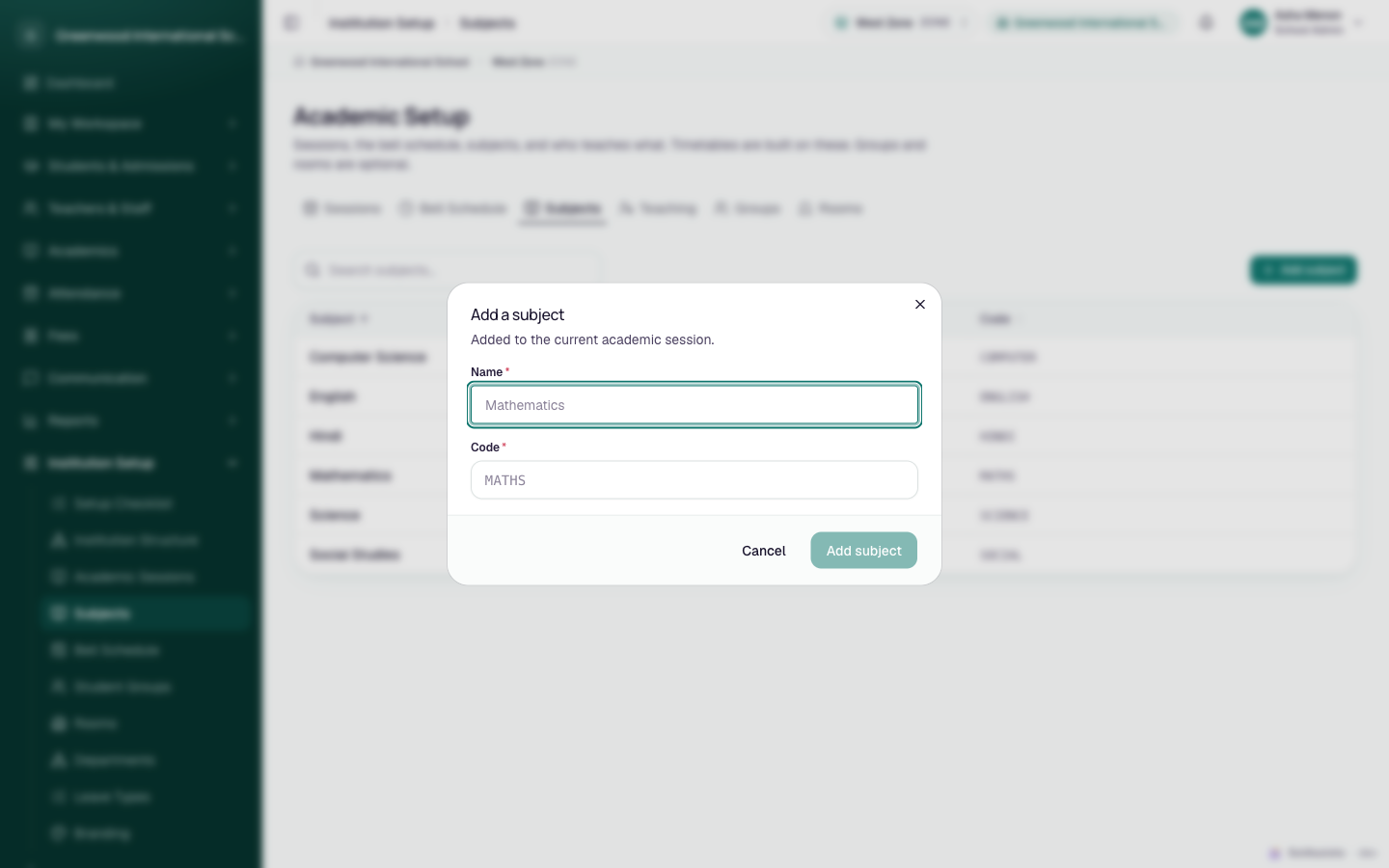
- Click Add subject. The dialog Add a subject opens. It says "Added to the current academic session."
- Type the Name, for example
Mathematics. - Type the Code, for example
MATHEMATICS. - Click Add subject. You see "Mathematics added." and the subject appears in the table.
Use Search subjects… above the table to find a subject by name or code.
Fields
| Field | Required | What to enter |
|---|---|---|
| Name | Yes | The subject name people will see, up to 80 characters. |
| Code | Yes | A short code, up to 40 characters. The box turns letters into capitals as you type, and any space or symbol becomes _. The code must start with a letter: MATHS_2 works, 2MATHS does not. Each code can be used only once per session. |
The Add subject button stays greyed out until both fields are filled.
What happens next
- The subject is available in the current session only. You can now give teachers teaching assignments for it (see Teaching assignments). Once a teacher is assigned, the subject can go on the timetable.
- A subject belongs to the whole institution for that session. It is not tied to one standard or division. Which divisions actually study it depends on the teaching assignments.
Things you cannot do on this screen
- You can't edit or delete a subject. The table has no edit or delete buttons. Check the name and code before you save. If you make a typo, you can't fix it in the app. Ask your SolAssists support contact.
- You can't add subjects to a session that isn't current. There is no session picker on this tab.
- Subjects don't carry over to a new session. When you switch to a new academic session, its subject list starts empty and you add the subjects again. See Academic year setup.
Elective and compulsory subjects
A subject has no "elective" or "compulsory" setting. It is just a name and a code.
To run an elective, create a student group for the students who chose it, such as "Physics elective". Then schedule that subject for the group rather than for the whole division. See Rooms and student groups.
Who can do this
- School Admin: can view and add subjects.
- Teachers, students and parents: can see the subject list, but the Add subject button is greyed out. Hovering over it shows "You need permission to manage subjects."
Common problems
| Symptom | Why | Fix |
|---|---|---|
| "This institution has no current academic session yet." | No session is marked current. | Mark a session current in Academic sessions. |
| "Some fields need fixing." after clicking Add subject | The code starts with a number or _. | Start the code with a letter. |
| "A record with this value already exists" | Another subject in this session already uses that code. | Pick a different code. |
| Add subject is greyed out for an office user | Their role can manage academics but lacks the timetable-building permission this button checks. | Ask a School Admin to add the subject, or give that user the School Admin role. See Roles and permissions. |
| Assign a teacher is greyed out on the Teaching tab | The current session has no subjects yet. | Add subjects here first. |
| Last year's subjects are gone | A new session was made current, and each session has its own subject list. | Add the subjects to the new session. |