Appearance
Staff records
School AdminAll Staff is the institution's employment register: teachers, office staff, drivers, cleaners and security. A staff record is not a sign-in. Most staff never sign in, and adding a record creates no account.
Before you start
- Your institution subscribes to Staff (it normally comes with Staff Leave).
- Optional: departments, so you can place people in one.
- In the top bar, pick the part of the institution the person works at. A new record is posted to that unit, and the form has no field to change it.
Where to find it
Teachers & Staff → All Staff (page heading All Staff: "Everybody employed at {unit} and below — not only the teachers.").
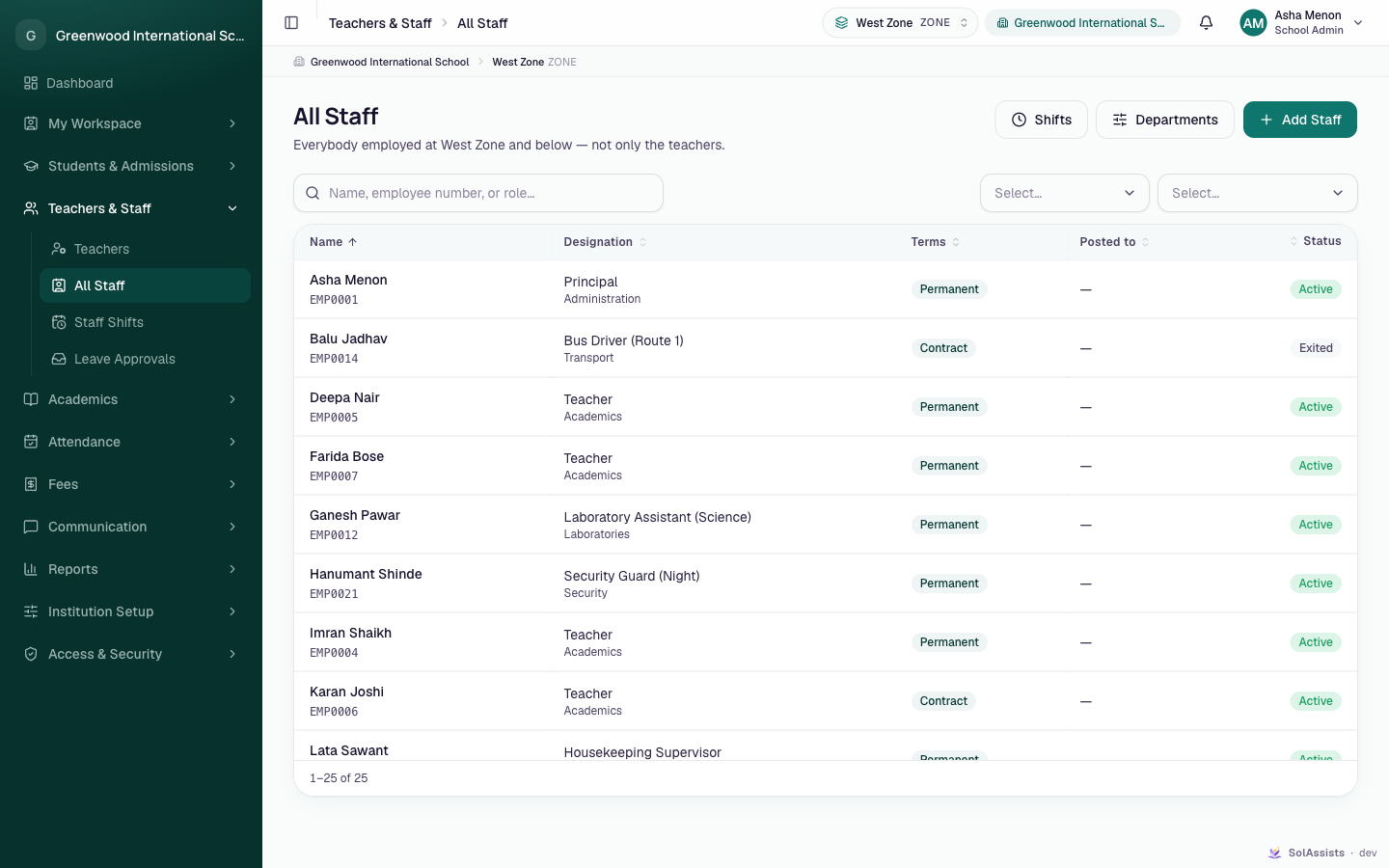
- Header buttons: Shifts, Departments, Add Staff.
- Search Name, employee number, or role….
- Status filter: Everyone still here, Active, On long leave, Left. Department filter: Every department. Active filters appear as chips with Clear all.
- Columns: Name (with employee number), Designation (with department or "No department"), Terms, Posted to, Status.
- Click a row to open the person's profile.
- Empty list: Nobody here yet — "Add the people who work at this institution — teaching and everybody else."
Add a staff member
- Pick the posting unit in the top bar.
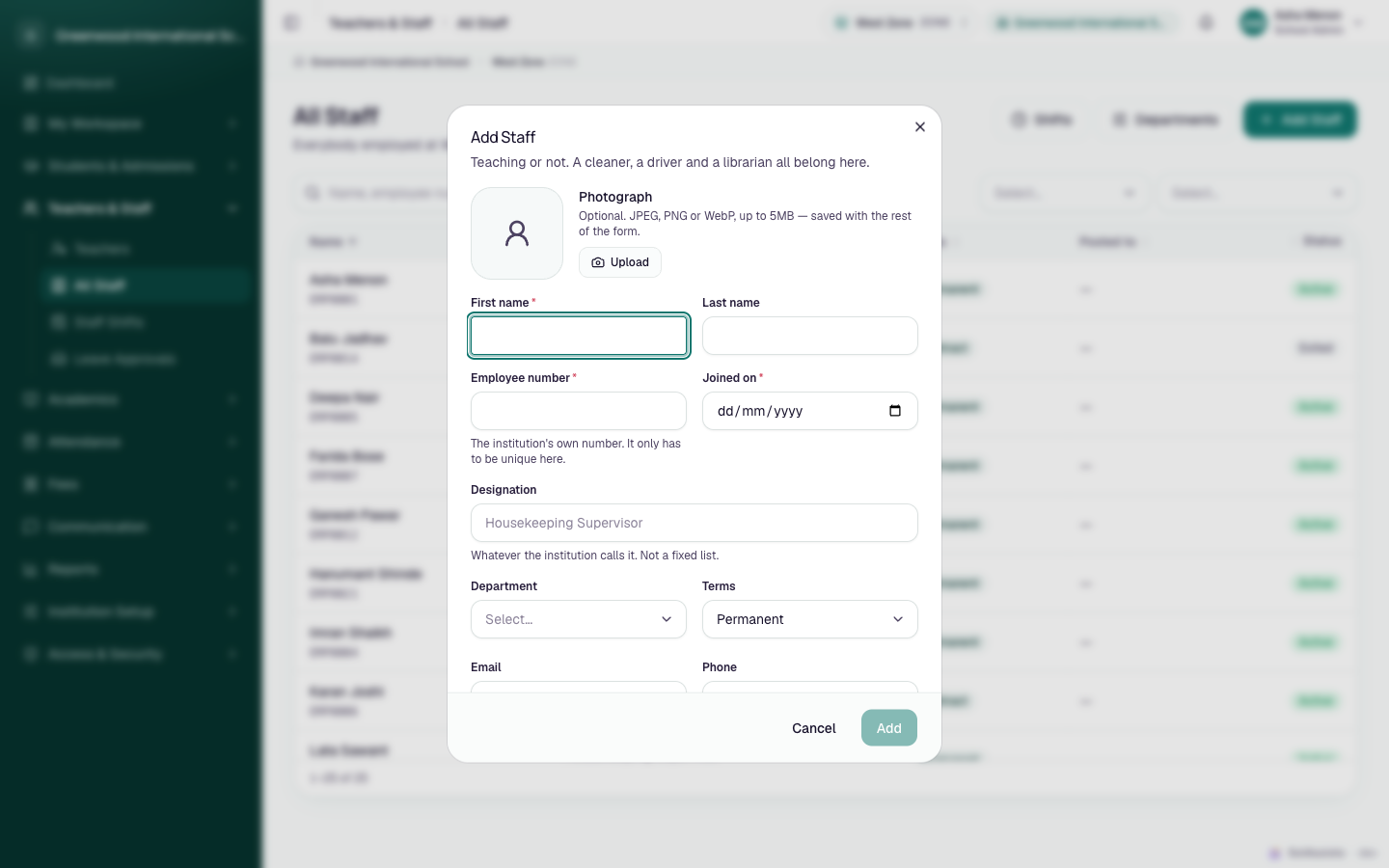
- Click Add Staff. The dialog reads "Teaching or not. A cleaner, a driver and a librarian all belong here."
- Fill in the fields below. Add stays disabled until First name, Employee number and Joined on are filled.
- Click Add. You see "{first name} added." and the new profile opens.
Fields
| Field | Required | What to enter |
|---|---|---|
| Photograph | No | JPEG, PNG or WebP up to 5MB |
| First name | Yes | Up to 80 characters |
| Last name | No | Up to 80 characters |
| Employee number | Yes (new records only) | The institution's own number, up to 40 characters, unique in your institution. "That employee number is already in use" if taken. Can't be changed later. |
| Joined on | Yes (new records only) | Joining date. Can't be changed later. |
| Designation | No | Free text up to 120 characters, e.g. "Mathematics Teacher" or "Bus Driver (Route 4)" |
| Department | No | No department or an active department |
| Terms | No (default Permanent) | Permanent, On probation, Contract, Visiting, Part-time, Intern, Volunteer |
| No | A valid email, up to 160 characters. "Recording somebody does not create a login." | |
| Phone | No | 6–20 characters |
Fields you can see but not set
The profile displays Confirmed, Reports to, Emergency contact and Aadhaar, but no form in the app can fill them in. They show "—", "Not yet" or "Not recorded" unless they were imported. Staff can't be transferred to another posting or marked "On long leave" from the app either.
The staff profile
Heading Staff member: "Their record, their history, and the documents on file." All staff goes back.
The header shows the photo (or initials), name, status, terms, designation · department and employee number, plus Edit and Record leaving. Below that:
- Joined, Confirmed, Posted to, Reports to, Email, Phone, Emergency contact, Aadhaar.
- Aadhaar shows only the last four digits. People allowed to export staff data can click the eye button to reveal the full number; the reveal is logged ("This reveal was recorded against your name.").
- "{n} people report to them", with links.
Edit
Click Edit to change name, photograph, designation, department, terms, email and phone, then Save changes. Meaningful changes (a new designation, department or terms) are added to History.
History
"Every change that meant something. Correcting a spelling does not appear here." Events: Joined, Confirmed in post, Role changed, Transferred, Moved department, Terms changed, Reporting line changed, Went on long leave, Returned from leave, Left. Each shows before → after, any note, and who recorded it.
Shift
"What hours they are expected for. Without one, attendance uses the school's own register."
- Click Assign (disabled until at least one shift exists — see Departments and shifts).
- In Assign a shift, choose Shift, Applies on (Every working day, or a single day such as Saturdays only) and From.
- Click Assign.
A new assignment takes over from that date; the previous one is marked Ended and kept for past attendance. Badges: Current, Ended, "{Day}s only", Overnight. A shift assignment can't be ended on its own in the app — assign another shift instead.
Documents
"Contracts, qualifications, verifications. The ones that lapse are flagged."
- Click Add.
- Choose Kind (Contract, Qualification, Identity proof, Address proof, Police verification, Medical, Licence, Other), an optional Label (e.g. "B.Ed certificate"), an optional Expires on date, and the File (PDF, JPEG or PNG).
- Click Attach.
Documents with an expiry show Expired, Expires today or "{n} days left". Open views a file; the bin icon removes it (the file is deleted too). There is no institution-wide list of expiring documents in the app.
Linking a staff record to a sign-in
A staff record and a sign-in account are separate. Linking them lets the person see Your employment on their My Profile page.
- The only place to link is step 2 of Teachers → Add Teacher. See Add a teacher. That works for any account run through that flow.
- The staff profile has no link or unlink button, and an existing link can't be replaced.
Partially implemented
Non-teaching staff who sign in (for example an accountant) can't be linked to their staff record from the app, because the only link control is inside the Add Teacher flow.
Record that someone has left
- Open the profile and click Record leaving.
- In Record that {name} has left ("They stay on the record with everything already logged against them. Nothing is deleted."), set Last day (defaults to today; can't be before joining: "That is before they joined.") and an optional Reason (e.g. "Resigned, contract ended, moved away…").
- Click Record leaving.
The status becomes Exited, a "Left" event is added to History, and Record leaving disappears. The person no longer shows under Everyone still here; filter by Left to find them.
This doesn't close their sign-in
"This does not close their sign-in. If they had an account, revoke its access separately." Go to Access & Security → User Accounts & Access, edit each of the person's access rows, and set Status to Suspended or Revoked. See Users and access and the offboarding section of Teacher onboarding workflow.
What staff see themselves
Anyone whose account is linked to a staff record sees Your employment on My Workspace → My Profile: designation, employee number, department, place of work, employment terms, joining date, reports to and the last digits of Aadhaar. It is read-only: "The office's record. Ask them to change any of it." Staff can't see or upload their own documents or shifts. People without a staff role see only their own record on All Staff, if the page is available to them at all.
Who can do this
| Action | Who (by default) |
|---|---|
| See All Staff and profiles | School Admin. An admin scoped to a campus sees staff posted inside it. |
| Add Staff, departments, shifts | People who can add staff (School Admin) |
| Edit, assign shifts, add/remove documents | People who can edit staff (School Admin) |
| Record leaving | People with the separate "exit staff" permission (School Admin) |
| Reveal full Aadhaar | People who can export staff data (School Admin) |
Teachers have no access to All Staff.
Common problems
| Symptom | Why | Fix |
|---|---|---|
| Add stays disabled | First name, Employee number or Joined on is empty | Fill all three |
| "That employee number is already in use" | Number taken in this institution | Use another number |
| "That class is outside the ones you work with." when adding | The top-bar unit is outside your access | Pick a unit inside your access |
| Assign (shift) disabled | No shifts exist | Add one on Staff Shifts |
| Person left but can still sign in | Record leaving doesn't touch access | Suspend or revoke their access |
| "Your employment" missing on the person's My Profile | Record not linked to their account | Link through Add Teacher step 2 |