Appearance
Class timetable
School Admin Teacher Student ParentThe class timetable is the weekly grid for one division: periods down the side, days across the top. Each lecture repeats every week until it is removed. Teachers see their week under My Schedule; students and parents see theirs under My Timetable. One-off changes such as a cancelled lecture, cover or an extra class are made from there.
Before you start
Every item below must exist for the division before a lecture can be added:
- The division itself. The bottom level of your institution structure.
- A current academic session. See Academic sessions.
- A bell schedule with at least one teaching period. See Bell schedule.
- Subjects in the current session. See Subjects.
- A teaching assignment linking the teacher, the subject and this division. See Teaching assignments.
- Optional: rooms and student groups. See Rooms and student groups.
Where to find it
Academics → Class Timetable. The page heading is Timetable.
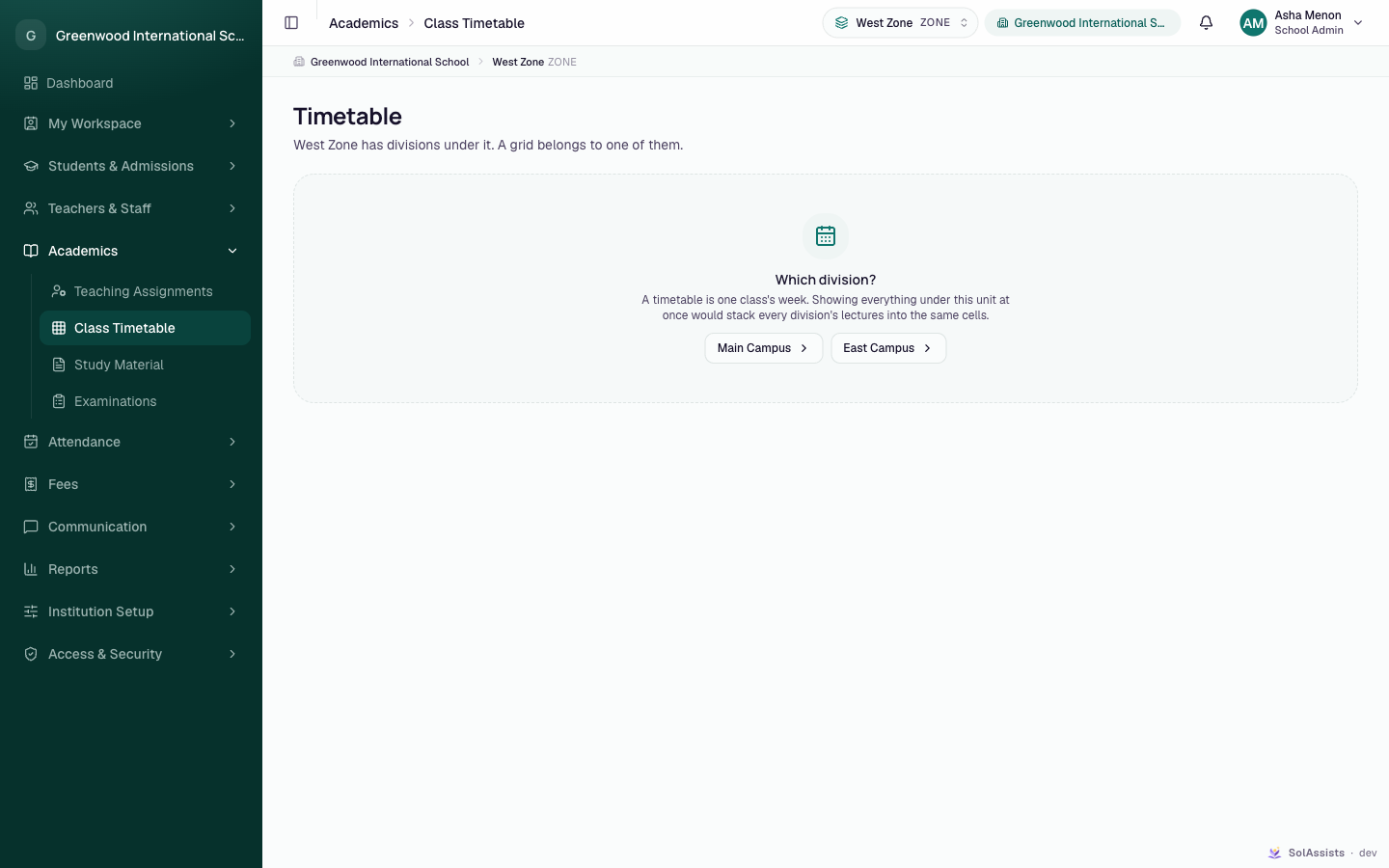
The grid always shows one division. Choose it with the working-scope picker in the top bar. Depending on what is chosen, the page shows:
| What you see | Meaning | What to do |
|---|---|---|
| No division selected, "Pick one from the unit selector in the top bar." | No unit is chosen. | Pick a division in the top bar. |
| No division selected, "Your institution's structure needs at least one division before a timetable can exist." | The structure has no units you can choose. | Build the structure down to the bottom level. |
| Which division?, with one button per unit below | A zone, campus or standard is chosen. | Click a button to step down, until you reach a division. |
| No academic session yet | No session is current. | Go to Academic Setup and make a session current. |
| No bell schedule yet | No periods exist. | Set up the bell schedule. |
| The weekly grid | Ready. | — |
Reading the grid
- Rows are periods, with their times. Break rows are shaded.
- Columns are Monday to Friday. Today is marked with a dot. Click Show weekend to add Saturday and Sunday. If anything is already scheduled at the weekend, those columns always show.
- Each lecture tile shows the subject, then the teacher. It also shows the group code and room code when set.
- Use Highlight a teacher… to fade everyone else's lectures. Each name shows how many lectures per week they have. Click Clear to stop.
- If your institution has more than one session, a Session picker appears in the page header. If you pick a session that isn't current, a notice says anything added "won't appear on this term's timetable".
Step by step: add a lecture
- Choose the division in the top bar, for example 8-A.
- Click the + in an empty cell. With a keyboard, its name reads "Schedule a lecture on Monday, Period 1".
- The dialog title shows the day and period, for example "Monday, Period 1". The description says it "Repeats every week until removed."
- In Subject and teacher, choose a teaching assignment, for example Mathematics – Anita Rao. Each option shows Free, Busy or Checking… for that teacher in this slot, across the whole institution.
- If the division has groups, pick Who sits it: The whole division or a group.
- If rooms exist, pick a Room, or leave it as Not specified.
- Click Add to timetable. You see "Mathematics added to Monday."
To add a second group lecture to a cell that already holds a group lecture, click the small + under it ("Add another group to …").
Step by step: move or remove a lecture
- Move: drag the lecture tile to another cell. On a touch screen, press and hold first. While you drag, cells that won't work are labelled Break, Slot full, "group code busy", "teacher's first name busy" or "room code booked". Drop on a free cell. You see "Mathematics moved to Tuesday, Period 2."
- If you drop on a blocked cell, you see "Can't move it there — reason."
- Moving keeps the lecture's recorded cancellations and cover.
- Remove: hover over the tile and click the bin icon. The confirmation Remove this from the timetable? says the lecture "will stop repeating". Click Remove.
WARNING
Removing a lecture also deletes any cancellations, cover or notes recorded against it, and it disappears from past weeks in My Schedule too. The confirmation text says "Past dates are unaffected", but that is not accurate. If you only need to change the time, move the lecture instead of removing it.
Clash rules
When you save, SolAssists checks the whole institution, not only the division on screen. If there is a clash, the lecture isn't saved and the dialog names what is in the way.
| Rule in plain language | Message you see |
|---|---|
| Nothing can be booked into a break. | "Nothing can be scheduled in a break period." |
| The teacher must have a teaching assignment for this subject in this division, in this session. | "That teacher isn't assigned to this subject for this division." |
| A cell holds one whole-division lecture. Or it holds several group lectures, each for a different group. | "Division already has Subject with Teacher then" (or "Division · Group already has …") |
| A teacher can't teach two lectures in the same period, even in different divisions. | "Teacher already teaches Subject to Division then" |
| A room can't hold two lectures in the same period. | "Room is already taken by Division for Subject then" |
| No student can be in two group lectures in the same period. Groups that share even one student clash. | "Some of these students are also in Group, which has Subject then" |
| If your institution has a daily teaching limit, a teacher can't go over it. No limit is set unless your institution asked for one. | "That teacher already has n lectures that day, and the limit here is limit" |
| Teachers without office permission can only schedule themselves. | "You can only schedule your own lectures." |
| If your institution builds timetables centrally, teachers can't schedule themselves. | "Timetables here are set centrally" |
The dialog warns you before you save when it can see a problem, for example "Teacher already teaches in this slot — possibly in another division…" or "That room is already booked for this slot…". If the Subject and teacher list is empty, you see "Nobody is assigned to teach this division yet. An administrator sets that up before lectures can be scheduled."
Clashes are checked per period, not by clock time. If two periods overlap in time, the same teacher can be booked into both. Avoid overlapping periods in the bell schedule.
Who can do this
| Who | What they can do |
|---|---|
| School Admin | See every division. Add, move and remove any lecture, for any teacher. |
| Teacher | Open Class Timetable for the divisions they are assigned to. Add, move and remove their own lectures, but only for subjects and divisions where they hold a teaching assignment. Can't book another teacher. |
| Student / Parent | Can't open Class Timetable. See their week in My Timetable. |
Timetable settings
Two settings affect scheduling: whether teachers may schedule themselves (on by default) and a daily limit on lectures per teacher (off by default). There is no screen for these settings in the app. If your institution wants timetables built only by the office, contact your SolAssists support contact.
My Schedule and My Timetable
My Workspace → My Schedule shows staff their own teaching week. Students and parents have My Timetable instead. Their page shows only the lectures of groups the student is actually in.
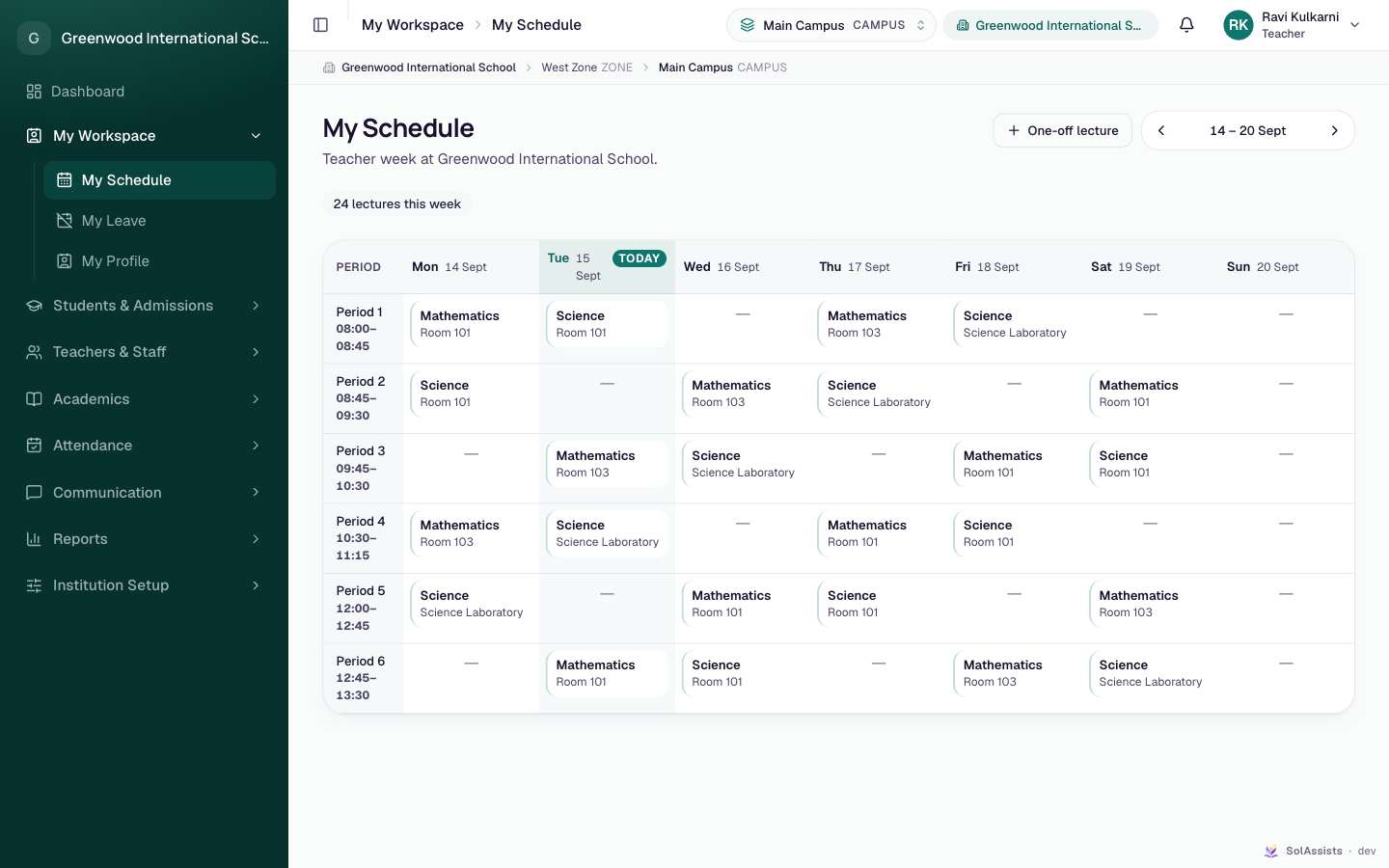
- Step through weeks with the arrows. Click This week to jump back.
- Chips summarise the week: "n lectures this week", "n cancelled", "n covered". Students and parents see "substituted" instead of "covered".
- A parent with more than one child chooses the child under Whose timetable.
- If nothing is scheduled, staff see "Lectures you're assigned to teach will appear here once they're on the timetable." Students and parents see "Once the timetable is published, your lectures will show up here."
One-off changes
These change a single date only; the weekly grid stays as it is.
Cancel or cover a lecture (staff):
- In My Schedule, click the lecture.
- Choose Cancel this lecture, Get it covered or Put it back (to undo a cancellation or cover).
- For Get it covered, choose Who's covering. People who are free at that time are listed first.
- Optionally add a Note for the class.
- Click Apply. You see "Lecture cancelled for that date.", "Cover arranged." or "Lecture restored."
The person covering is notified. Teachers can only change their own lectures; the School Admin can change anyone's.
Add a one-off lecture (staff):
- In My Schedule, click One-off lecture. The dialog is Add a one-off lecture.
- Choose the Division (only asked if you have more than one), then the Date, Period and Subject and teacher.
- Click Add lecture.
If the period already has a lecture on that day of the week, the dialog blocks you with "That period already has Subject with Teacher on Days. Pick a free period, or cancel that lecture for this date first."
Approved staff leave also creates one-off changes automatically. The approver chooses cover or cancellation for each affected lecture. See Staff leave.
Common problems
| Symptom | Why | Fix |
|---|---|---|
| Which division? keeps appearing | A zone, campus or standard is chosen. | Keep clicking down until a division is chosen. |
| Subject and teacher list is empty | Nobody has a teaching assignment for this division in this session. | Add teaching assignments. |
| No + in a cell | A whole-division lecture already fills it, you lack permission to add, or it's a break. | Move or remove the existing lecture, or ask the School Admin. |
| Teacher shows Busy but isn't on this grid | They teach another division in that period. | Choose another period, or move the other lecture first. |
| A teacher can't see Class Timetable or their classes | They have no teaching assignment in the current session. | Add teaching assignments. |
| Next year's grid has nothing to choose | Teaching assignments only exist for the current session. | See Academic sessions. |
| "Timetables here are set centrally" | Your institution has turned off teacher self-scheduling. | Ask the office to add the lecture. |