Appearance
Bulk import
School AdminBulk Student Import brings students, transfers or guardians in from a spreadsheet: up to 2,000 rows at a time, checked before anything is saved.
Before you start
- Permission to add students. The page only opens for roles that can add students, even if you only want to transfer students or add guardians. Without it, Bulk Student Import is not in the sidebar.
- A current academic session. Placements go into the current session. See Academic sessions and the warnings below.
- Divisions with codes. Rows refer to divisions by code (for example
STD_8_A), not by name. See "Finding division codes" below. - The right unit in the top bar. Rows are checked against the unit selected in the top bar and everything under it. A division outside it is refused. Select a high enough unit, or the whole institution, before importing.
- For Add guardians: the students must already exist, because each row names a child by admission number.
Where to find it
Students & Admissions → Bulk Student Import, or Bulk import on the Students page. The page heading is Bulk import. Its description reads "Rows are placed within {unit}. Change division in the top bar." (or "Bring students, transfers or guardians in from a spreadsheet." when no unit is selected).
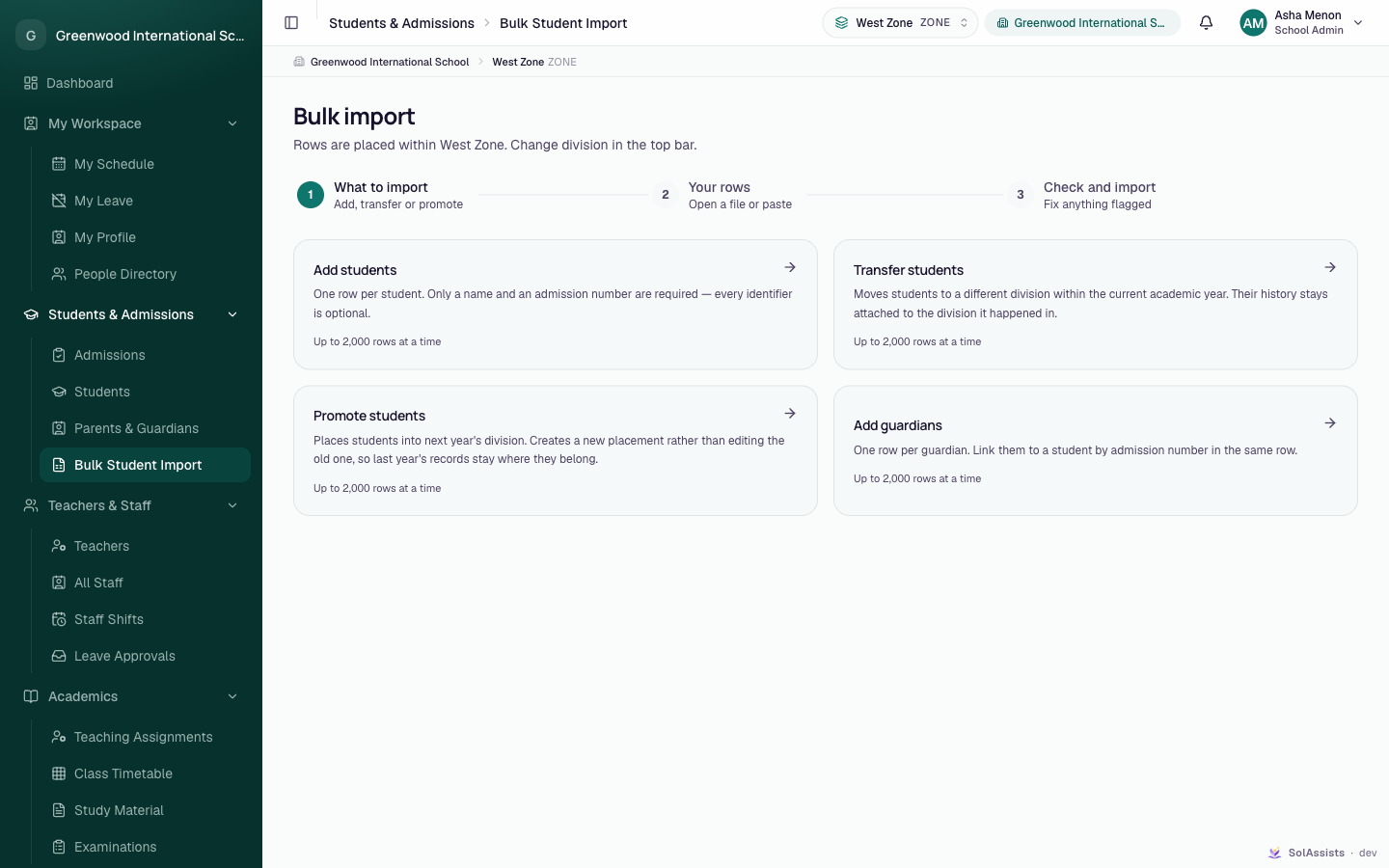
The page has three steps: What to import (Add, transfer or promote) → Your rows (Open a file or paste) → Check and import (Fix anything flagged). You can click an earlier step to go back, but not skip ahead.
Step 1: What to import
Choose one card. Each says "Up to 2,000 rows at a time". You only see operations your role may run.
| Card | Description on screen |
|---|---|
| Add students | "One row per student. Only a name and an admission number are required — every identifier is optional." |
| Transfer students | "Moves students to a different division within the current academic year. Their history stays attached to the division it happened in." |
| Promote students | "Places students into next year's division. Creates a new placement rather than editing the old one, so last year's records stay where they belong." |
| Add guardians | "One row per guardian. Link them to a student by admission number in the same row." |
If you see No bulk operations available ("Bulk import needs permission to create or move students. Ask your administrator."), your role has none of these permissions.
Step 2: Your rows
- Click Excel template to download a ready-made
.xlsxfile. It has the column headings, a note on each column, dropdowns for fixed choices (such as Gender) and an example row in italics. The example row is ignored on import. - Fill it in, one row per student or guardian.
- Click Choose a file and pick your file. Accepted types are
.xlsx,.xlsm,.csv,.tsvand.txt. Only the first sheet of an Excel file is read. - Or open Or paste cells straight out of Excel, paste the cells including the heading row and click Use N pasted rows.
The Columns box lists the headings, with required ones marked required: "Order doesn't matter — columns are matched by their heading. Extra columns are ignored." Heading matching ignores capital letters, spaces and punctuation.
Columns: Add students
| Heading | Required | Example | Rules |
|---|---|---|---|
| Admission No | Yes | DPS-2026-001 | Up to 40 characters. Must not already exist in the institution, and must not repeat in the file. |
| First Name | Yes | Rohan | Up to 80 characters |
| Last Name | No | Mehta | Up to 80 characters |
| Date of Birth | No | 2012-08-21 | Must be written as YYYY-MM-DD |
| Gender | No | Male | Female / Male / Other in the template dropdown |
| Mother's Name | No | Sunita Mehta | Up to 80 characters |
| Father's Name | No | Up to 80 characters | |
| Category | No | General | Free text, up to 40 characters |
| APAAR ID | No | 123456789012 | Exactly 12 digits. "Leave blank if the institution does not use one." |
| Aadhaar | No | Exactly 12 digits. "Encrypted on save." | |
| Division Code | No | STD_8_A | "Places the student straight away. Leave blank to enrol later." Must be the code of a unit inside your top-bar unit and your access. |
| Roll No | No | 17 | Up to 20 characters |
Columns: Transfer students
| Heading | Required | Example |
|---|---|---|
| Admission No | Yes | DPS-2026-001 |
| Move To (Division Code) | Yes | STD_8_B |
| New Roll No | No |
Columns: Promote students
| Heading | Required | Example |
|---|---|---|
| Admission No | Yes | DPS-2026-001 |
| Next Division Code | Yes | STD_9_A |
| New Roll No | No |
Columns: Add guardians
| Heading | Required | Example / values |
|---|---|---|
| First Name | Yes | Sunita |
| Last Name | No | Mehta |
| Phone | No | 9876543210 (up to 20 characters) |
| No | A valid email, or blank. Needed later for a sign-in. | |
| Student Admission No | Yes | DPS-2026-001 ("The child this guardian belongs to.") |
| Relationship | Yes | Father, Mother, Guardian, Grandfather, Grandmother, Other. Other wording up to 40 characters is also accepted. |
| Primary Contact | No | yes / no |
For Add guardians, an existing guardian with the same phone or email is reused rather than duplicated. This is how siblings share one parent record. To link a parent to two children, add two rows with the same phone or email.
Messages in step 2
| Message | Fix |
|---|---|
| "No rows found in that file — is the heading row there?" | Keep the heading row as row 1. |
| "That file has no {column} column." | A required heading is missing or misspelt. Compare with the template. |
| "No column matched {column}. Check the heading row — every row needs it." | Same, for pasted cells. |
| "Ignoring {column} — nothing here uses those." | An extra column is ignored. If it is a misspelt heading, fix it, or its values won't be imported. |
| "N rows is over the 2,000 limit. Split it and import in parts." | Split the file. |
| "That file couldn't be read. Try re-saving it as .xlsx or .csv." | Re-save the file and try again. |
Step 3: Check and import
- Your rows appear in an editable grid. The tallies show Rows, Ready and With problems.
- Click Check rows. Nothing is saved yet.
- If there are problems, the card title changes to Some rows need fixing and bad cells turn red. The list "N rows to fix" shows each Row N with the column and message. Row numbers match Excel's row numbers.
- Fix a cell by typing over it in the grid, then click Check again. Any edit clears the previous check.
- For many problems, click Download the problem rows to get an Excel file of just those rows with the bad cells highlighted.
- When everything passes, the title becomes Ready to import with "All N rows check out. The import is all-or-nothing — if anything fails while writing, nothing is saved."
- Click Import N rows. The button only works after a successful check. Keep the page open while "Importing N rows — please keep this page open." shows. For large files a note says retrying will not import anyone twice.
- The result screen says Imported with a summary, for example "120 created, 120 placed in a division.", "N moved." or "N linked to a student.". Click See the roster or Import another file.
Start over returns to step 2.
Row problems you may see
| Message | Meaning |
|---|---|
| "Admission number "X" already exists" | A student with that admission number is already on file. |
| "Duplicated in this file (also row N)" | The same admission number (or, for guardians, the same first name and child) appears twice. |
| "No division with code "X"" | No unit has that code. Codes must match exactly, including capital letters. |
| ""X" is outside your access" | That division is outside your top-bar unit or your access. |
| "No student with admission number "X"" | For transfers, promotions and guardians: the student doesn't exist or is outside your access. |
| "Use YYYY-MM-DD" | Date of Birth is in the wrong format. |
| "APAAR is 12 digits" / "Aadhaar is 12 digits" | Fix or clear the identifier. |
Finding division codes
Division codes appear only on Institution Setup → Institution Structure, shown in small text under each unit's name. They are not shown on the import page, in the template or in the division pickers.
- Open Institution structure.
- Expand the tree to the divisions, for example Grade 8 → 8-A, and note each code exactly as shown.
- Use those codes in Division Code, Move To (Division Code) or Next Division Code.
A role without access to Institution Structure cannot look up codes. Ask an administrator for a list.
Limitations
Not available yet: bulk promotion
Promoting students from a spreadsheet isn't available yet. Promote students one at a time from each student's profile. See Year-end promotion.
Without a current session, students are added but not placed
If no academic session is current, Add students still creates every student but silently skips the Division Code. The result summary shows "N created" with no "placed in a division", and the students show Not enrolled this year. Make sure a session is current before importing. If it happens, enrol the students one by one, or run Transfer students after a session is current.
Other limitations
- Duplicate APAAR or Aadhaar numbers are not caught by Check rows. They make the whole import fail at the end with "A record with this value already exists" and no row number. Nothing is saved. Remove the duplicate identifier and import again.
- Roll numbers are not checked for clashes in any operation.
- Any unit level is accepted as a division code. Use division codes, not standard or branch codes.
- Transfer students also places students who had no placement in the current session. (Transferring one student from the profile refuses such students.)
- Primary Contact = yes in Add guardians does not remove other primary contacts, so a student can end up with more than one.
- No sign-ins are created for students or guardians.
- Transfers without a current session fail with "This institution has no current academic year".
What happens next
- Add students: new records, placed in the current session where a Division Code was given.
- Transfer students: current-session placements move to the new divisions.
- Add guardians: guardian records are created or reused and linked to the named students. They show "No account yet" until given a sign-in.
- One entry is added to the audit trail for the whole import.
Who can do this
- School Admin: all four operations.
- Teacher, Student, Parent: no access.
- Custom roles: the page requires permission to add students. Each card also requires its own permission: add students, transfer students, promote students or add guardians.