Appearance
Parents and guardians overview
School Admin Teacher ParentSolAssists separates the guardian record (who to contact about a child) from the parent sign-in (an account a parent uses to open the app).
Guardian record vs parent sign-in
| Guardian record | Parent sign-in | |
|---|---|---|
| What it is | Contact details for a parent, grandparent or other carer: name, phone, email, occupation, optional Aadhaar | A SolAssists account with the Parent / Guardian role |
| Needed for | Call lists, "who may collect", primary contact | Seeing the child's timetable, attendance, results and fees in the app |
| Requires | Only a first name | A guardian record with an email, linked to at least one child |
| Created by | Add guardian, Link on a student profile, bulk Add guardians, or enrolling an applicant | Give access on Parents & Guardians |
Most guardians never need a sign-in. The Sign-in column on Parents & Guardians shows Has an account or a Give access button, and student profiles show No account yet under guardians without one.
Links between guardians and students
A guardian is connected to a child by a link. Each link records:
- Relationship: Mother, Father, Guardian, Grandparent or Other (with your own wording, such as "Aunt"). Bulk import also offers Grandfather and Grandmother.
- Primary contact: "The one called first, and whose consent counts. Only one per student."
- May collect the student: whether they may pick the child up. It is on by default.
Siblings: one guardian can be linked to several children. When you link a parent to a second child, search for the existing record instead of adding a new one. The search shows each guardian's other children to help you pick the right person.
What a link gives a parent with a sign-in: the linked children, and only those, appear on their dashboard under Your children, with switchers on timetable, attendance and progress pages. Unlinking removes that access immediately. See Link parents to children.
The Parents & Guardians page
Students & Admissions → Parents & Guardians. The heading is Parents & Guardians: "Who to call about a child, who may collect them, and who can sign in."
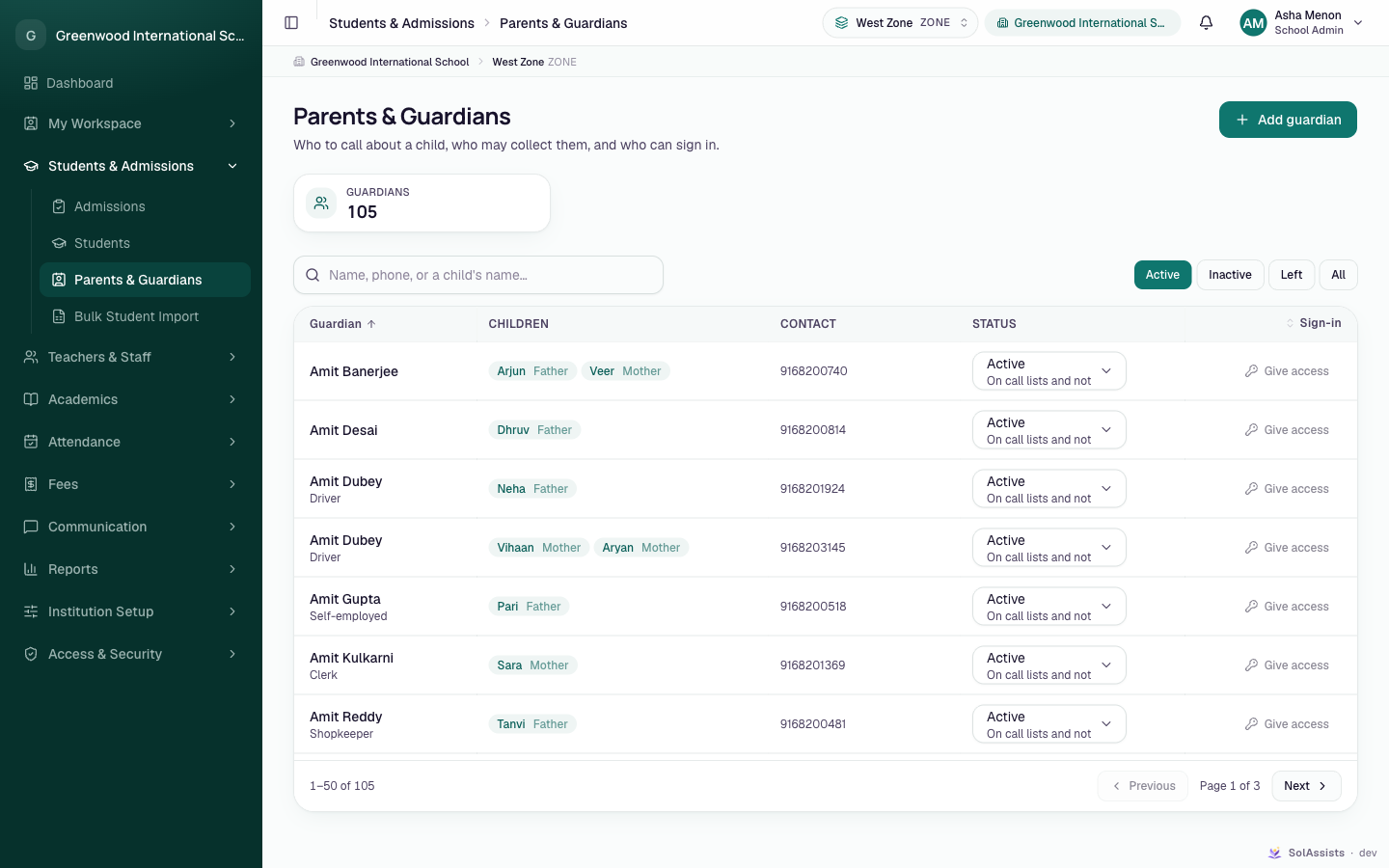
- Add guardian button and a Guardians count card.
- Search: "Name, phone, or a child's name…". It also matches children's names and admission numbers.
- Filters: Active (default), Inactive, Left, All.
- Columns:
- Guardian: name and occupation
- Children: one badge per child with the relationship, or Not linked to a student
- Contact: phone and email
- Status
- Sign-in
- Click a row to edit the guardian.
Guardian status
Guardians are never deleted. Staff who can edit guardians change the status directly in the Status column:
| Status | Description on screen |
|---|---|
| Active | "On call lists and notifications" |
| Inactive | "Kept, but not contacted" |
| Left the institution | "Their children have finished" |
The confirmation message reads "{name} is active again." or "{name} marked inactive." / "marked as left."
Who sees which guardians
- School Admin (institution-wide): every guardian.
- Branch-level staff and teachers: only guardians of students they can see. A teacher sees guardians of students in the divisions they teach.
- A guardian not linked to any student is visible only to institution-wide roles. If branch-level staff add a guardian without linking them, the record seems to disappear. Link guardians from the student profile instead.
- Parents see only themselves and guardians of their own children.
Linking happens only on the student profile. The Parents & Guardians page cannot link a guardian to a student.