Appearance
Rooms and student groups
School AdminRooms and student groups are both optional. You can build a complete timetable without them.
- Rooms stop two classes from being booked into the same lab or hall at the same time.
- Student groups let part of a division sit a different lecture in the same period. Examples: an elective (half at Physics, half at Computing), or a lab batch.
Before you start
- For rooms: nothing else is needed.
- For student groups:
- a current academic session (Academic sessions);
- the unit the group belongs to, usually a division (Institution structure);
- students already placed in that unit, so you can add them to the group (Placement and promotion).
- Both screens need the office-level timetable permission. The School Admin role has it by default.
Rooms
Where to find it
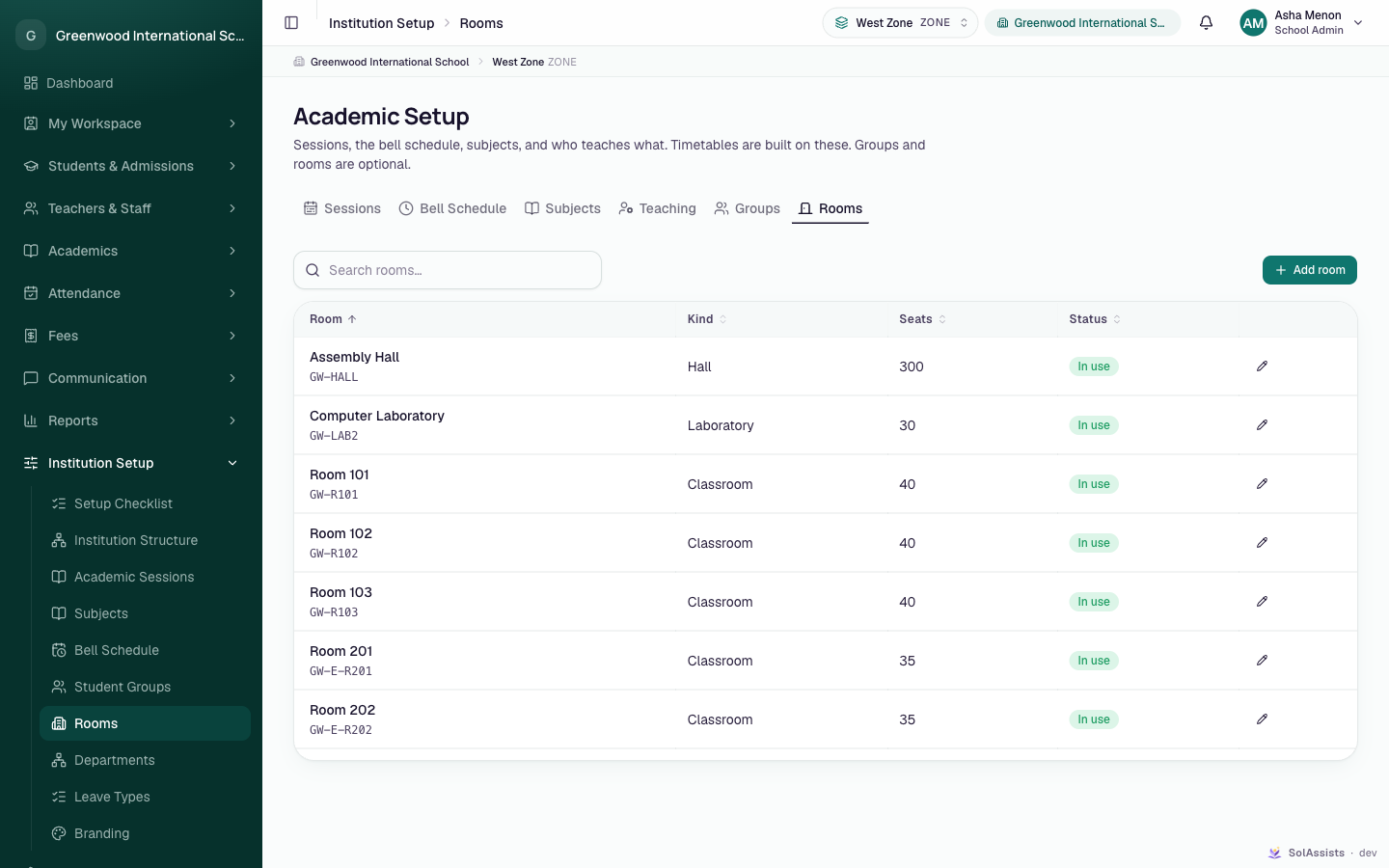
Institution Setup → Rooms. The page heading is Academic Setup, with the Rooms tab selected.
Step by step: add a room
- Click Add room. The dialog Add a room says "A place the timetable can book. One class at a time."
- Fill in Name, Code, Kind and, if you like, Seats.
- Click Add room.
Fields
| Field | Required | What to enter |
|---|---|---|
| Name | Yes | For example Physics Laboratory. |
| Code | Yes (only when adding) | A short code shown on timetable tiles, where a full name won't fit. Letters become capitals, and spaces or symbols (hyphens too) become _. Each code can be used only once. |
| Kind | No | Classroom, Laboratory, Hall, Ground or Other. Default is Classroom. |
| Seats | No | Leave it blank if capacity doesn't matter. It is for reference only; nothing is blocked on it. |
| In use | Only when editing | Turn it off to retire a room. "A retired room can't be booked on new slots. Slots that already name it keep working." |
Editing and retiring
- Click the pencil icon on a row to change the name, kind or seats, or to retire the room.
- The code can't be changed. The dialog says: "The code can't change — it's what existing timetable slots point at."
- Rooms can't be deleted, only retired. Retired rooms stay in the list with the status Retired.
What rooms do on the timetable
- If any rooms exist, the schedule-a-lecture dialog shows a Room field. Each room is marked Free or In use for that day and period, across the whole institution.
- A room can hold one lecture per period. If the room is already taken, even by another division, the save is refused: "Room is already taken by Division for Subject then".
- Retired rooms aren't offered for new lectures.
Student groups
Where to find it
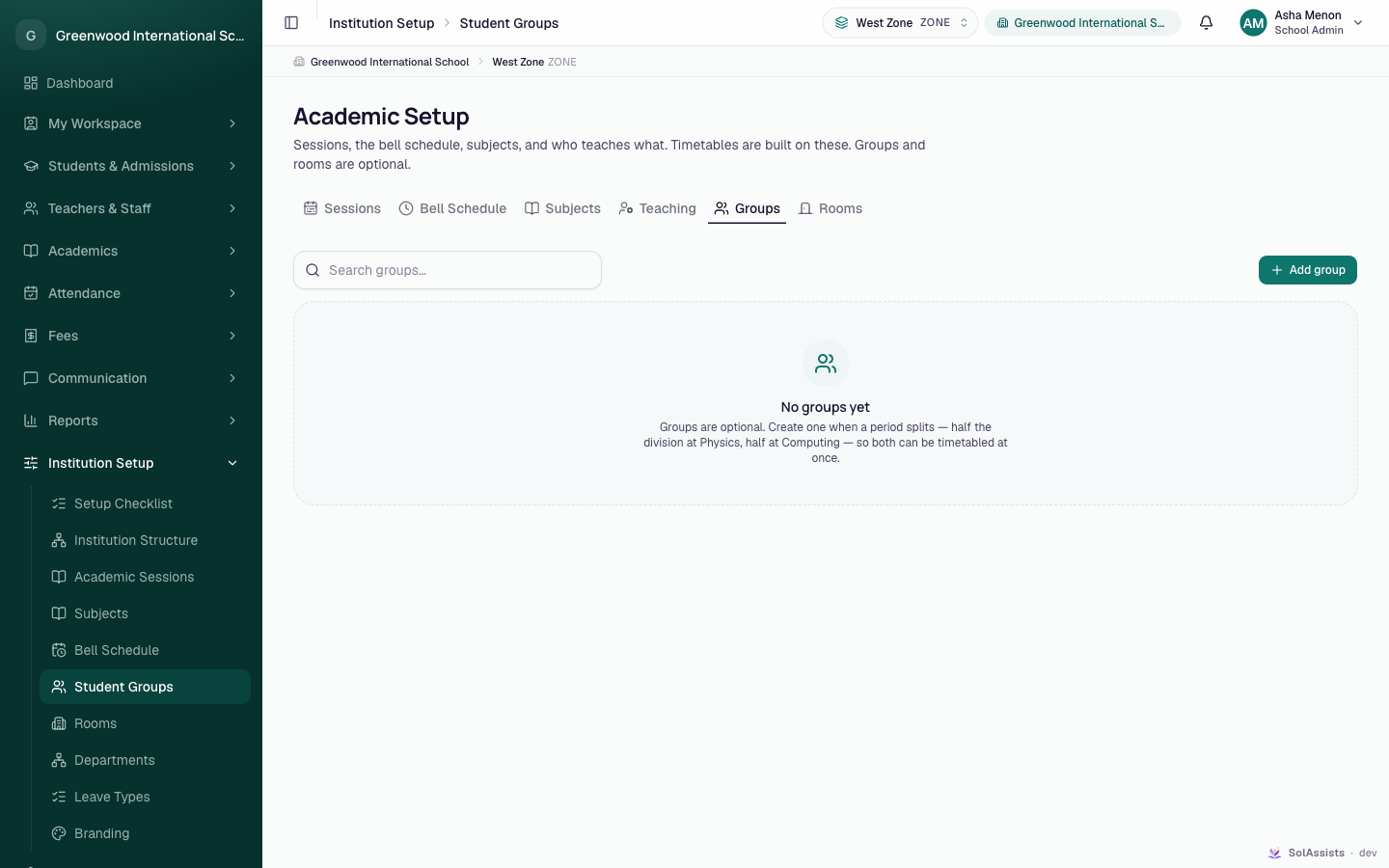
Institution Setup → Student Groups. The page heading is Academic Setup, with the Groups tab selected.
Step by step: create a group
- In the top bar, open the working-scope picker and choose the unit the group belongs to, for example Division 8-A. Add group stays greyed out until a unit is chosen.
- Click Add group. The dialog Add a group says "Part of 8-A. Only students enrolled there can join it."
- Fill in Name, Code and Kind.
- Click Create group. You see "Physics elective created. Now choose who's in it." The members dialog then opens by itself.
- In Who's in Physics elective?, tick the students. Use Search this division… to find someone, or Select all to tick everyone listed.
- Click Save n students.
To change membership later, click Members on the group's row.
Fields
| Field | Required | What to enter |
|---|---|---|
| Name | Yes | For example Physics elective. |
| Code | Yes | A short code shown on timetable tiles, for example G8_PHY. Letters become capitals, and symbols (hyphens too) become _. Each code can be used only once per session. |
| Kind | No | Elective (students chose it), Batch (a division split for practicals), Set (grouped by level within a subject) or Other. This is for your own reporting only and doesn't change scheduling. |
Membership rules
- A group belongs to the unit that was chosen in the top bar when you created it. The Division column shows that unit.
- The group can sit higher up the tree too. For example, a group on Standard Grade 8 can include students from any Grade 8 division.
- Only active students placed in that unit, or in a unit below it, in the current session can be members. The members dialog only lists those students.
- Saving replaces the whole membership with exactly the students you ticked.
- The dialog lists at most 200 students. If there are more, it warns "Showing 200 of … students. Narrow the working unit in the top bar before editing, or this will save only the ones listed here."
- Groups belong to the session they were created in. They don't carry over to a new session.
What groups do on the timetable
- If the division has groups, the schedule-a-lecture dialog shows Who sits it. The choices are The whole division or one of its groups.
- Two different groups can share the same period, for example Physics elective and Computing elective. A whole-division lecture fills the period on its own.
- If any student is in both groups, they would be in two places at once, so the save is refused: "Some of these students are also in Group, which has Subject then".
- Students and parents only see a group's lectures if the student is a member of that group.
Things you cannot do
- Groups can't be renamed or deleted from the app. To stop using a group, remove all its members and stop scheduling it.
Who can do this
- School Admin: can add, edit and retire rooms, and create groups and manage their members.
- Teachers: can't see the Rooms tab. They may be able to open the Groups tab (through Academic Sessions), but Add group is greyed out for them ("You need permission to manage groups."). They can pick rooms and groups when scheduling their own lectures.
Common problems
| Symptom | Why | Fix |
|---|---|---|
| Add group is greyed out | No unit is chosen in the top-bar picker. | Choose the division (or standard) the group belongs to. |
| Members dialog says "Nobody is enrolled here yet" | No active students are placed in that unit this session. | Place students first. See Placement and promotion. |
| "n of these students are not in unit" | A student isn't placed in the group's unit this session. | Place or transfer the student, then save again. |
| "This institution has no current academic session yet." when creating a group | No session is current. | See Academic sessions. |
I typed PHY-LAB but the code saved as PHY_LAB | The code box turns hyphens into underscores. | Expected; use the underscore version. |
| "A record with this value already exists" | The code is already used. | Use another code. |
| The Room or Who sits it field is missing when scheduling | No rooms exist, or the division has no groups. | Add them here if you need them. |