Appearance
Staff leave
School Admin TeacherStaff apply for leave in the app. An approver in their part of the institution approves or rejects it, and decides what happens to any lectures the leave affects.
Before you start
- At least one leave type exists. Until then nobody can apply: Apply for leave is disabled with the note "Your institution hasn't set up any leave types yet — an administrator needs to add them before anyone can apply."
- To see which lectures a leave affects, the current session needs a timetable. See Timetable.
- Someone with approval rights has access covering the applicant's part of the institution (see Who approves).
Leave types (setup)
Institution Setup → Leave Types. Heading Leave Types: "What staff can apply for. Nobody can submit a request until at least one exists."
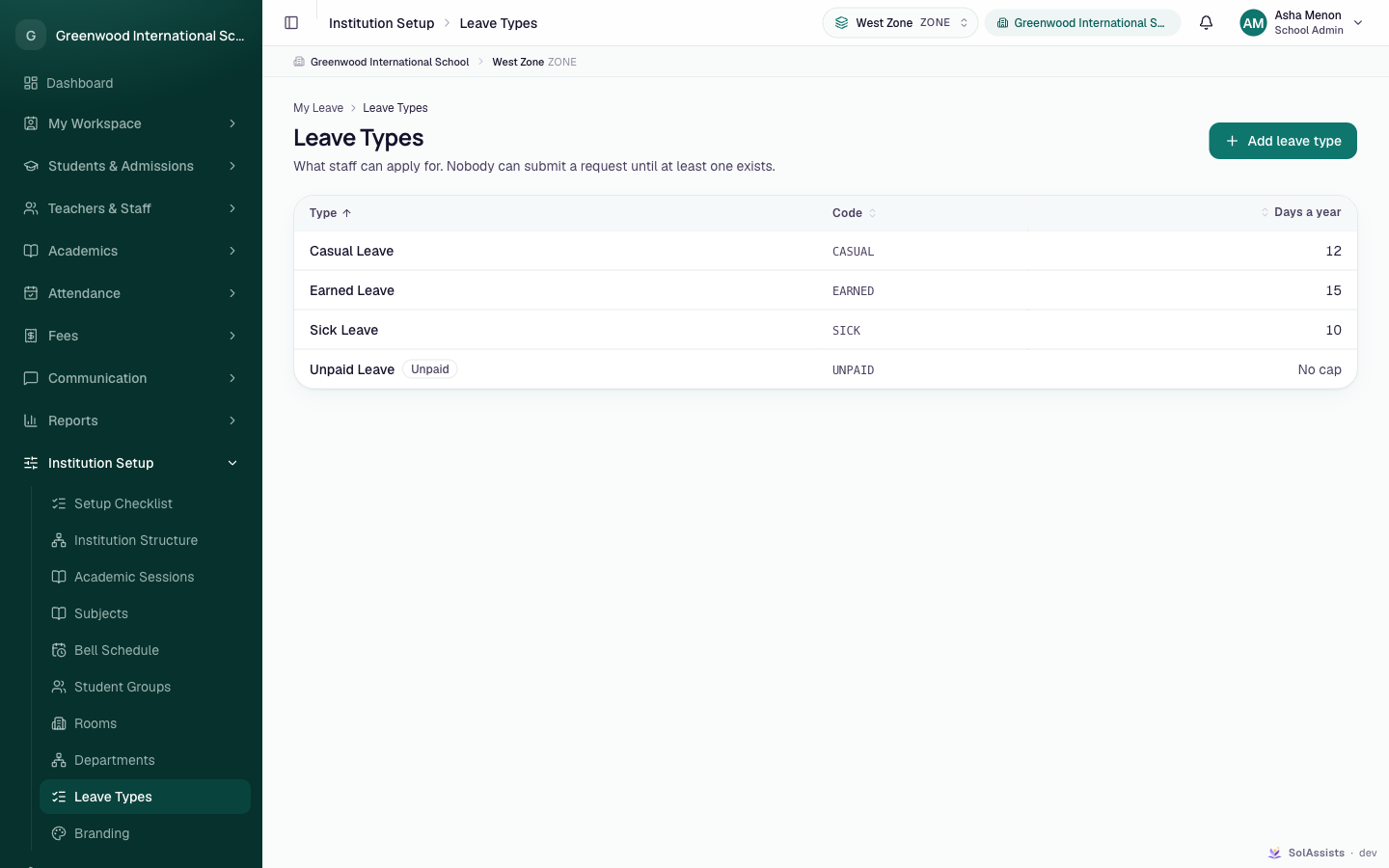
- Click Add leave type.
- Fill in the fields and click Add leave type.
| Field | Required | What to enter |
|---|---|---|
| Name | Yes | e.g. "Casual Leave" (up to 60 characters) |
| Code | Yes | e.g. "CASUAL". Capital letters and underscores; unique. |
| Days a year | No | 0–365. "Leave blank for no cap — unpaid or bereavement leave, usually." Shows as "No cap". |
| Paid leave | — | Ticked by default. Unticked types show an Unpaid badge. |
Leave types apply to the whole institution and every session.
Partially implemented
Leave types can be added but not edited, retired or deleted in the app. Check the name, code and days carefully before saving.
Apply for leave (My Leave)
My Workspace → My Leave. Heading My Leave: "Your requests, and what each one is waiting on."
- Click Apply for leave. The dialog says "Your request goes to whoever approves for your part of the institution."
- Choose Type. Each shows "{n} days a year" or "No annual cap".
- Set From and To.
- For a single day, choose How much of the day: Full day, First half or Second half.
- Enter a Reason (at least 3 characters). The hint shows "{n} day(s) requested".
- Check Lectures affected. It lists the lectures from your timetable that fall in these dates, or "Nothing on your timetable falls in these dates."
- Click Submit request. You see "Leave requested." (plus "{n} lectures will need cover." when relevant).
The page shows Requests, Awaiting a decision and Days approved, and a table with Dates, Type, Reason and Status (including the approver's note).
Withdraw a request
Click Withdraw on a pending or approved request, then confirm Withdraw this request?.
- Pending: "It won't be shown to your approver any more. You can apply again for the same dates."
- Approved: "Lectures already cancelled or reassigned by the approval stay that way — somebody may be covering them. Put them back from your schedule if you need to." Use My Schedule → Put it back on each lecture.
Leave balance
Not available yet
Staff can't see how many days they have left. The app shows the yearly allowance per type ("12 days a year") but no remaining balance. The system still checks the allowance when you apply.
Rules checked when you submit
| Message | Meaning |
|---|---|
| "Leave can't end before it starts" | To is before From |
| "You already have leave covering those dates." | A pending or approved request overlaps |
| "That would take you past your {type} quota for {year}" | Days already taken + pending + this request exceed the yearly allowance for the current session |
| Too many days / too little notice | Your institution's limits on consecutive days (30 by default) or notice (none by default) |
Days are counted as calendar days: weekends and holidays inside the range count.
Leave Approvals
Teachers & Staff → Leave Approvals. Heading Leave Approvals: "Requests from people in your part of the institution. Your own never appear here."
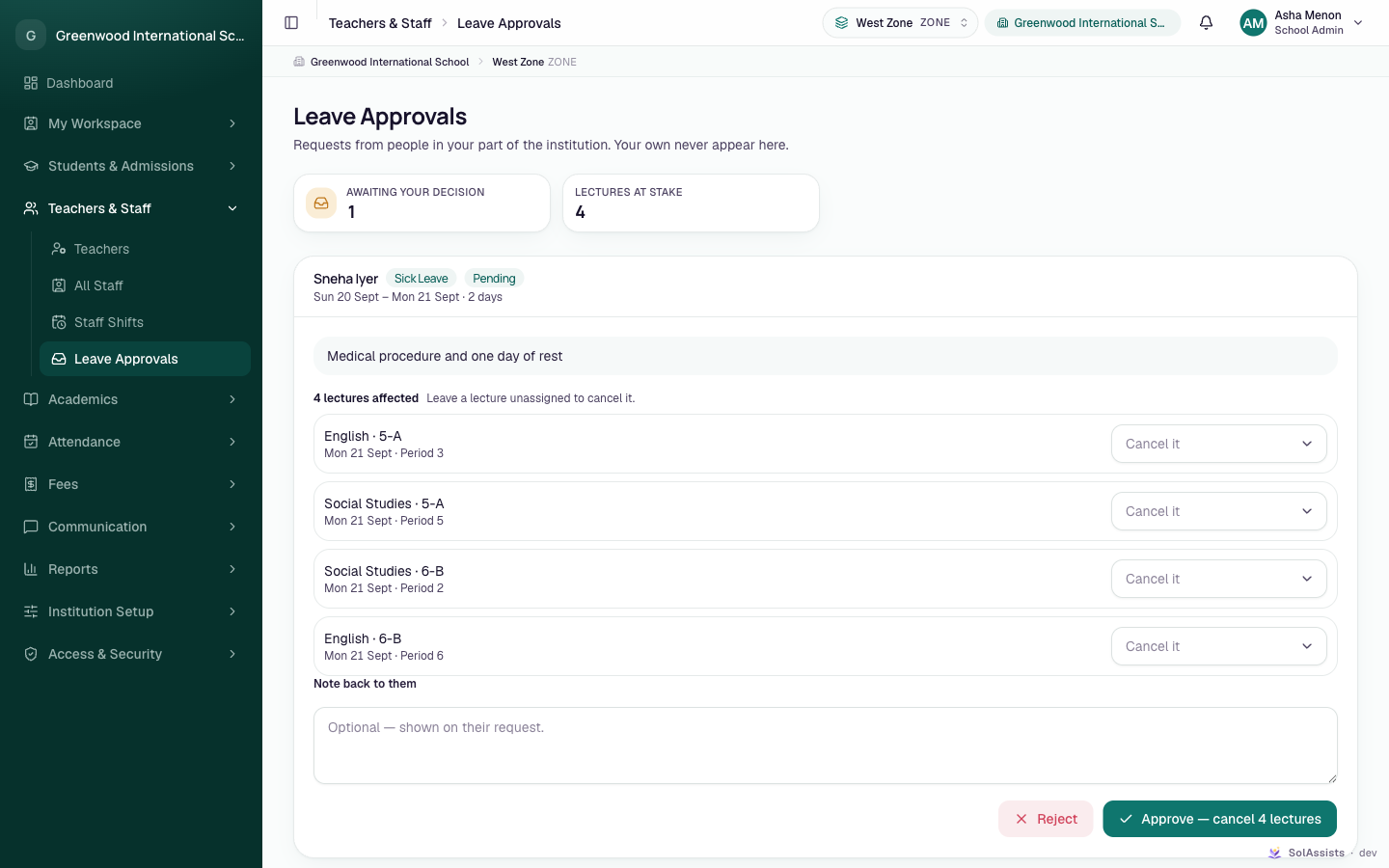
Stats: Awaiting your decision and Lectures at stake. Each pending request shows the person, type, status, dates and days, and the reason.
- Read the reason.
- Under "{n} lectures affected — Leave a lecture unassigned to cancel it.", choose for each lecture either Cancel it (default) or a person to cover it.
- Optionally write a Note back to them (shown on their request).
- Click Approve — the button reads Approve — cancel {n} lectures when some lectures have no cover — or Reject.
When nothing is waiting: Nothing waiting on you — "Leave requests from your zone, branch or division will land here."
What approval does
- Each affected lecture is cancelled for that date, or marked covered by the person you picked. This happens together with the approval.
- The applicant and anyone covering are notified (when notifications are set up).
- The recurring timetable doesn't change.
Check who's free first
The cover list here doesn't show whether a person is already teaching then. To see Free/Busy, arrange cover from the lecture on My Schedule or the timetable instead.
Who approves
- Anyone with leave approval permission (School Admin by default).
- An approver sees requests from people whose access sits inside the approver's own access scope. A school-wide approver sees everyone.
- Nobody can decide their own leave ("You can't decide your own leave.").
- The page shows pending requests only. There is no history of decided requests on this page; applicants see the outcome on My Leave.
Statuses
| Status | Meaning |
|---|---|
| Pending | Submitted, waiting for a decision |
| Approved | Approved; affected lectures were cancelled or covered |
| Rejected | Rejected by the approver |
| Cancelled | Withdrawn by the applicant |
Who can do this
| Action | Who (by default) |
|---|---|
| Add leave types | School Admin |
| Apply, withdraw | School Admin, Teacher |
| Approve / reject | School Admin |
Common problems
| Symptom | Why | Fix |
|---|---|---|
| Apply for leave disabled | No leave types | Add one on Leave Types |
| Request never appears for the approver | The approver's access doesn't cover the applicant's access | Give an approver access that covers the applicant's campus |
| "That request has already been decided." | Another approver acted first | Refresh the page |
| Lectures affected is empty for a teacher | No timetable lectures in those dates, or no current session | Nothing to do, or set up the timetable |
| Withdrawn approved leave, lectures still cancelled | Withdrawing doesn't restore lectures | My Schedule → Put it back on each |