Appearance
Announcements
School Admin Teacher Student ParentWrite circulars and notices for the whole institution, one part of it, or one role. Save them as drafts, schedule them or send them now. Recipients get them through the notifications bell.
Before you start
- SOL has switched on Communication for your institution. It is included by default.
- The part of the institution you want to reach exists. See Institution structure.
- People have app accounts. Only people who can sign in receive announcements. See Users and access and Parent onboarding.
- For delivery: SOL has connected the notification service for your deployment. See If the notification service is unavailable.
Where to find it
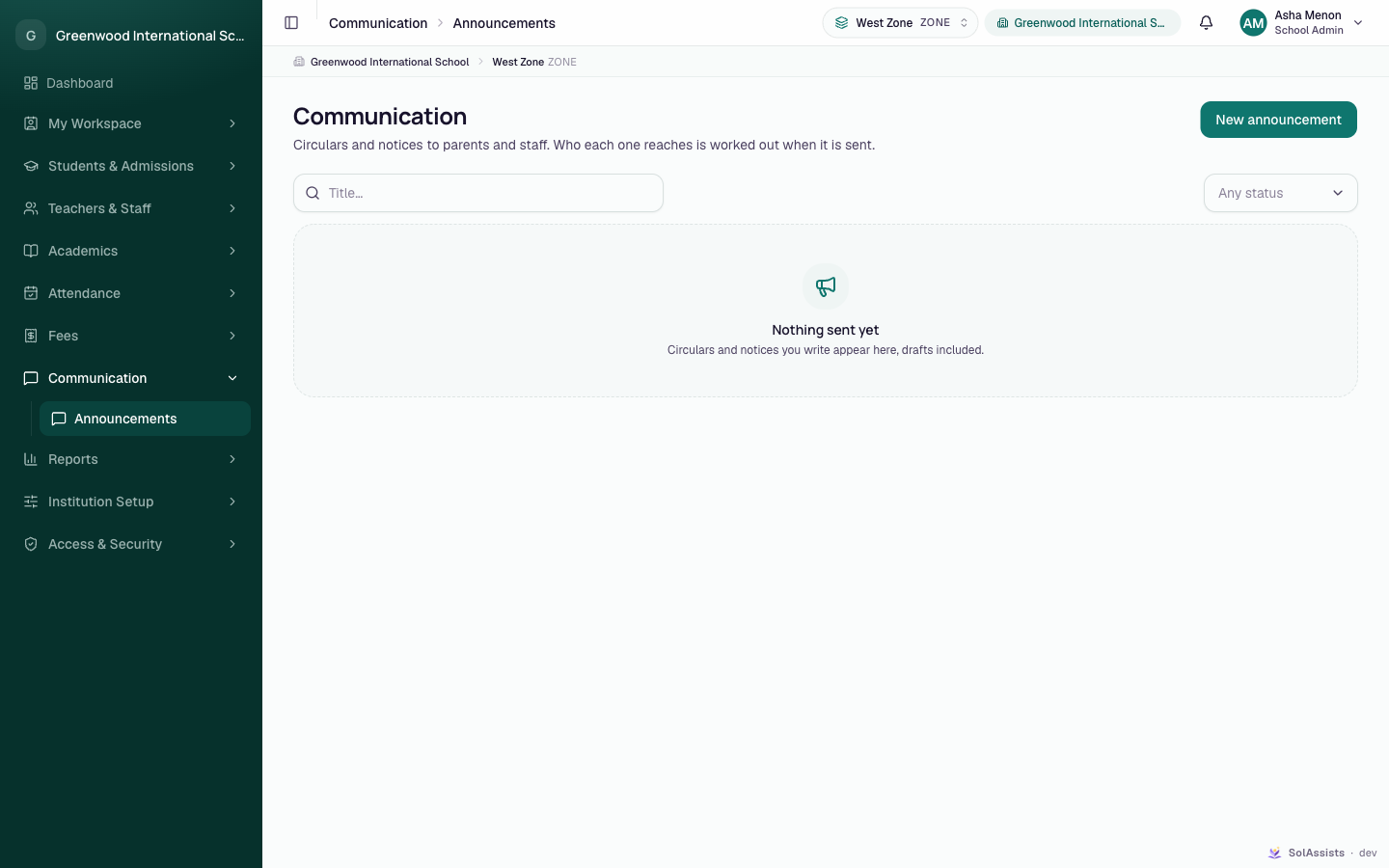
Communication → Announcements (heading Communication).
Step by step
Write an announcement
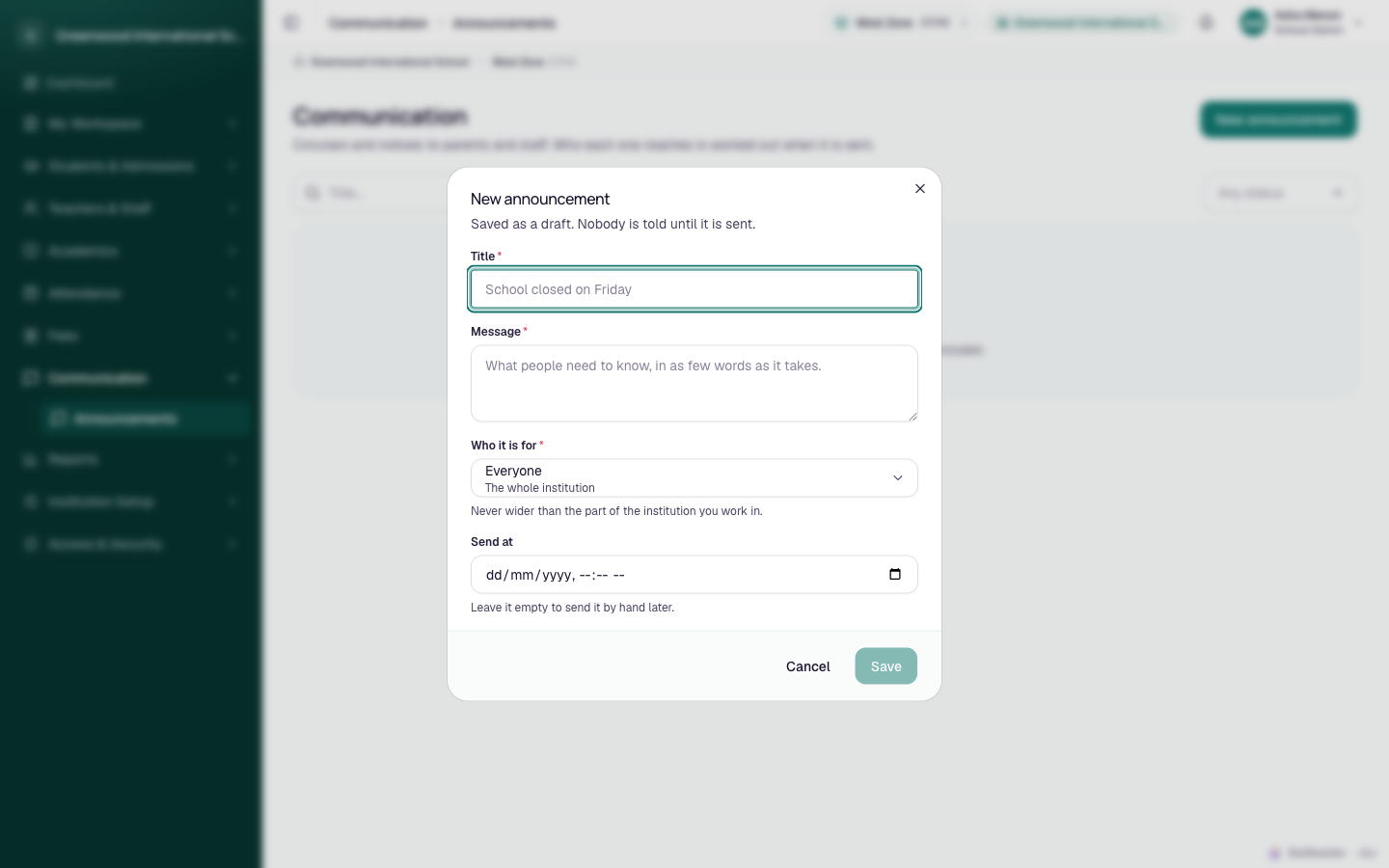
- Click New announcement.
- Enter a Title and Message.
- Choose Who it is for (see Audiences) and, if asked, Which part or Which role.
- Leave Send at empty to save a draft, or set a future date and time to schedule it.
- Click Save.
Send, edit or cancel
The actions appear on rows that are Draft or Scheduled:
- Send: confirm with Send now ("Send this now?"). It can't be unsent.
- Edit (pencil, or click the row): opens Edit announcement. Click Save changes.
- Cancel (✕): confirm with Cancel it, or keep it with Keep it. Nothing is deleted.
Use Title… and the status filter (Drafts, Scheduled, Sent, Cancelled) to find announcements.
Audiences
| Who it is for | Reaches | Extra field |
|---|---|---|
| Everyone | The whole institution | — |
| A class or campus | A unit and everything under it | Which part |
| A role | Everyone with that role (for example all parents) | Which role |
- Recipients are worked out when it is sent, not when it is written. People added before sending are included. The Told column shows how many people it went to.
- A campus admin's audience is limited to their campus. Someone whose access is limited to one campus or branch can choose Everyone, but it is saved as that campus. A role is saved as that role within their campus.
- A role is offered only to people who can see Roles & Permissions.
- Teachers are offered only A class or campus, and must choose one of their classes.
Fields
| Field | Required | What to enter |
|---|---|---|
| Title | Yes | Up to 200 characters, e.g. "School closed on Friday" |
| Message | Yes | Up to 5,000 characters |
| Who it is for | Yes | Everyone, A class or campus, or A role |
| Which part | For a class or campus | The unit; everything under it is included |
| Which role | For a role | The role |
| Send at | No | A future date and time. Shown only to people who can send ("That time has already passed." if it is in the past) |
Statuses
| Status | Meaning |
|---|---|
| Draft | Saved; nobody has been told |
| Scheduled | Will send by itself at Send at (checked every minute). Clear Send at to make it a draft again |
| Sent | Delivered to the audience; can't be changed |
| Cancelled | Will not go out |
What happens next
- On send, the system records who it went to and delivers it through the notification service. It appears in each recipient's Notifications bell in the top bar.
- Sending, including scheduled sending, is recorded in the Audit trail.
- The same bell also shows automatic messages about absences, published results, new study material and concession decisions.
If the notification service is unavailable
For administrators: "Sent" does not guarantee delivery
Announcements are delivered by a separate notification service that SOL runs for your deployment. If that service is unavailable or not set up:
- The announcement still changes to Sent, and Told still shows a number.
- Nobody actually receives it. No screen shows delivery failures.
- The bell and the Notifications page show "Nothing yet" for everyone, with no error.
- Automatic absence, results, study material and concession messages are also lost without any warning.
If recipients say the bell is empty, contact SOL support before re-sending.
What students and parents see
- Students and parents receive sent announcements in the Notifications bell.
- They also see Communication → Announcements in the sidebar.
- Parents see an enabled New announcement button.
Who can do this
| Task | School Admin | Teacher | Student | Parent |
|---|---|---|---|---|
| Read the list | Yes | Yes | Yes | Yes |
| New announcement (draft) | Yes | Their own classes only | No | Button shown (see above) |
| Edit, cancel | Yes | No | No | No |
| Schedule (Send at) and Send | Yes | No | No | No |
A teacher can save a draft, but cannot change, schedule, send or cancel it afterwards. Someone in the office sends it from the list.
Common problems
| Symptom | Why | Fix |
|---|---|---|
| "That audience has nobody in it" | Nobody with an account is in that unit or role | Check accounts, or pick a wider audience |
| "Scheduling an announcement needs permission to send it" | Only people who can send may schedule | Ask the office to schedule it |
| "Choose one of your classes for this announcement" | A teacher (or another class-limited user) tried to reach beyond their classes | Choose A class or campus and one of your classes |
| "A scheduled time has to be in the future" | Send at is in the past | Choose a later time |
| "This announcement has already gone out" | It was already sent (perhaps by schedule) | Nothing to do |
| A role option missing | You can't see Roles & Permissions | Use A class or campus, or ask the office |
| Recipients' bell is empty after sending | Notification service unavailable | Contact SOL support |
| A teacher gets "You don't have permission for that." when saving changes to a draft | Teachers can't edit after saving | Ask the office to edit or send it |