Appearance
Teachers overview
School Admin TeacherSolAssists has no separate "teacher record". A person counts as a teacher when three things are in place. This page explains those three things, the Teachers page, and what must be ready before a teacher can see their classes.
What makes someone a teacher
| Piece | What it is | Where it is set up |
|---|---|---|
| An account | The person's sign-in, matched by email. A new email gets a one-time invitation link. | Teachers → Add Teacher, or Access & Security → User Accounts & Access |
| Access with a teaching role | An access record giving the account a teaching role (for example the school's Teacher role) over part of the institution (Institution-wide, or a campus and everything under it). | Same places |
| Teaching assignments in the current session | "Anita Rao teaches Mathematics in 8-A." One row per teacher, subject and division, for the academic session marked current. | Academics → Teaching Assignments, or step 3 of Add Teacher |
A staff record (employee number, joining date, documents) is separate and optional. It is needed for HR purposes, not for teaching. See Staff records.
What counts as a "teaching role"
A role counts as a teaching role when it can add or change timetable lectures. The Teacher role created when your institution was set up is one. If you build your own role for teachers, give it timetable permissions, or it won't appear in Give teaching access. See Roles and permissions.
What a teacher can see depends on their assignments
The built-in Teacher role only reaches the classes the teacher is assigned to teach in the current academic session. Those assignments decide:
- which divisions appear in the teacher's working-scope picker in the top bar,
- which students and parents they can see,
- which classes they can mark attendance for,
- which classes appear in the Class lists for study material, exams and announcements,
- which lectures they can put on the timetable.
A teacher who has access but no assignments (or whose school has no current session) signs in to empty pages. This is the most common "teacher can't see anything" problem.
The Teachers page
Teachers & Staff → Teachers (page heading Teachers).
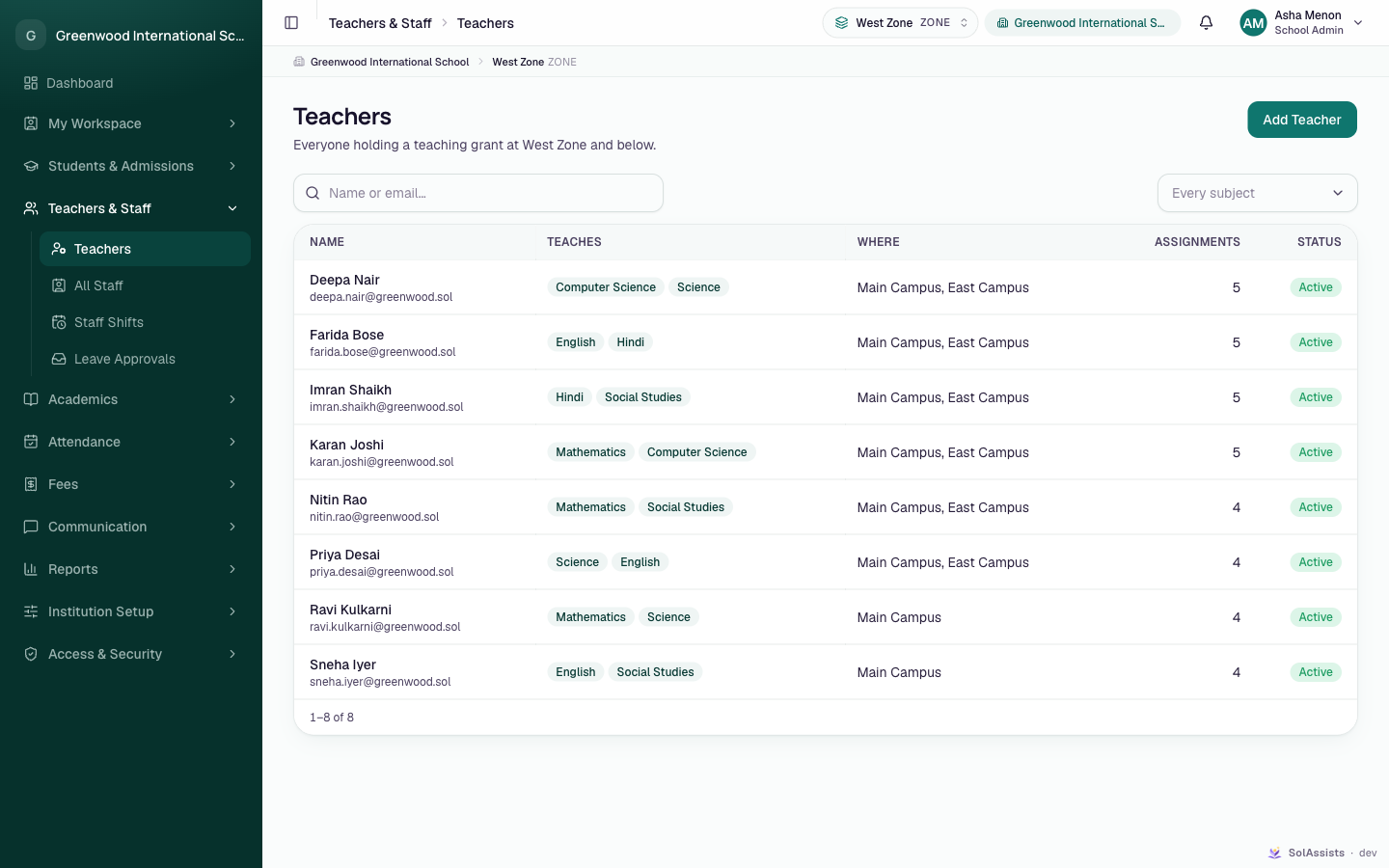
| Column | Shows |
|---|---|
| Name | Name and email |
| Teaches | Subjects from this session's assignments, or "Nothing assigned yet" |
| Where | The parts of the institution their access covers, or "—" for institution-wide |
| Assignments | How many teaching assignments they hold |
| Status | Access status |
- Search with Name or email… and filter with Every subject.
- The list follows the working scope in the top bar: "Everyone holding a teaching grant at {unit} and below."
- The Add Teacher button appears for people who can give access, assign teachers, or edit staff records.
- Rows can't be clicked. There is no teacher detail page yet.
- Only active teaching access is listed. A teacher whose access is suspended or revoked disappears from this page. To find them again, use User Accounts & Access.
If the page says No teachers yet, nobody holds active access with a teaching role in this part of the institution.
Before a teacher sees their classes
Do these in order. Each step links to the page that covers it.
- Institution structure down to divisions (for example Grade 8 → 8-A). Teaching assignments can only go on the last level. See Institution structure.
- A current academic session, for example 2026-27. See Academic sessions.
- Subjects in that session, for example Mathematics. See Subjects.
- Account and teaching access, with the invitation link given to the teacher. See Add a teacher.
- Teaching assignments: teacher × subject × division. See Teaching assignments.
- Bell schedule and timetable, so lectures appear on the teacher's schedule. See Bell schedule and Timetable.
- Students enrolled in the division, so the attendance register has names. See Add a student.
- The teacher accepts the invitation and signs in. See First login.
The full sequence with a diagram is in Teacher onboarding workflow.