Appearance
Departments and shifts
School AdminDepartments group staff by the kind of work they do (Science, Administration, Transport). Shifts set the hours a staff member is expected to work, so attendance judges a 6 a.m. cleaner or a night guard against their own hours, not the school day. Both are optional.
Before you start
- Your institution subscribes to Staff.
- You can add staff records (School Admin by default). Both menu items only appear for people who can add staff.
Departments
Where to find it
Institution Setup → Departments, or the Departments button on All Staff. Page heading Departments: "What part of the institution somebody works in. Separate from the academic structure."
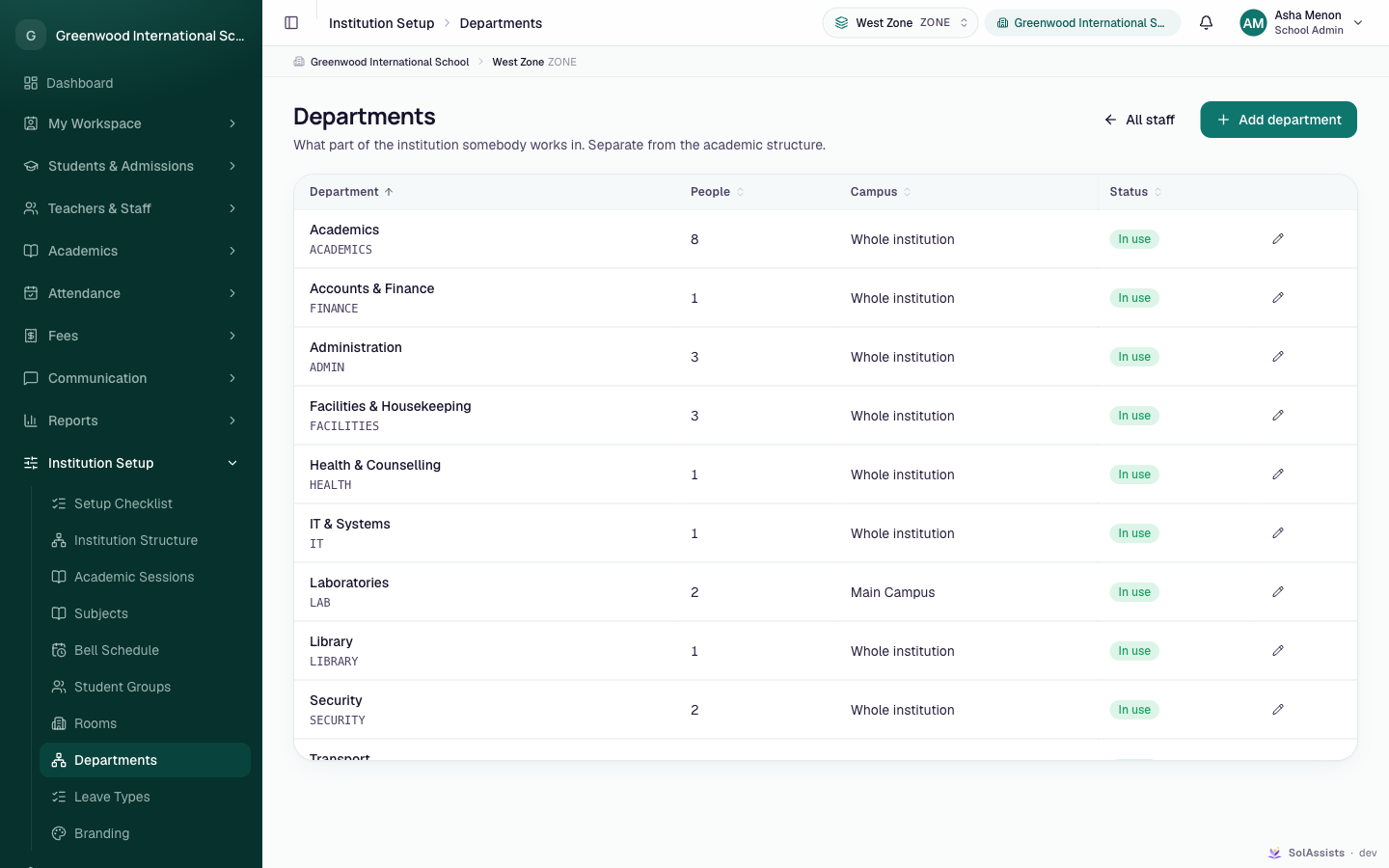
Columns: Department (with code), People, Campus ("Whole institution" when not tied to a campus), Status (In use / Retired), and an edit pencil. Retired departments stay listed because older records point to them.
Empty list: No departments yet — "Optional. Add them when an institution is big enough that 'who works in Transport' is a real question."
Add a department
- Click Add department.
- Enter Name (e.g. "Housekeeping") and Code (e.g. "HOUSEKEEPING").
- Click Add department.
| Field | Required | What to enter |
|---|---|---|
| Name | Yes | Up to 80 characters |
| Code | Yes (new only) | Capital letters, numbers, underscores (up to 40). Must be unique. Can't be changed later ("The code can't change — existing records point at it."). |
| In use | Edit only | Switch off to retire: "A retired department can't be picked for new staff. People already in it keep it." |
Institution-wide or campus departments
Partially implemented
Departments created in the app are always institution-wide ("Whole institution"), and only an admin with institution-wide access can create them. An admin whose access is limited to a campus will get an error when adding a department. The app has no field to tie a department to a campus. Campus departments (shown with a campus name in the Campus column) can only be created by SolAssists support or by data import.
Editing an existing department (name, In use) works from the pencil button.
Shifts
Where to find it
Teachers & Staff → Staff Shifts, or the Shifts button on All Staff. Page heading Shifts: "The hours staff are expected for. Attendance judges them against these instead of the school's register."
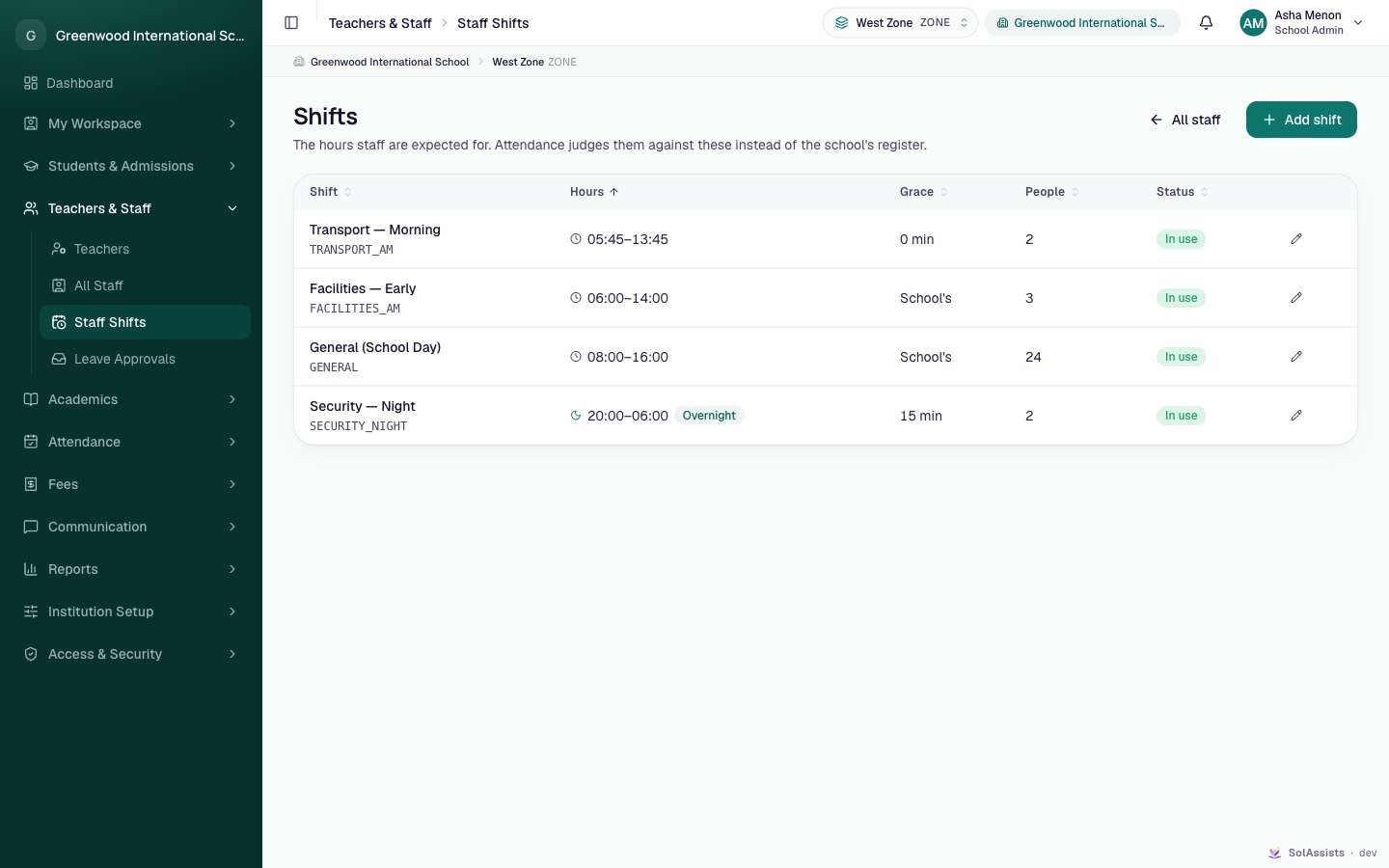
Columns: Shift (with code), Hours (with an Overnight badge when it crosses midnight), Grace ("School's" or "{n} min"), People, Status, and an edit pencil.
Empty list: No shifts yet — "Add one when somebody's hours are not the school day — a cleaner at six, a guard overnight."
Add a shift
- Click Add shift.
- Fill in the fields below.
- Click Add shift.
| Field | Required | What to enter |
|---|---|---|
| Name | Yes | e.g. "Night security" (up to 80 characters) |
| Code | Yes (new only) | e.g. "NIGHT". Capital letters, numbers, underscores. Unique; can't be changed later. |
| Starts | Yes | 24-hour time, e.g. 22:00 |
| Ends | Yes | 24-hour time. An end earlier than the start means the shift runs overnight; the form explains: "This runs overnight, ending at {time} the next morning…" |
| Grace | No | Minutes after the start before arrival counts as late (0–240). Leave blank to use the school's grace. "Zero is a real answer — a bus leaves on time." |
| In use | Edit only | "A retired shift can't be assigned. People already on it keep it, and past attendance still reads it." |
Assign a shift to a person
Shifts are assigned on each person's profile, not on the Shifts page:
- Teachers & Staff → All Staff, then open the person.
- In the Shift section, click Assign.
- Choose Shift, Applies on (Every working day, or e.g. Saturdays only for a shorter Saturday) and From (the first day it applies).
- Click Assign.
The new shift applies from that date. The earlier one is marked Ended and still used for past days. You can't end an assignment without replacing it, and you can't delete one. People with no shift are judged against the school's own attendance register, which is right for teachers.
See Staff records for the profile layout, and Attendance for how punches are judged.
Who can do this
- See and add departments and shifts: people who can view and add staff (School Admin).
- Edit (pencil): people who can edit staff.
- Assign a shift on a profile: people who can edit staff.
Common problems
| Symptom | Why | Fix |
|---|---|---|
| Departments / Staff Shifts missing from the menu | You can't add staff, or the institution doesn't subscribe to Staff | Ask a School Admin |
| Error when adding a department as a campus admin | Departments from the app are institution-wide; only institution-wide admins may create them | Ask an institution-wide admin |
| Department not offered in Add Staff | It's retired | Edit it and switch In use back on |
| Assign on a profile is disabled | No shifts exist | Add a shift first |
| Duplicate code error | Code already used | Choose another code |