Appearance
Bell schedule
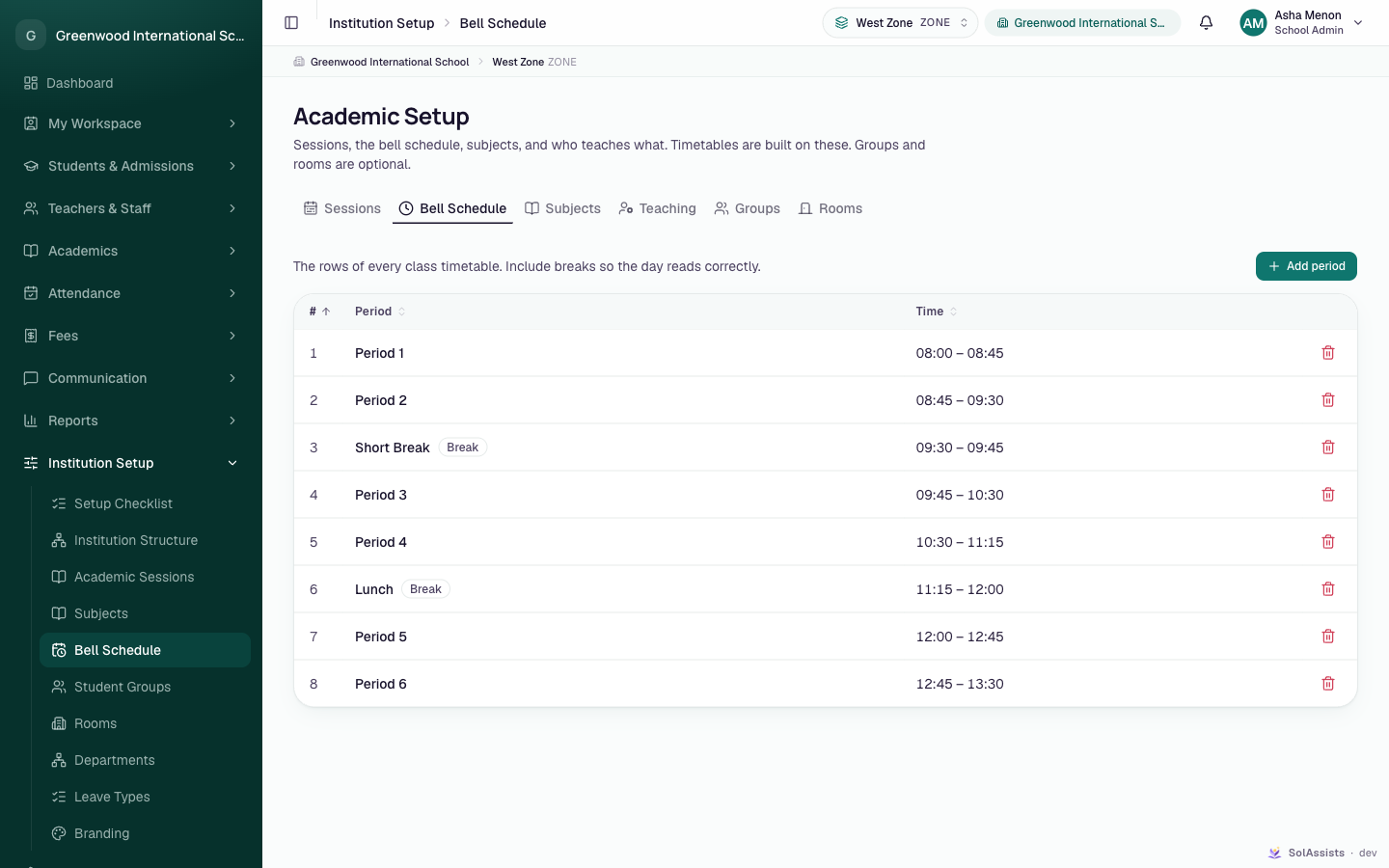
School AdminThe bell schedule is your institution's list of periods, from first period to last, including breaks. Each period becomes a row on every class timetable.
Before you start
- Nothing else has to exist first. The bell schedule doesn't belong to an academic session, so you can set it up any time.
- To change it you need the office-level timetable permission. The School Admin role has it by default.
Where to find it
Institution Setup → Bell Schedule. The page heading is Academic Setup, with the Bell Schedule tab selected.
Step by step
Add the periods in the order they happen in the day, breaks included.
- Click Add period. The dialog Add a period opens.
- Type the Name, for example
Period 1,Short BreakorLunch. - Set Starts and Ends.
- Check Order. It is filled in for you as the next number.
- For a break, lunch or assembly, untick Lectures can be scheduled in this period.
- Click Add period. You see "Period 1 added to the bell schedule."
Repeat for every period in the day.
Fields
| Field | Required | What to enter |
|---|---|---|
| Name | Yes | Up to 40 characters. Each name can be used only once. |
| Starts | Yes | Start time, 24-hour clock. Default 09:00. |
| Ends | Yes | End time. It must be after the start; otherwise the box shows "Must be after the start" and you can't save. |
| Order | No | Where the period appears in the day. Lower numbers come first. |
| Lectures can be scheduled in this period | — | Ticked for teaching periods. Untick it for break, lunch or assembly. The period still shows on the timetable, but nothing can be booked in it. |
Teaching periods and breaks
- A period with the tick removed shows a Break badge in the table. On the timetable its row is shaded, and nothing can be added to it or dragged into it.
- If someone tries to schedule into a break, they see "Nothing can be scheduled in a break period."
- One-off lectures can only use teaching periods.
Overlapping times
If a new period's times overlap an existing one, the dialog warns: "This runs into … A clash is only detected within one period, so the same teacher can be booked into both of these at once."
This is a warning only; you can still save. Clash checking works period by period, not by clock time. So avoid overlapping periods unless you really mean two things to run at once.
What happens next
- Every division's timetable uses these rows, on every day of the week.
- There is only one bell schedule for the whole institution. You can't have different timings per day, per campus or per standard.
- It carries over unchanged when you start a new academic session.
Changing or deleting a period
- Periods can't be edited. To change a name or time, delete the period and add it again. You can only delete a period that isn't on any timetable.
- Order is fixed once saved. Choose it carefully when adding.
- To delete, click the bin icon on the row. The confirmation Delete Period 1? says "Only possible if no timetable slot uses it. Otherwise the server will refuse and nothing changes." Click Delete period.
- If lectures still use the period, the delete is refused with a message saying how many timetable slots use it. Remove or move those lectures on the Class timetable first.
WARNING
Deleting a period also removes any one-off changes recorded for it, such as cancellations, cover arrangements and one-off lectures on past or future dates.
Who can do this
- School Admin: can add and delete periods.
- Others who can open the tab see the list, but Add period is greyed out. Hovering over it shows "You need permission to change the bell schedule."
Common problems
| Symptom | Why | Fix |
|---|---|---|
| The timetable says "No bell schedule yet" | No periods have been added. | Add periods here. The timetable's Set up the bell schedule button brings you to this tab. |
| Add period stays greyed out in the dialog | Name is empty, or Ends isn't after Starts. | Fill the name and fix the times. |
| "A record with this value already exists" | Another period already has that name. | Use a different name. |
| Delete refused: timetable slots still use this period | Lectures are scheduled in it. | Remove or move those lectures first. |
| The one-off lecture Period list is missing a period | That period is marked as a break. | Nothing to fix; breaks can't hold lectures. |
| A teacher is booked in two places at the same time | Two periods overlap in time, and clashes are only checked within one period. | Delete one overlapping period (once it is unused) and re-add it with non-overlapping times. |