Appearance
Students overview
School Admin TeacherThis page explains what SolAssists keeps about each student, the ways to add students, and how to read the student list.
A student record and a placement are two separate things
SolAssists stores two kinds of information about a student:
| Student record | Placement (enrolment) | |
|---|---|---|
| What it is | The child: name, admission number, date of birth, parents' names, identifiers such as APAAR and Aadhaar, address | Where the child sits in one academic session: a division (for example Grade 8 / 8-A) and a roll number |
| How many | One per child, kept permanently | At most one per academic session |
| Created by | Add student, a bulk import or admitting an applicant | The Enrol step, a bulk import that includes a division code, or admitting an applicant |
| Deleted? | Never. Nothing in the app deletes a student. | Never. Withdrawing a student closes the placement but keeps it. |
A student record on its own puts the child on no register, no timetable and no class list. The student list shows these students with the warning Not enrolled this year. Attendance, timetables, exams and fees all use the placement, so a student is fully set up only after they are placed in a division.
Example
Rohan Mehta (admission no. DPS-2026-001) is added once. He is then placed in 8-A for the 2026-27 session. Next year he gets a new placement, say 9-A for 2027-28. The 2026-27 placement stays, so his Grade 8 attendance and results remain attached to 8-A.
Three ways to add students
| Way | Best for | Where | Places the student in a division? |
|---|---|---|---|
| Add one student | A late joiner or a correction | Students & Admissions → Students → Add student | Yes. The Enrol dialog opens right after the record is saved. See Add a student. |
| Bulk import | A whole class or school from a spreadsheet | Students & Admissions → Bulk Student Import | Yes, when a row has a Division Code and a session is current. See Bulk import. |
| Admissions | New families who apply, go through a decision and are then admitted | Students & Admissions → Admissions | Yes. Enrol this applicant creates the student, the placement and a guardian record together. See Admissions. |
What must exist first
Set these up in this order:
- The Students module is switched on for your institution, and your role can add students. Without this the Students item is missing from the sidebar, or Add student is greyed out with the tooltip "You don't have permission to add students."
- Divisions in the institution structure. A student can only be placed in a unit that already exists. See Institution structure.
- A current academic session. Placements always go into the current session. Without one, enrolling fails with "This institution has no current academic session yet." See Academic sessions.
- Your working scope in the top bar. The student list, the division pickers and imports only cover the unit selected in the top bar and everything under it.
The student list
Students & Admissions → Students opens the page headed Students.
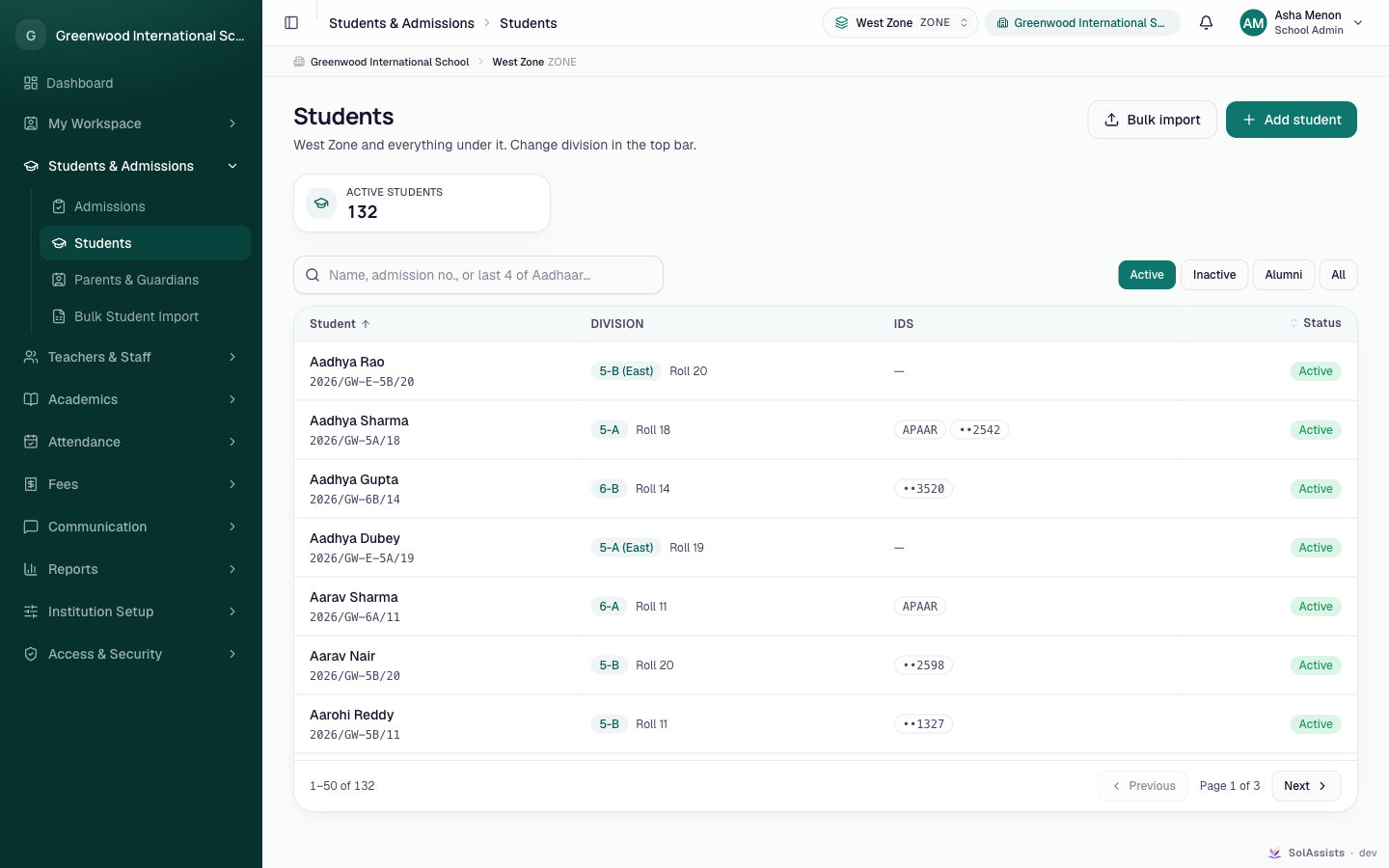
Description line: "{unit} and everything under it. Change division in the top bar." When no unit is selected it reads "Everyone you have access to."
Buttons: Bulk import (opens Bulk Student Import) and Add student. Both need permission to add students.
Count card: Active students when the Active filter is on, otherwise Students. With All selected, the hint reads "Including leavers".
Search: "Name, admission no., or last 4 of Aadhaar…"
Status filters:
Filter Shows Active (default) Students whose status is Active Inactive Students marked Inactive Alumni Students marked Alumni All Everyone, including leavers Columns:
- Student: name, with the admission number underneath
- Division: the placement for the current session plus "Roll N", or Not enrolled this year
- IDs: an APAAR badge and the last four Aadhaar digits (for example ••1234), or "—"
- Status
Click a row to open the student profile.
Empty list messages:
| You see | Meaning |
|---|---|
| Nobody matches that / "Try a different name or admission number." | Your search found nothing. |
| Nobody active here / "Everyone here may have left — try Alumni, or All." | No Active students in the selected unit. Check the top-bar unit. |
| No students here yet / "Add students one at a time, or bring a whole class in from a spreadsheet." | No students with this status yet. The button Add the first student appears if you may add students. |
Partially implemented
The Inactive and Alumni filters work, but no screen can set a student to Inactive or Alumni. Withdrawing a student does not change their status either, so withdrawn students stay under Active with their division shown. See Placement and promotion.
Who can see and do what
| Role | Student list | Add, import, enrol, transfer, promote, withdraw |
|---|---|---|
| School Admin | Every student in the institution (narrowed by the top-bar unit) | Yes |
| Teacher | Only students placed in divisions the teacher is assigned to teach in the current session. With no teaching assignments a teacher sees no students. | No |
| Student, Parent | No student list. They see their own or their children's information in their own pages. | No |
Custom roles depend on the permissions your administrator gives them. See Roles and permissions.